
Support
How to open a ticket on the portal, keep track of it, send the Smart Safe Client's logs to support and give support remote access with RustDesk.
To ask for help, open a ticket on the smartsafeclient.com portal. Then, from the Smart Safe Client itself, attach the logs to the ticket: that way support sees what happened on the computer. The conversation with support continues on the portal.
Before opening a ticket, check Troubleshooting and the page for what you were doing: many answers are already in this documentation.
1. Sign in to the portal
In the browser of any computer or phone with internet access, open the portal: smartsafeclient.com/portal
Type your E-mail and your Password and tap Sign in.
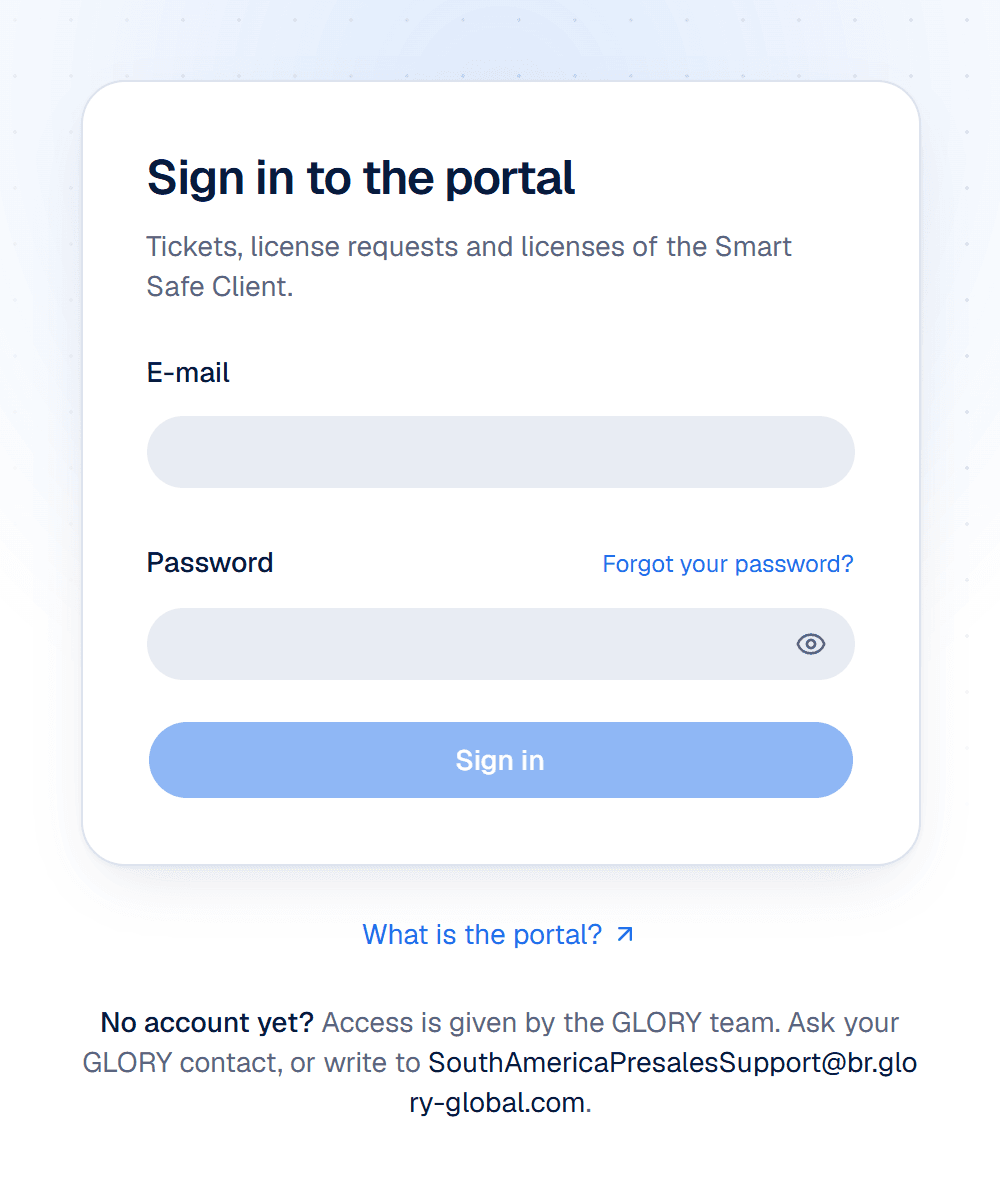
First time on the portal?
The GLORY team creates the account. You get an e-mail with a link to create your password: it is valid for 7 days and can be used only once. The password needs at least 10 characters, with letters and numbers.
Don't have an account? Ask your GLORY contact for one or write to SouthAmericaPresalesSupport@br.glory-global.com
Forgot your password?
On the sign-in page, tap Forgot your password?, type your e-mail and open the link you receive. The link is valid for 60 minutes. If you don't see the e-mail, also check the junk mail folder.
2. Open the ticket
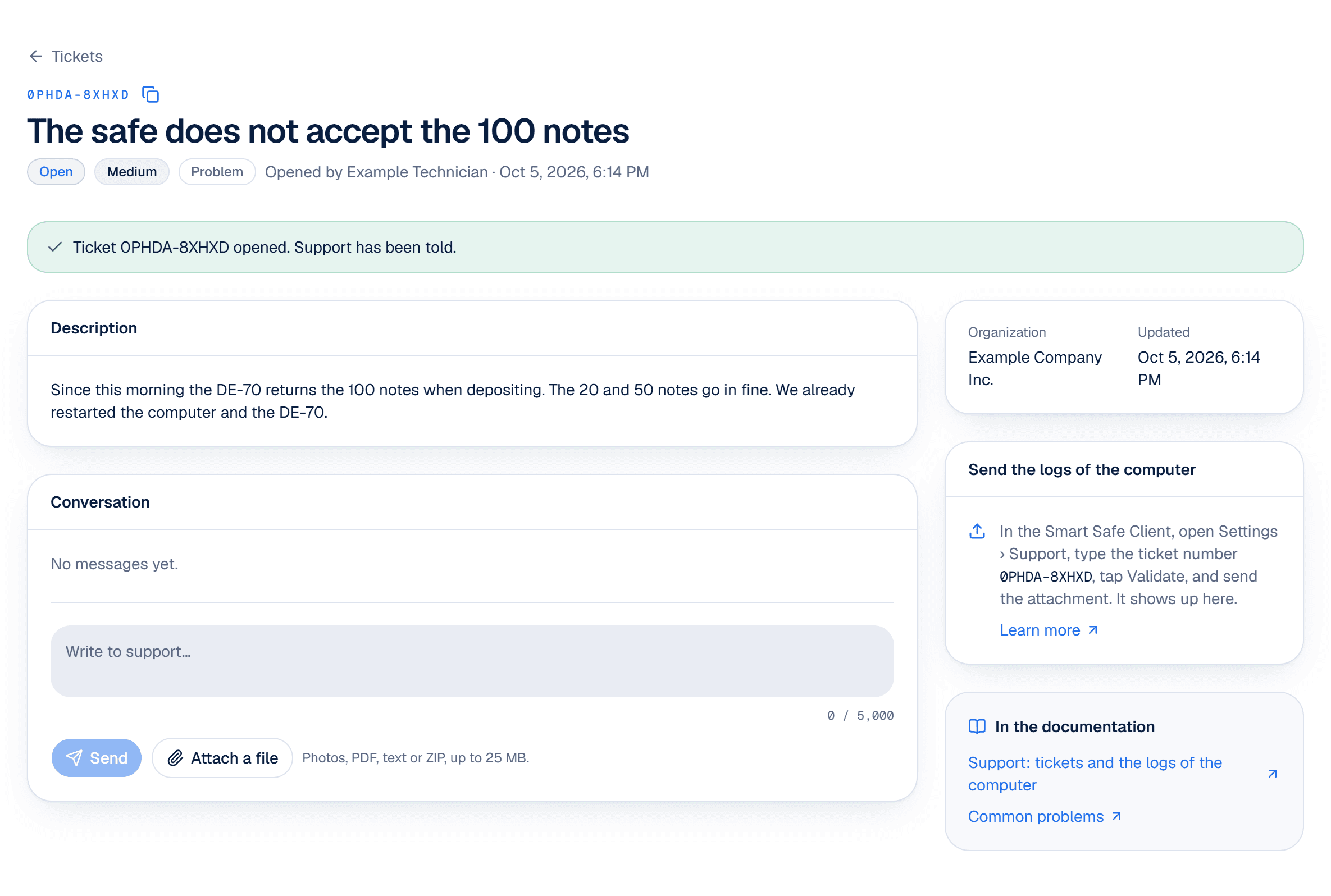
Go to Open a ticket on the portal (or tap Tickets and then Open a ticket).
Choose the Type: Problem (something does not work as it should) or Suggestion (something the Smart Safe Client could do).
Write a short Title and, in Description, tell what happened, when, on which computer and what was done.
If you work for more than one company, choose the Organization. You do not choose the priority: support sets it when handling the ticket.
If you have them at hand, fill in the Hardware Fingerprint (in the Smart Safe Client: Settings › License, Copy button) and the Smart Safe Client version (Settings › Version). They help support find the computer.
Tap Open ticket. The ticket number appears, in the format XXXXX-XXXXX, and support is notified.
3. Attach the logs from the Smart Safe Client
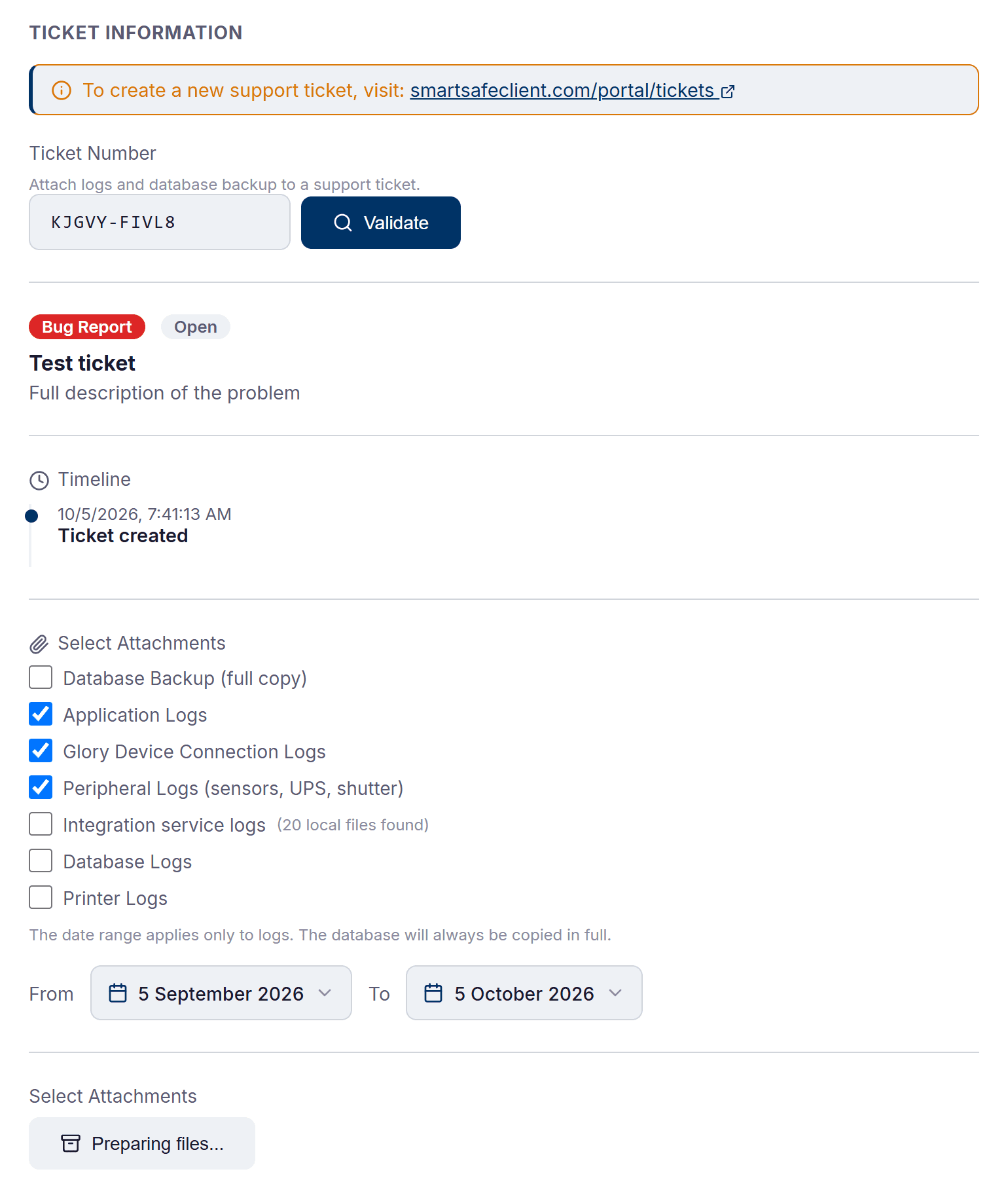
Open Settings › Support.
In Ticket Information, type the Ticket Number and tap Validate. The ticket's status and history appear.
In Select Attachments, leave checked whatever comes checked. If support asks, check other logs too. Which ones to add for each kind of problem, and which days to choose, is in Which logs to send
In From and To, choose the days of the problem (by default, the last 30 days).
Prepare the attachment. When Attachment ready appears, upload it to the ticket. On the portal it shows as Sent by the Smart Safe Client.
No internet on the computer
Tap Save to Local Disk (or save it to a USB drive). From a computer with internet access, open the ticket in Tickets and tap Attach a file (up to 25 MB), or send the file to support by e-mail.
Up to 50 MB
If the attachment is over 50 MB, choose fewer days in From and To.
4. Keep track of the ticket
In Tickets you can see your tickets and your company's. Tap one to see the Conversation: attached photos show right there.
- When support replies, you get an e-mail and the reply appears on the portal. You also see it in the Smart Safe Client, in Settings › Support, with the ticket number.
- To reply, type in the conversation box and tap Send.
- To add photos of the screen or of the machine, tap Attach a file: photos, PDF, text or ZIP, up to 25 MB.
| Status | What it means |
|---|---|
| Open | Received: waiting for support to handle it. |
| In progress | Support is working on the ticket. |
| Waiting for information | Support needs an answer from you: reply in the conversation. |
| Resolved | Support marked it as resolved. |
| Closed | Finished. It accepts no more messages. |
| Rejected | Support will not continue with the ticket. It accepts no more messages. |
If you reply to a ticket that is Waiting for information or Resolved, it goes back to Open and support is notified. A Closed or Rejected ticket accepts no more messages: if the problem continues, open a new one.
The computer's logs
For security, only the support team can download the logs the Smart Safe Client sends. On the portal you can see that they arrived, with their size and date.
Remote access (RustDesk)
RustDesk is the remote access program GLORY support uses. With it, support sees the Smart Safe Client's screen and controls it from their own computer, as if they were standing in front of the machine. The connection goes through GLORY's server.
You manage it in Settings › Support, under Remote Access (RustDesk). This part is visible to the profiles with the Support permission: by default, Administrator, Manager and Technician.
Install it once per computer
Open Settings › Support. If RustDesk is not installed appears, wait until Latest version: appears with a number: the Smart Safe Client looks on the internet for the newest version.
Tap Install RustDesk. A bar shows each step: download, installation, service start, and server and password setup. It takes a few minutes, and the Smart Safe Client does not let you switch screens in the meantime.
When it finishes, RustDesk installed successfully appears and the screen shows the status, the ID and the password.
RustDesk stays installed as a service on the computer: it works even when the Smart Safe Client is closed, and it comes back on its own after the computer restarts. You do not need to install it again.
If it says “Couldn't detect the latest version”
The computer cannot reach the internet, or the customer's network blocks github.com, where RustDesk is downloaded from. Check the connection and tap Try again.
What the screen shows
| On the screen | What it is |
|---|---|
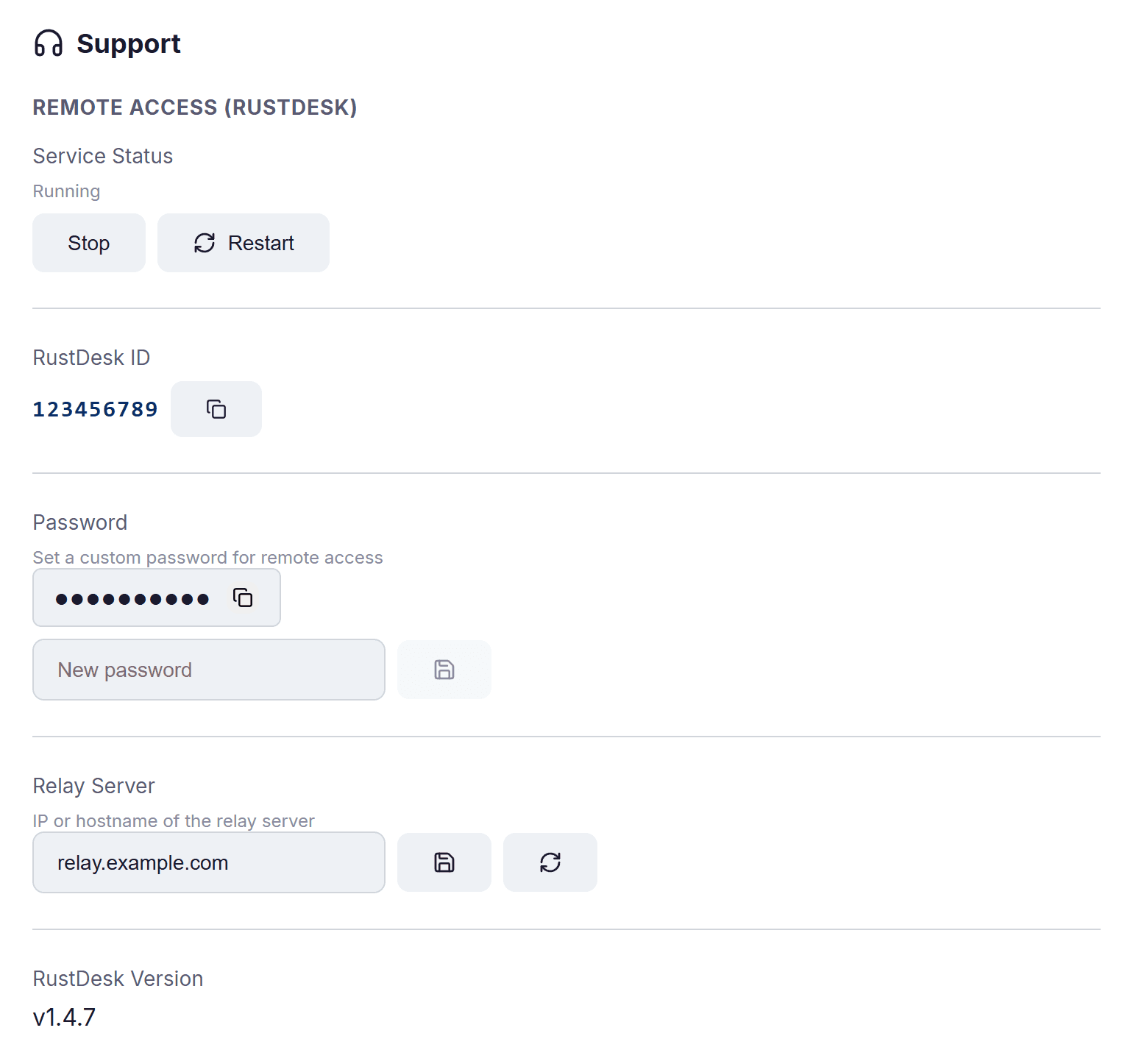
| Service Status | Running: support can connect. Stopped: nobody can connect. |
| Start / Stop | Stop cuts off remote access until you tap Start. |
| Restart | Turns RustDesk off and on again. Use it if support cannot connect. |
| RustDesk ID | This computer's number for remote access. The button next to it copies it. It only appears when the status is Running. |
| Password | The password support needs to get in. The button next to it copies it. To change it, type the new one in New password and tap the save button. |
| Relay Server | The GLORY server the connection goes through. It comes already configured: do not change it unless support asks you to. The arrows button sets it back to the factory default. |
| RustDesk Version | The installed version. |
When support needs it
Check that Service Status says Running. If it says Stopped, tap Start.
Give GLORY support the RustDesk ID and the Password (use the copy buttons). Give them only to GLORY support, in the ticket conversation.
Support connects from their computer. While they work, do not turn off the computer or close the Smart Safe Client.
When support is done, they close the connection. If you want nobody to be able to connect until next time, tap Stop.
The password is the key to the computer
With the ID and the password, anyone can control the computer remotely. Do not write them on notes stuck to the machine or send them through messaging groups. If you think someone else knows them, change the password in New password and give the new one to support.
If support cannot connect
| What happens | What to do |
|---|---|
| Service Status says Stopped. | Tap Start. |
| It says Running, but support cannot connect. | Tap Restart and check that the computer has internet access. The customer's network must let the computer out through ports 21115 to 21119 (TCP and UDP): if there is a firewall, ask the customer's IT department to allow this. |
| The RustDesk ID shows as —. | Tap Restart and wait a few seconds. |
| On Linux, the system asks for a password when you tap a button. | It is the password of the computer's user: RustDesk needs administrator permission. With kiosk mode it does not ask for it. |
| An error message in English appears, for example “Failed to start service”. | Tap Restart. If it keeps happening, open a ticket with the exact message. |