
6. Integrations
How the Smart Safe Client sends each operation to the cash-in-transit company, by e-mail or to another system.
An integration is a destination the Smart Safe Client sends the operations to: a cash-in-transit company, an e-mail, an external system. Each operation is sent automatically, and if the destination does not answer, it is retried until the destination accepts it.
Integrations are set up in Settings › Integrations, on three tabs: Service, Integrations and Deliveries.
Available destinations
E-mail (SMTP)
A notice of each operation by e-mail.
Brinks NCWP
The operations go to the Brinks system.
1. Enable the service
The deliveries are made by the integration service, which is installed together with the Smart Safe Client.
In Settings › Integrations › Service, under Mode, choose Managed by this application. The Smart Safe Client starts the service and keeps it running.
Tap Register. The computer must have an active license.
The State must show Up.
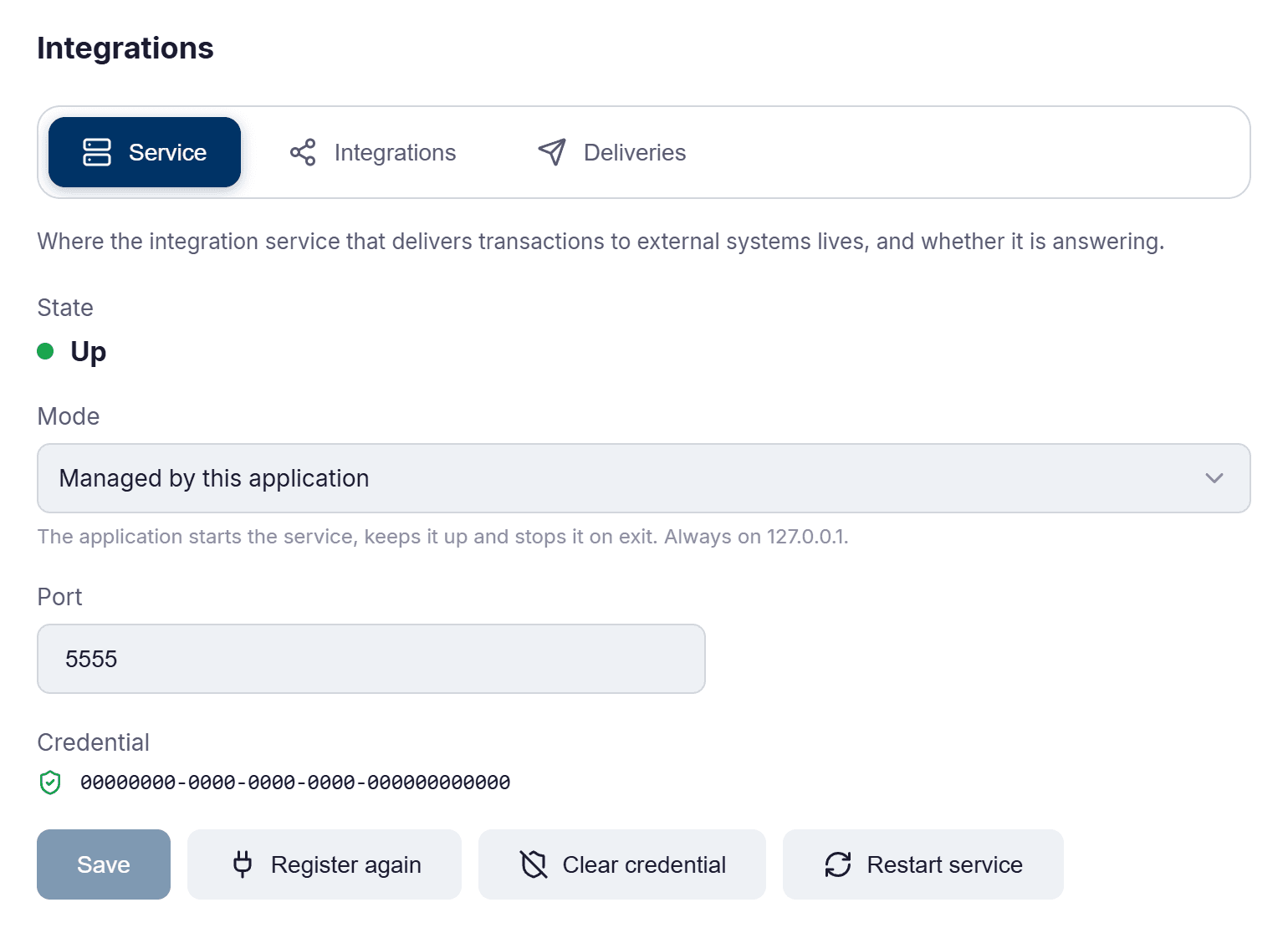
2. Create the integration
On the Integrations tab, tap New integration and, in Choose the destination, choose the destination.
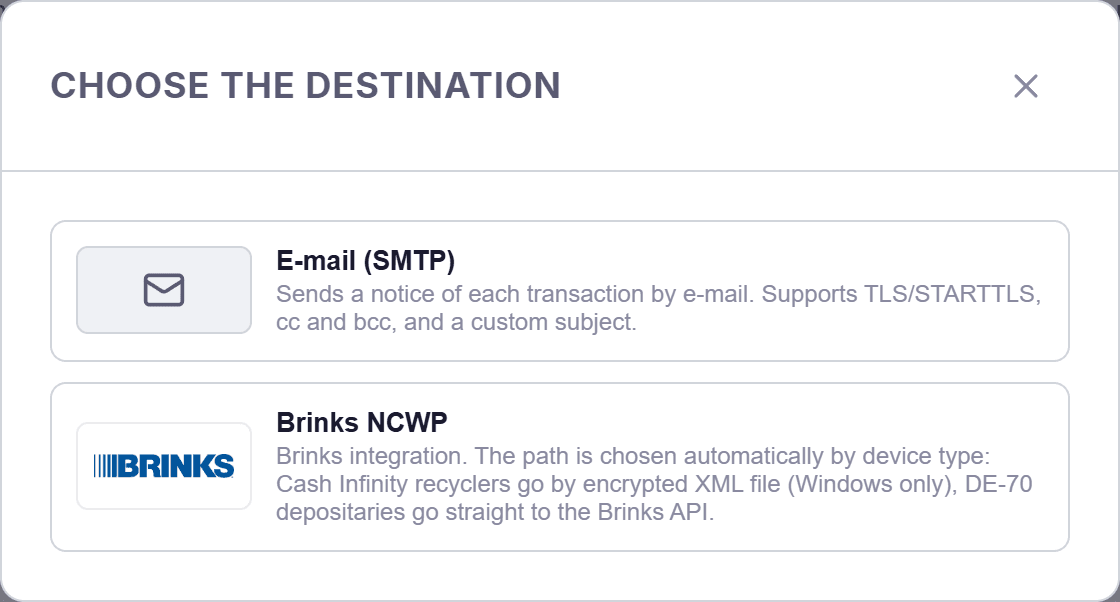
Type a Name: this is how the integration appears on the screens and in the reports.
Fill in the destination settings (see the page for each destination).
In Restrictions, choose what this integration sends:
- Devices: which safes, and which currencies of each one.
- Transaction types: for example, only deposits and collections.
With nothing ticked, everything is sent.
Save and tap Test. The result tells you whether the destination accepted the configuration.
Operations that were already recorded
What already went to an integration is not sent again when you change its restrictions. But when you create or save an integration, it also receives the operations of the last 7 days that went to no integration at all, if they fit its restrictions. So check that everything is right before you tap Save.
3. Check the deliveries
On the Deliveries tab, tap View list to see each operation, where it was sent and what happened:
| Status | What it means |
|---|---|
| Delivered | The destination accepted it. |
| Waiting | It has not been sent yet. |
| Retrying | The destination did not answer; it will be sent again automatically. |
| Refused | The destination refused it. Correct the configuration and tap Send again. |
| Not applicable | No integration was meant to receive it, because of their restrictions. |
When you open a delivery, What was sent and what came back shows the request and the destination's answer: useful for support.
Next step
- Set up each destination the customer uses, on its own page: see Available destinations
- With the integrations ready: 7. Operation