
7. Operation
What is the same on every device: signing in, the home screen, the bar at the top, the questions before an operation and the end of it.
This page shows what is the same on every device. How each device works, and its operations one by one, are on its own page:
DE-70
Deposit with the escrow, manual deposit, collection, inventory, maintenance and note counting.
Cash Infinity
Deposit, withdrawal, payment, change, replenishment, transfer, emptying, collection, inventory and maintenance.
Sign in
On the login screen, type your Username and your Password and tap Sign In.
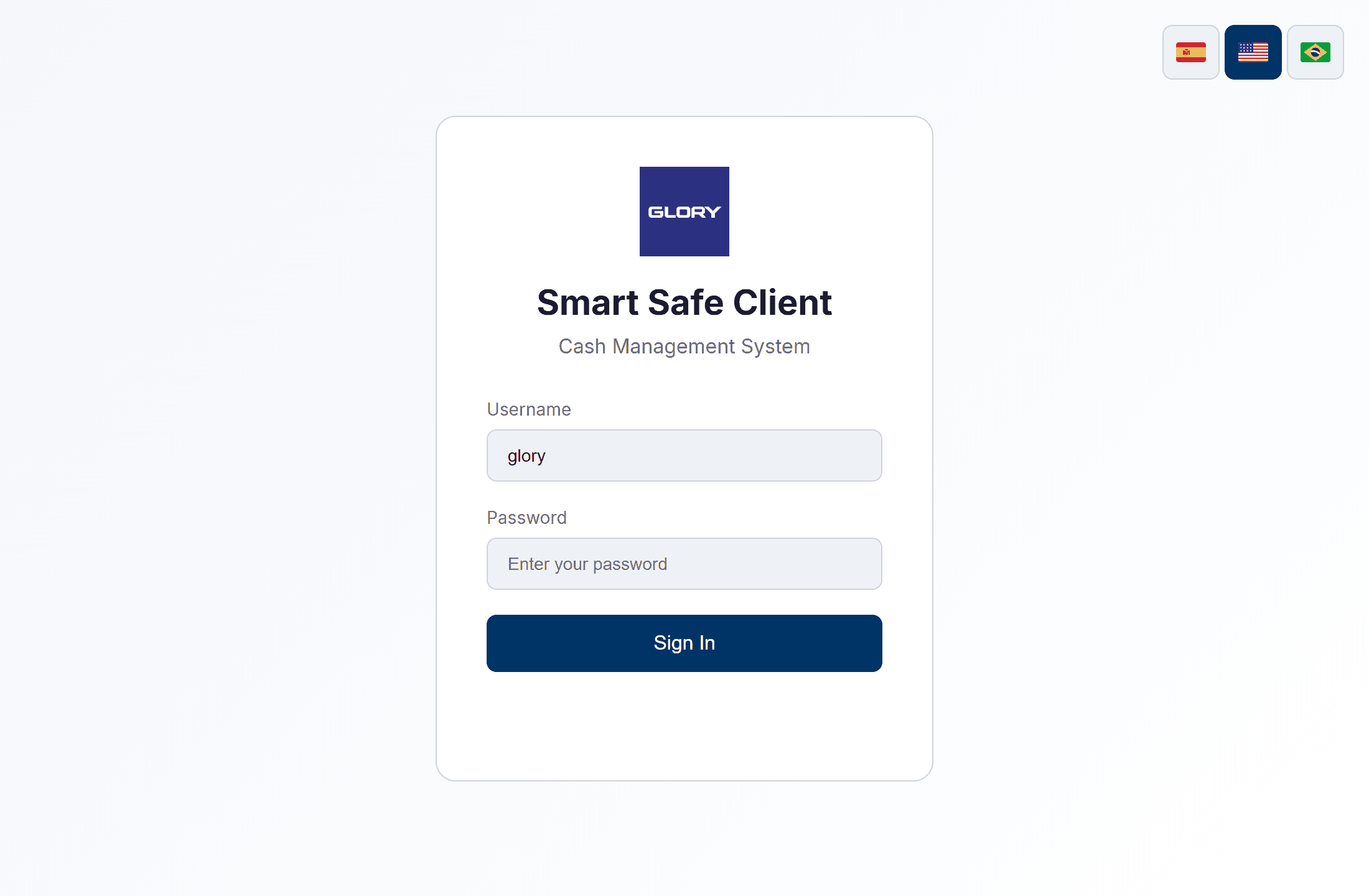
- If the user works in more than one account, Select the account appears: tap the account you are going to work in. With only one account, you go straight in.
- If the password expired or no longer follows the rules, the screen offers Set a new password. See Users
The home screen
The home screen shows the operations your profile allows, as large buttons. What your profile does not allow does not appear.
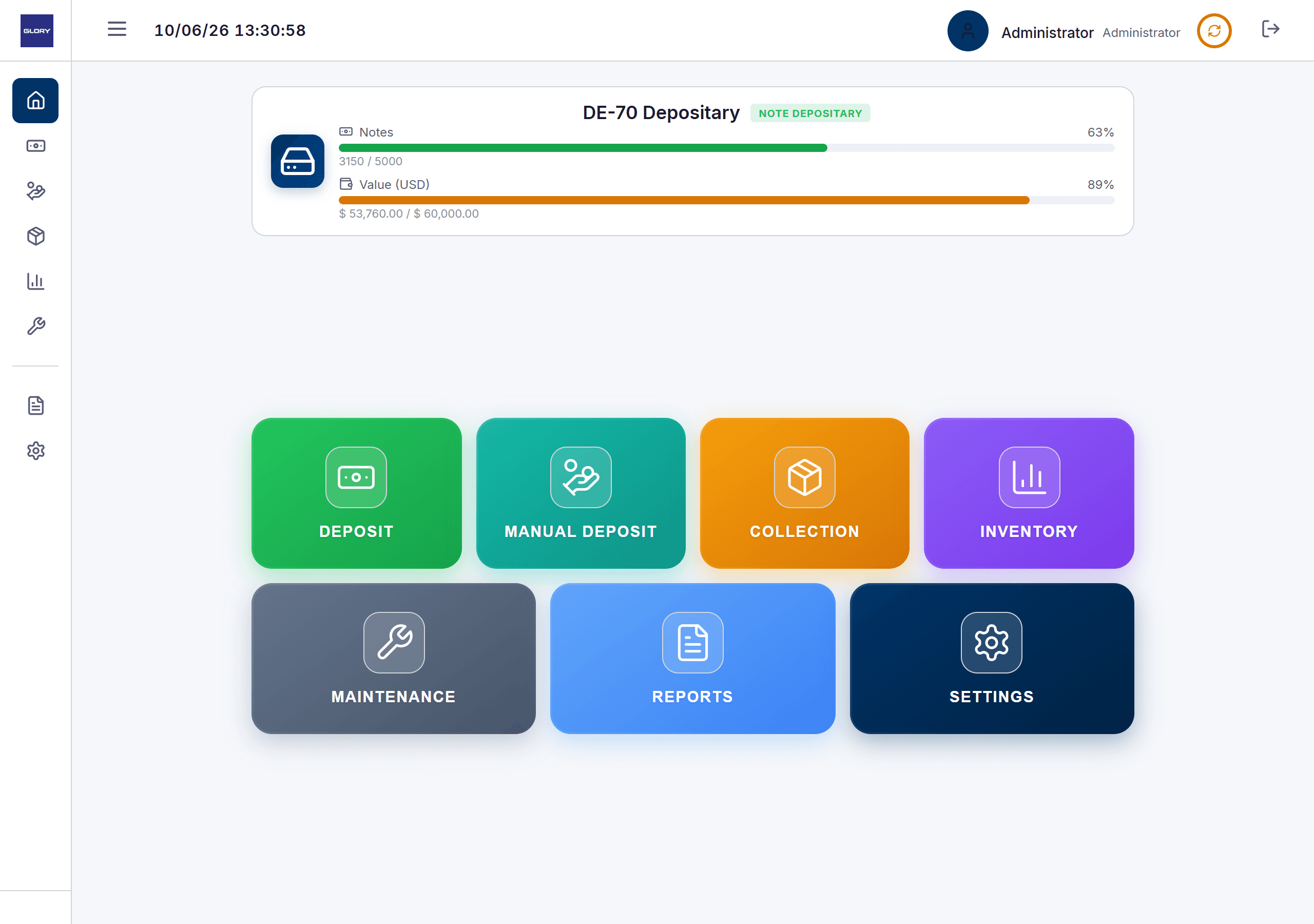
- Several devices: a tab for each one appears at the top. Tap the tab of the device you are going to use.
- Above the buttons: the device's model and type. If the device is held for reconciliation, a Needs reconciliation sign appears: tap it (see Reconciliation)
- Occupancy: how full the device is compared with the limits set for it. Only profiles with the Transactions permission see it.
- More than nine buttons: they are split into pages. Change page with the arrows, the dots or by swiping.
The ☰ button at the top opens the same operations as a menu, with Reports and Settings.
The bar at the top
| On the left | On the right |
|---|---|
The ☰ menu, the date and time, and the account you signed in to: its flag, name, currency and time zone (for example UTC-05:00). | Your name and profile, the logout countdown (if Auto-logout on Inactivity is on), the update sign and Logout. |
If the time zone shows in amber
The computer's time zone does not match the account's country. Correct the computer's time zone: the operations are recorded with the computer's time.
Before an operation
Two questions may come before the operation screen:
- Transaction identification, if the customer set up fields to fill in (a sale number, a bag number…). Fill them in and tap Continue. See Identifications
- Select currency, if the device works in more than one currency: tap the currency of this operation.
During an operation
While the device is working, the Smart Safe Client does not let you change screens or log out: "A critical operation is in progress — you can't switch screens right now". Finish or cancel the operation on its own screen.
During an operation, the Smart Safe Client always fills the whole screen, and the logout countdown stops.
When you finish
At the end of each operation, the result appears with its reference, for example DEPO-7K2M-Q9XA. Tap OK, or wait: the window closes on its own after a few seconds (12, unless set otherwise in General)
Then the Smart Safe Client goes back to the login screen, so the next person signs in with their own user. If Log out after each operation is off, it goes back to the home screen.
If a printer is set up, the receipt prints on its own. If it did not print, the result says so. See Receipts
If an operation is interrupted
If the device fails in the middle of an operation, the Smart Safe Client records what happened, and the device may stay held until someone with permission checks it. See Reconciliation
Next step
See the operations of your device: DE-70 or Cash Infinity