
Import and export
Copy the whole configuration from one computer to others, keep a backup of it, and load many users or profiles from a spreadsheet.
The Smart Safe Client has two tools to avoid typing the same thing on every computer:
- The configuration file (
.ss2config): the whole configuration of one computer, to load on others or to keep as a backup. - Spreadsheets (CSV or Excel): many users or profiles at once.
The configuration file
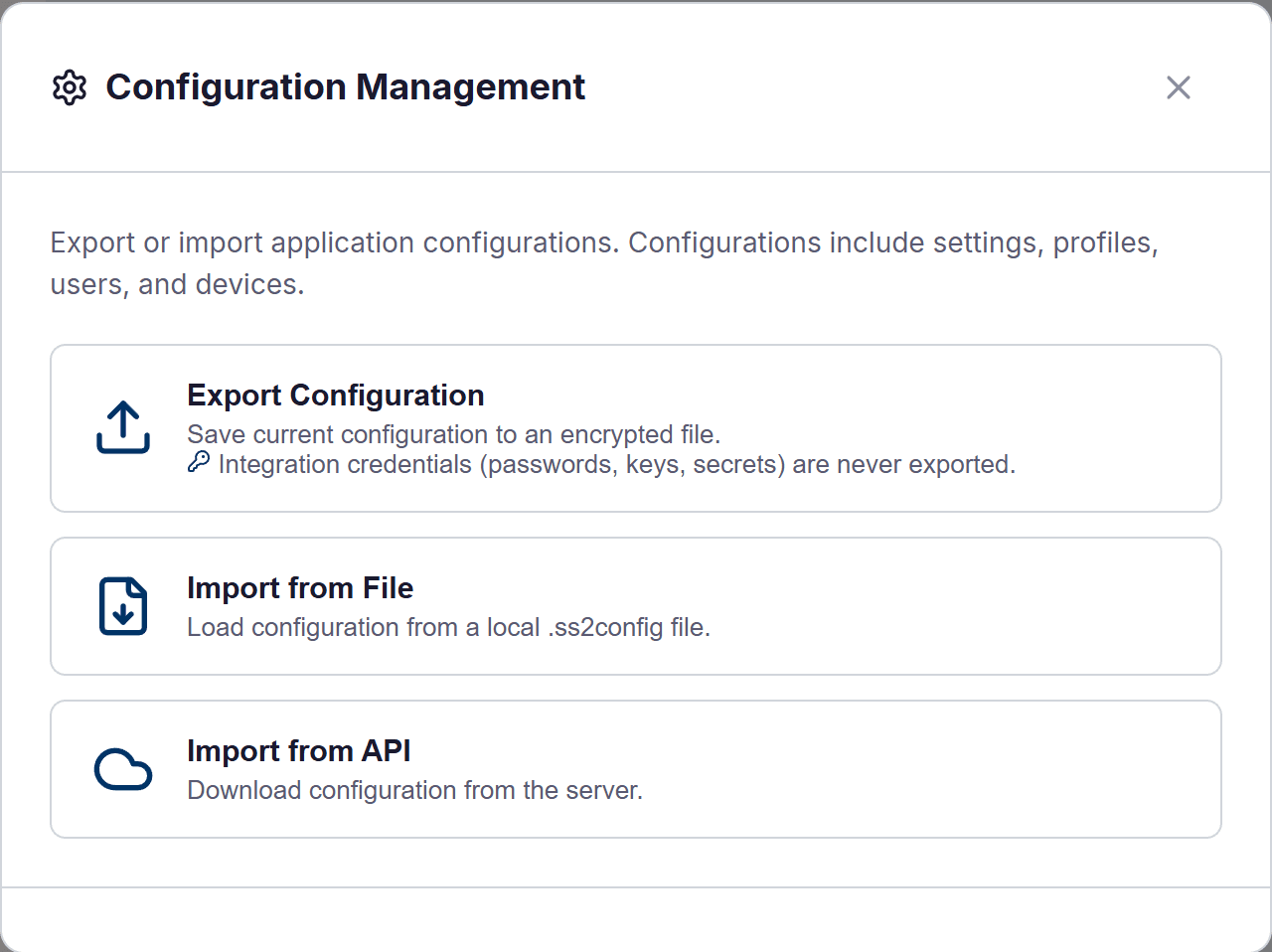
The configuration file is in Settings › General › Manage Configurations.
What goes in the file, and what does not
| Goes in the file | Does not go |
|---|---|
| The General options, the language and the printer | The operations and the reports: the money is never copied |
| The profiles, with their permissions, and the password policies | The glory user |
| The users, with their passwords | The license, and the network and Wi-Fi of the computer |
| The devices, with the Cash Infinity's secure connection (HTTPS) | The passwords of the devices, and the Cash Infinity's client certificate with its password |
| The accounts | The Code in the external system of each account |
| The limits, the identifications and the change kits | The passwords and keys of the integrations |
| The peripherals and the integrations | The theme |
The file is protected: only the Smart Safe Client can open it. Even so, it carries the users, so keep it where only the team has access.
Export
Open Settings › General, tap Manage Configurations and then Export Configuration.
Choose where to save the file (a USB drive, for example). It is called smartsafe_config_ followed by the date.
Configuration exported successfully appears. If the computer has integrations, the message says how many went without their passwords.
A backup after every installation
Export the configuration at the end of every installation, and keep the file with the customer's records. If the computer is replaced, importing it puts everything back in minutes.
Import
The import changes the configuration of this computer. Before writing anything, the Smart Safe Client makes a backup copy of its data.
Open Settings › General › Manage Configurations and tap Import from File. Choose the .ss2config file.
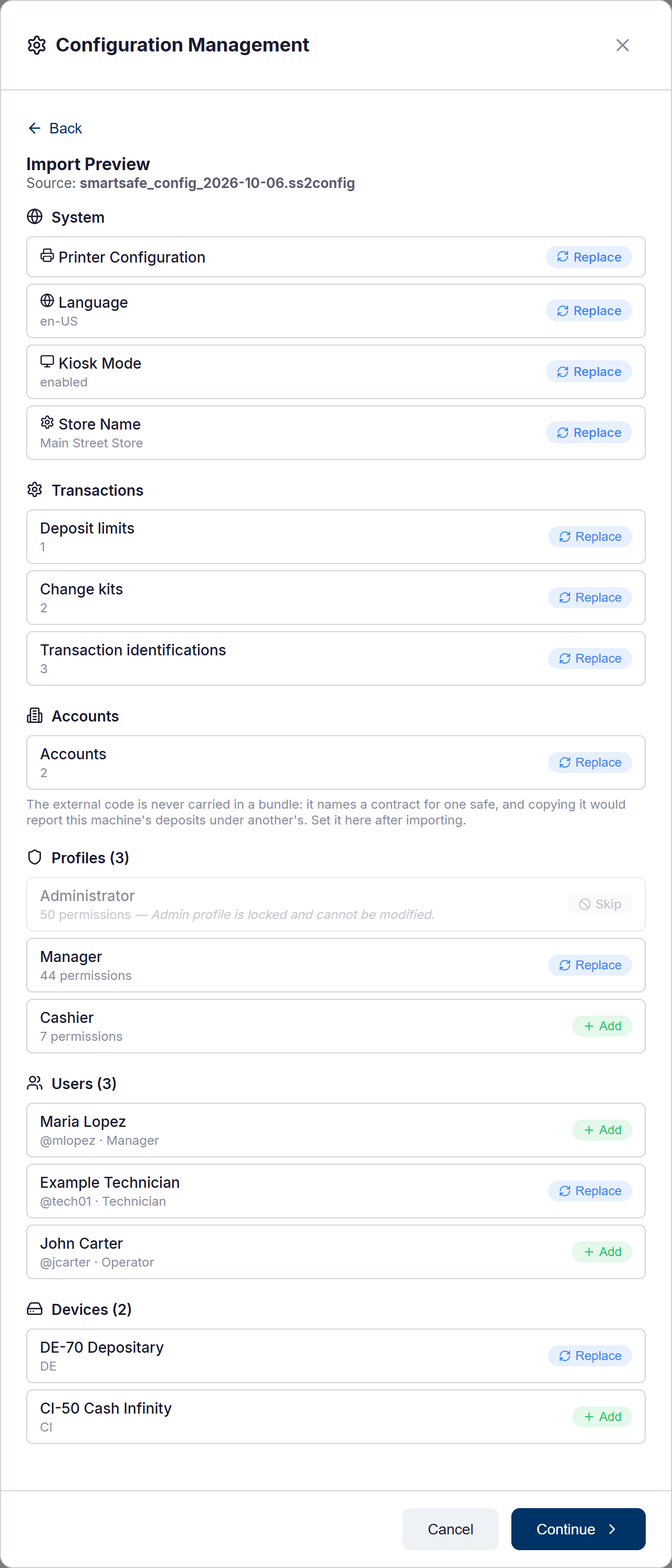
Import Preview shows everything in the file, by section, each item marked Add (new), Replace (already exists here, and will be replaced) or Skip. Tap an item to skip it.
Some items cannot be imported, and the preview says why: the Administrator profile and the glory user are never changed.
Tap Continue. Are you sure? shows how many items will be added, replaced and skipped. Tap Yes, continue.
Final Confirmation: tap Import Now.
Import Complete shows what was imported and the name of the backup copy.
After importing:
- Integrations arrive turned off and without their passwords: open each one in Settings › Integrations, type its password or key and turn it on. See Integrations
- Accounts arrive without their Code in the external system: type it in each account. See Accounts
- Devices keep the addresses of the computer they came from. Check each one in Settings › Devices and tap Test connection.
- A Cash Infinity with a client certificate arrives without it: the certificate and its password never go in the file. Import Preview marks that device with client certificate to import again, and Import Complete lists the devices that need it. Import the certificate again on this computer, in each of them, as Client certificate shows
A file made by a newer version of the Smart Safe Client is refused: update this computer first.
Import from GLORY's server
Import from API downloads a configuration that GLORY keeps on its server for the customer's organization, instead of a file. It needs the API Server Healthy and an active license
Choose the configuration in Select Environment (it shows its version, who created it and when) and tap Continue. From there, it is the same as importing a file.
If it says No environments available for this organization, there is no configuration on the server for this customer: import from a file, or open a ticket to ask GLORY for one.
Users and profiles from a spreadsheet
To create many users or profiles at once, fill in a spreadsheet and import it.
Open Settings › Users (or Settings › Profiles) and tap Import.
Tap CSV Template or Excel Template and save the template. The Excel template has a first sheet with instructions, in the language of the Smart Safe Client, and a second sheet with the data and examples.
Fill in the template: one row per user (or profile). Replace the examples.
Back in the import window, tap Select File and choose the filled-in file. The preview shows each row as Add or Replace, and every problem found.
Confirm twice. Import Complete shows what was imported and the name of the backup copy made before.
One error, and nothing is imported
If a single row breaks a rule (a password too short, a profile that does not exist, a username the Cash Infinity does not accept…), the preview lists every problem, row by row, and nothing is imported. Correct the file and import it again.
The users' columns
| Column | Required | What to write |
|---|---|---|
username | Yes | The username to sign in. Each one only once. |
display_name | Yes | The name on the screen and on the receipts. |
profile_name | Yes | The profile, by its internal name: admin, gerente (Manager), tecnico (Technician), operador (Operator), coleta (Collection), or the name of a profile you created. |
active | No | true or false. Empty: active. |
password | No | The password. It must follow the rules of the user's profile. If the column is there, every row needs one. |
accounts | No | The codes of the user's accounts, separated by ;, for example STORE-A;STORE-B. The accounts must already exist. |
A user that already exists is updated: name, profile and active. Its password only changes if the file has the password column.
Always fill in the password column
Without the password column, new users get a standard password. Fill in the column, so that each person starts with a password you know.
The profiles' columns
| Column | Required | What to write |
|---|---|---|
name | Yes | The internal name, in lowercase. |
display_name | Yes | The name on the screen. |
description | No | A description. |
page.deposit, report.transactions, settings.users… | No | One column per permission: true or false (empty = false). The template brings them all. |
device. + the device name | No | Access to that device, for example device.DE-70 Depositary. |
The Administrator profile cannot be imported. The built-in profiles can, to update their permissions.
A few permissions are only set on the screen, after importing: Payment, Replenishment, Transfer, the Transactions, Peripherals, Accounts, Change kits and Password policies tabs, Reconcile held devices, and the Withdraw, Replenishment, Collection and Account Scope groups.
Import the profiles before the users: a user can only be imported with a profile that already exists.