
Brinks NCWP
How to send the operations to the Brinks system.
With this integration, the safe's operations (deposits, collections and the rest) reach the Brinks system on their own, with no manual report. The Smart Safe Client picks the delivery path by itself, according to the type of device.
What Brinks has to give you
Before you set it up, ask Brinks for these details for this installation:
| Item | What it is |
|---|---|
| Country code | Three letters, as Brinks specifies (for example, BRA or COL). |
| Contract code | The Brinks contract with this customer (the contractCode). |
| Customer tax id | Exactly as it appears on the contract. |
| Install serial number | A code internal to Brinks, which Brinks issues per installation. Type it exactly as Brinks gives it, with the letters if it has any (for example, GL0001). |
The install serial number is not the GLORY device's
The Install serial number is a code internal to Brinks. It has nothing to do with the GLORY device: it is not the serial number of the DE-70 or of the Cash Infinity, nor of the computer. Always ask Brinks for it.
The computer goes out to Brinks's system
If the customer has a firewall, it must let the computer out to www.brinks24seven.com.br, on port 443 (HTTPS).
Set up
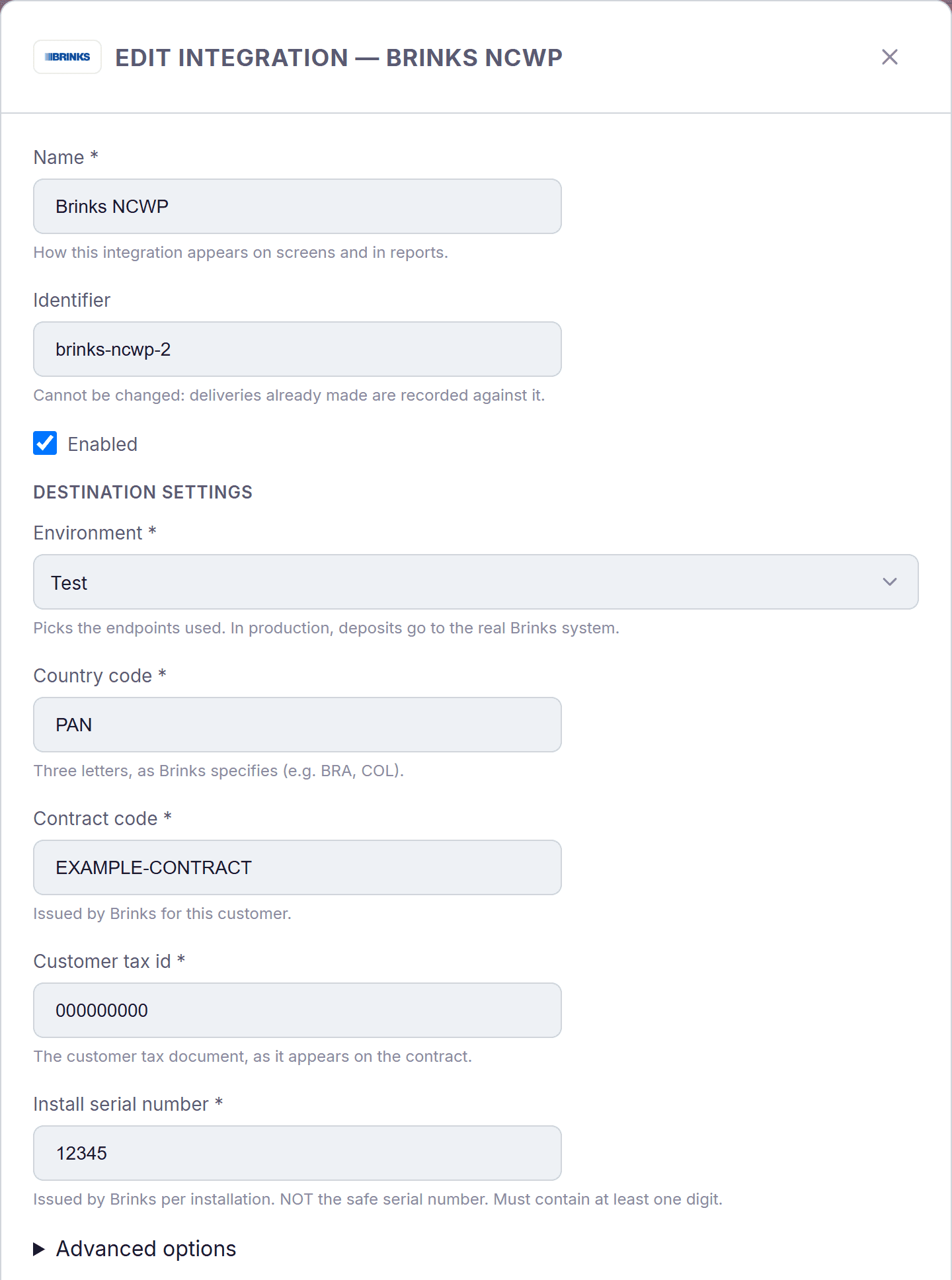
With the service enabled, in Settings › Integrations, tap New integration and choose Brinks NCWP.
Type a Name, for example “Brinks”.
In Environment, choose (it comes on Production):
- Production: deposits go to the real Brinks system. This is the option for every installation in production.
- Test: only for testing with Brinks, before going into production.
Fill in Country code, Contract code, Customer tax id and Install serial number with the details from Brinks.
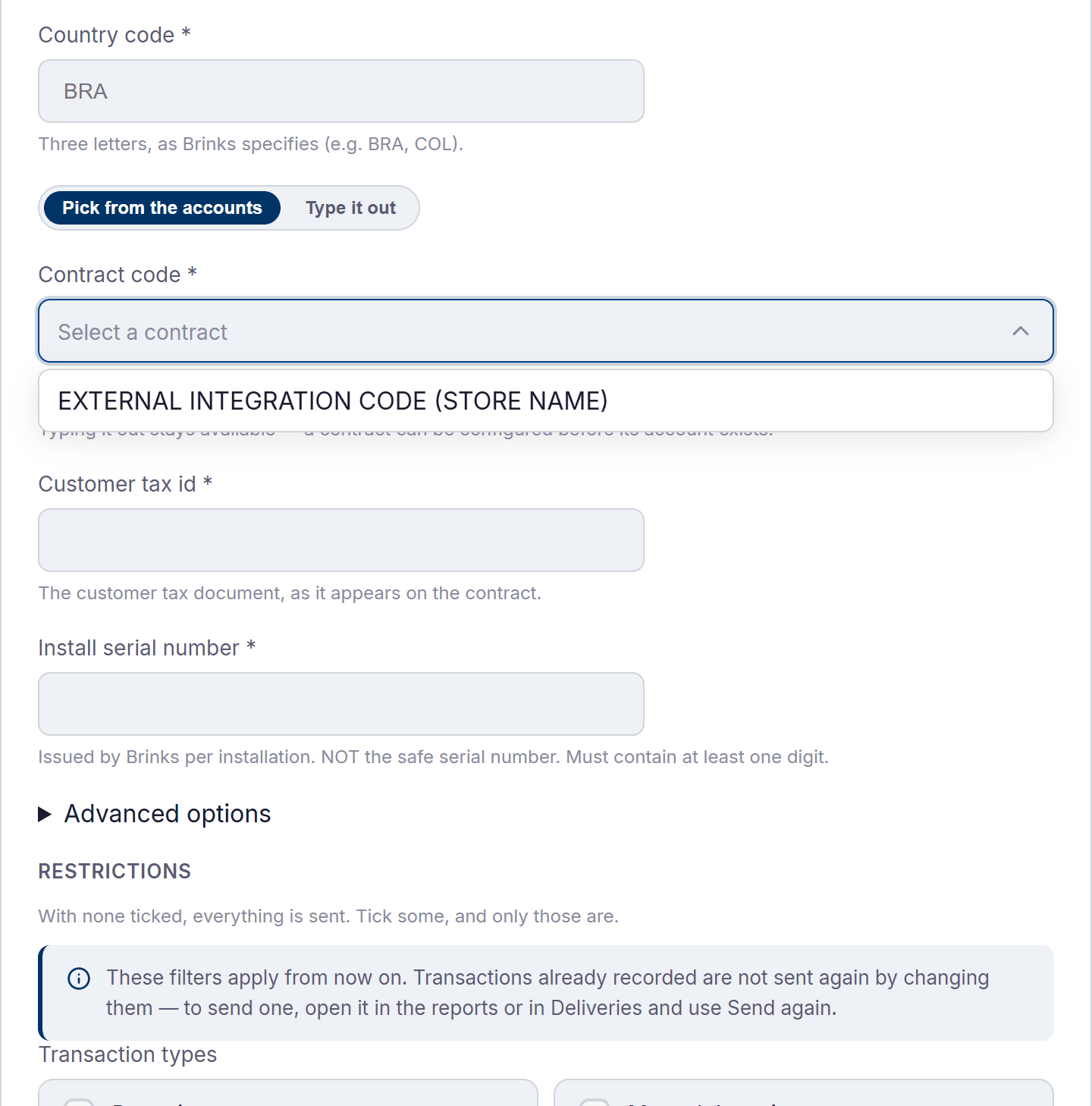
If the safe has accounts, the contract code is the account's Code in the external system: tap Pick from the accounts and pick it from the list. See Accounts: one contract per establishment
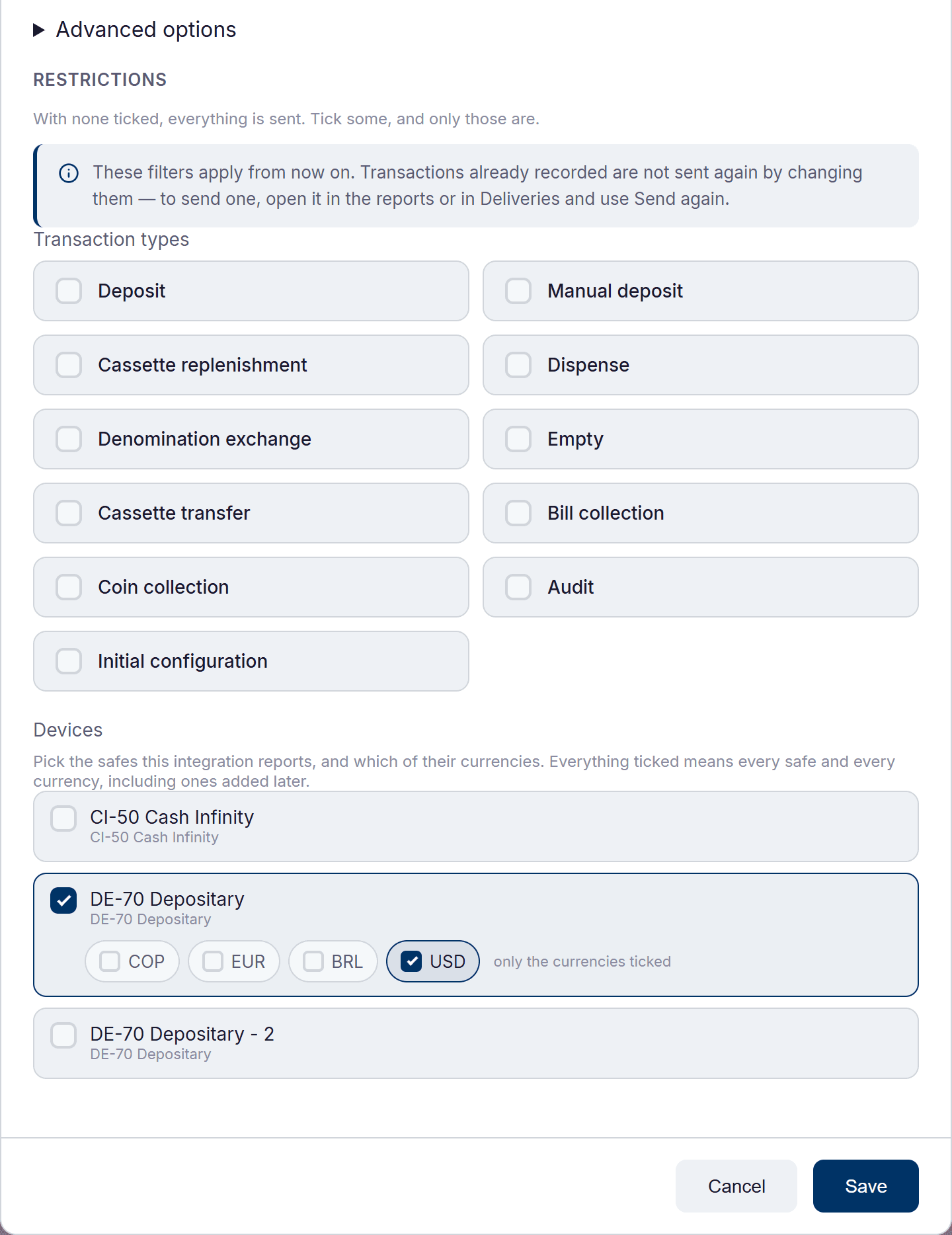
In Restrictions › Devices, choose the safe and the currency of this contract.
Save and tap Test. Configuration confirmed by the destination must appear: the test does not send any operation.
One contract, one currency
Each Brinks contract reports a single currency. If the safe works with two currencies (for example, with two accounts), create one integration per contract, each with its own currency.
Accounts: one contract per establishment
Skip this part if the safe has no accounts.
When several establishments share the safe, each one has its own Brinks contract. The Smart Safe Client knows which contract each account's money goes to by the account's Code in the external system: that code is the Brinks contract code (the contractCode).
In each account, type in Code in the external system that establishment's contract code, exactly as Brinks gives it.
Create one Brinks NCWP integration per contract. In Contract code, tap Pick from the accounts and choose the contract from the list: that way there are no typing mistakes.
Go back to Settings › Accounts. If Some accounts will not reach the right contract appears, fix what it points out before operating.
This is how the destination of each deposit is decided:
| The account's external code… | The deposit goes to… |
|---|---|
| Is the contract of a Brinks integration. | Only that contract. |
| Is not the contract of any integration. | No Brinks contract. The Accounts tab warns about it. |
| Is empty. | All the Brinks contracts of that safe: the same deposit appears in more than one contract. The Accounts tab warns about it. |
DE-70 collection: the pouch carries the money of all the accounts, and each Brinks contract receives only its account's share.
Currency: if the account has a Currency, the integration for its contract can only carry that currency.
The account's country and the Brinks country code are not the same
The account's Country uses two letters (for example, Panama is PA). The Country code of the Brinks integration uses three letters, and Brinks provides it.
Cash Infinity
Skip this part if the installation has no Cash Infinity
The setup is the same as above: the same details and the same Test button. After that, the Smart Safe Client sends each Cash Infinity operation to Brinks in a protected file. There is nothing else to install.
A payment reaches Brinks as a deposit and, when change went back, also as a withdrawal.
The store name
Open Settings › General and type in Store Name the name Brinks has for this store. It goes in every file.
The seals, the transport guide and the envelope
Brinks may ask for the seal numbers and the transport guide of a collection, and for the envelope number of a manual deposit. The operator types them in identifications that you create for the Cash Infinity.
The Smart Safe Client knows what each identification is by its name. When you create it, use one of these names:
| What Brinks asks for | Name of the identification |
|---|---|
| The seal of the new bag | Seal or Next seal |
| The seal of the bag | Bag seal |
| The transport guide | GTV |
| The envelope number | Envelope number |
Check the Key before you save
The Key is created from the name and cannot be changed after you save. It must show the same words, for example Bag_seal. If it shows something else, remove the identification and create it again.
With no identification for one of these items, the file goes to Brinks with that item empty.
The answers to the first three identifications also go in the file, each with its name.
Advanced options
Advanced options (alternative base URL, client id, secret and encryption key, time zone and keepalive) are only filled in if Brinks asks for them. Leave them as they are.
Alternative encryption key is the key that protects the Cash Infinity files. Leave it empty and the Smart Safe Client uses the Country code plus the Install serial number. Fill it in only if Brinks gives you another key, and then type the whole key.
If something fails
| Problem | What to do |
|---|---|
| Test does not confirm the configuration | Check the Environment and the four details with Brinks. |
| A delivery shows Refused | Open the delivery and look at What was sent and what came back: the reason Brinks gave is there. Correct it and tap Send again. |
| Deliveries in Retrying | The Brinks system is not answering or the computer has no internet. They are sent automatically when the connection comes back. |
Next step
- If the customer also wants e-mail notices: E-mail (SMTP)
- If not: 7. Operation