
Statistics
User Activity, Machine Stats, Financial Summary and Technical, and what each figure means.
Besides the list of transactions, the Reports screen has four tabs that add the operations up. They all use the same filters: a period, a device, an account…
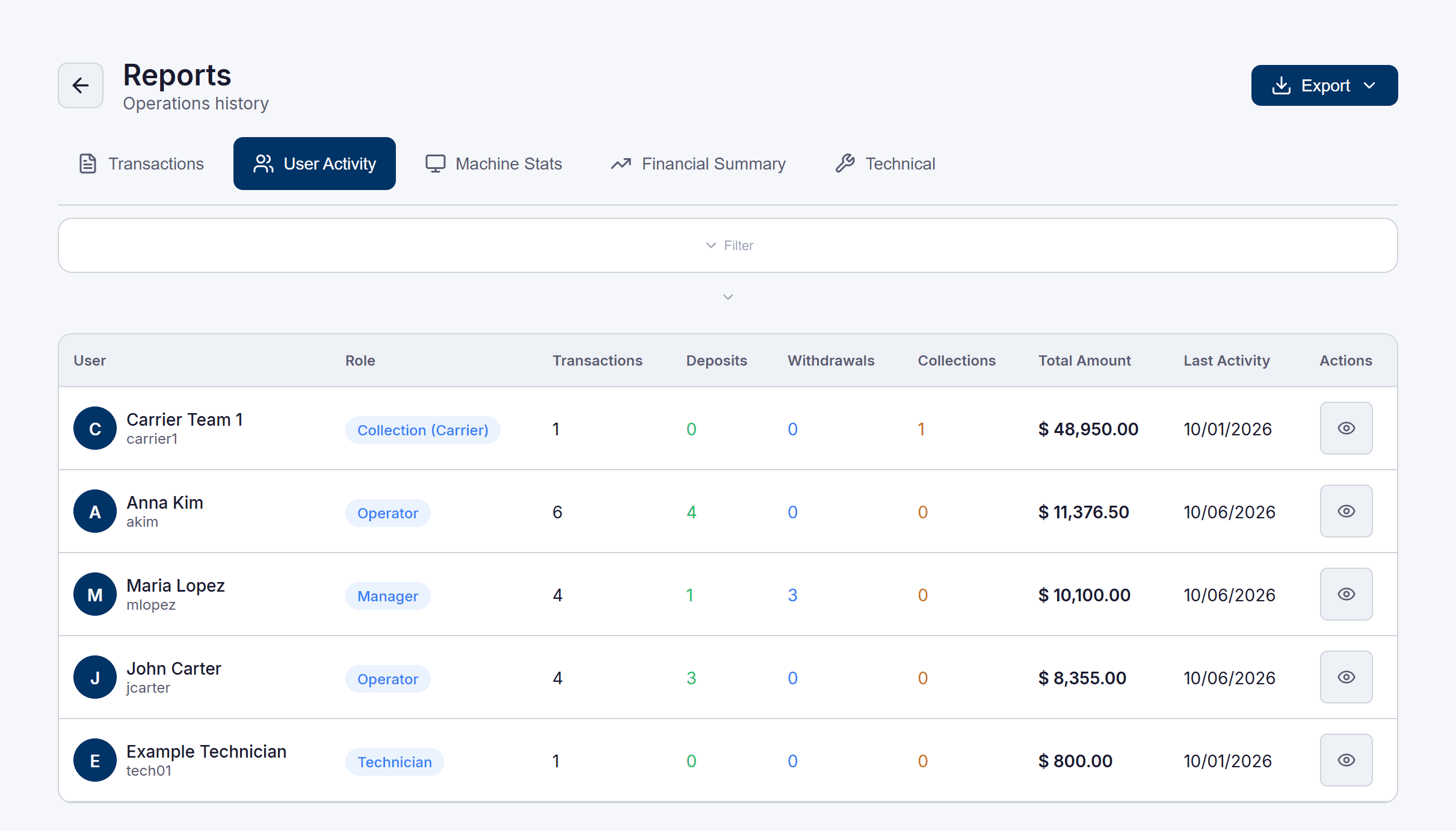
User Activity
One line per person: their Role, how many Transactions, Deposits, Withdrawals and Collections they did, the Total Amount and their Last Activity.
The eye opens the person's details: total operations, total processed, the Success Rate, the device they use the most, the operations by kind, the notes and coins they handled and their last five operations.
Machine Stats
One card per device: how many Transactions, the Total Amount, the Avg. Time of an operation and the Errors. View Details shows the operations by kind, the notes processed in deposits, the busiest hours and the last operations.
Use it to see which device works the most, and which one fails more often than the others.
Financial Summary
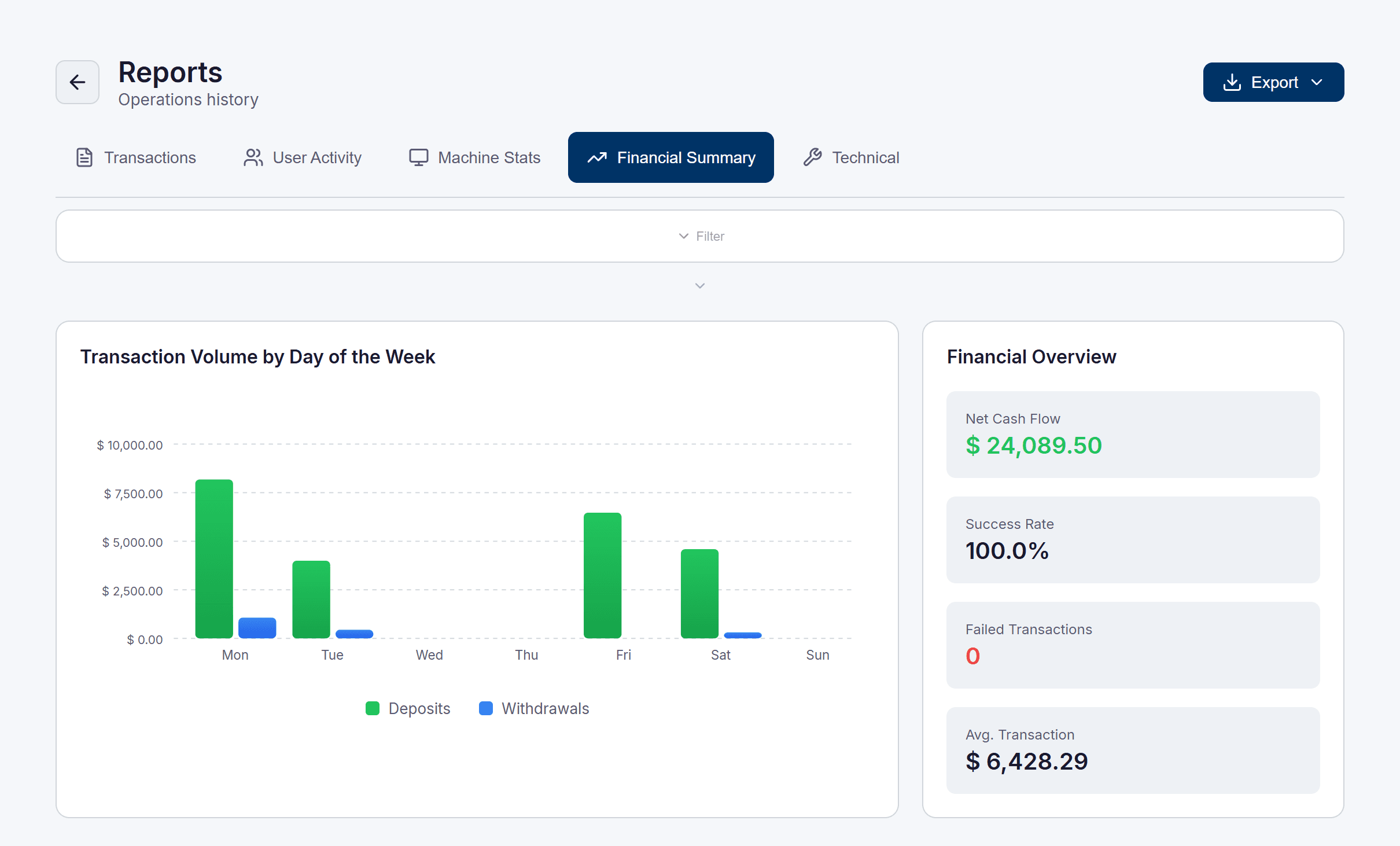
- A chart of Deposits and Withdrawals by day of the week, one currency at a time: with more than one currency in the period, tap the currency above the chart.
- Financial Overview:
| Figure | What it means |
|---|---|
| Net Cash Flow | The money that came in (confirmed deposits) minus the money that went out (withdrawals), per currency. |
| Success Rate | Of all the operations, how many ended without any fault. |
| Failed Transactions | How many failed. |
| Suspense (to reconcile) | Appears only when there is some: money in operations that are still waiting for a reconciliation |
| Avg. Transaction | The average amount of an operation, per currency. |
Technical
For the technician and support: the events the devices reported.
- Recent Events: every event, newest first, with its severity (Info, Warning, Error, Critical) and kind. Tap one to see its details; View Transaction opens the operation it belongs to.
- Recent Errors: the last ten errors.
- Device Activity: per device, the events, the errors and the last event.
When you open a ticket about a device error, this tab helps to say when it happened and what the device reported.