
General
The name on the receipts, the language, the size of the screen, kiosk mode and what happens after each operation.
These options are in Settings › General. Each change is saved the moment you make it: there is no Save button.
They are kept on this computer. To copy them to other computers, export the configuration: see Import and export
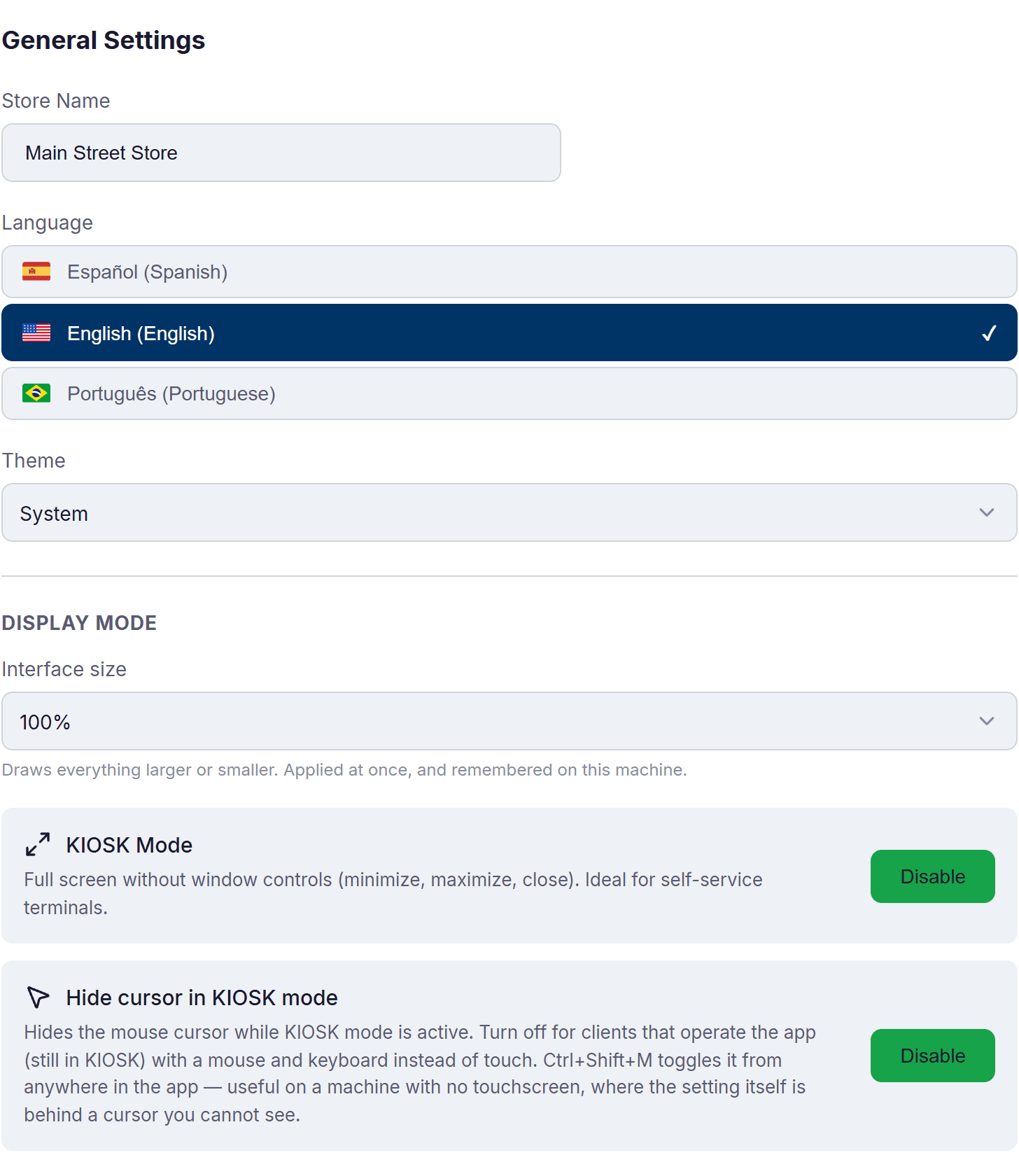
Store Name
The name printed at the top of every receipt, report and inventory printout, for example the customer's business. If you leave it empty, they print Smart Safe Client.
Language, theme and size
| Option | What it does |
|---|---|
| Language | The language of the screens and of the receipts. It changes at once. |
| Theme | Light, Dark, or System (follows the computer). |
| Interface size | Draws everything larger or smaller: 100% to 175%. Use a bigger size on a small touch screen. It changes at once. |
The on/off options
Five options have a button instead of a check box: KIOSK Mode, Hide cursor in KIOSK mode, Auto-logout on Inactivity, Log out after each operation and Auto-Restart.
The button says what it will do
When an option is on, its button is highlighted and says Disable. When it is off, the button says Enable.
KIOSK Mode
The Smart Safe Client fills the whole screen, without the bar with the close and minimize buttons, and stays in front of other windows. It comes on in a new installation. Leave it on in every computer that runs a safe in production.
During an operation (a deposit, for example) the Smart Safe Client always fills the screen, even with KIOSK Mode off.
To leave kiosk mode, open Settings › General and tap Disable.
Hide cursor in KIOSK mode
Hides the mouse arrow while kiosk mode is on, for touch screens. It comes on.
If the customer uses a mouse, turn it off. On the keyboard, Ctrl+Shift+M shows or hides the arrow on any screen.
Security
Auto-logout on Inactivity
Logs out the user after some time without touching the screen, the mouse or the keyboard. It comes off.
When you turn it on, type the time in Timeout (seconds): from 20 seconds to 5 minutes (300 seconds). The default is 60.
While it counts, a small ring with the time left appears at the top of the screen. It turns amber when half the time has passed and red near the end.
The time never runs out in the middle of an operation: it stops on the operation screens (deposit, withdrawal, collection, maintenance and the others) and starts again from the beginning when you leave them.
Operations
| Option | What it does | How it comes |
|---|---|---|
| Log out after each operation | When an operation ends, the Smart Safe Client goes back to the login screen: the next person has to sign in with their own user. | On |
| Result screen auto-close (s) | How long the result window stays open at the end of an operation: from 3 to 120 seconds. | 12 |
Each person with their own user
Leave Log out after each operation on. That way, nobody operates by mistake under the user of the person before.
Auto-Restart
If the Smart Safe Client is closed, it opens again on its own after a few seconds. It comes off. Turn it on in computers dedicated to the safe.
Configuration Management
Manage Configurations saves all the configuration in a file, or loads it from a file or from the server. See Import and export