
Identifications
Fields the operator fills in before an operation, such as a sale number or a bag number, printed on the receipt and kept in the reports.
An identification is a field the operator fills in before an operation: for example the sale number of a deposit, the till the money comes from, or the bag number of a collection. What the operator types is printed on the receipt and kept with the operation in the reports
Nothing comes configured: with no identifications, every operation starts straight away.
The identifications are in Settings › Transactions › Identifications, one list per device.
How the operator sees it
When an operation has identifications, the Transaction identification screen appears first: "Fill in the fields below to continue with the … operation". The operator fills in the fields and taps Continue. A required field that is empty does not let them continue (This field is required.).
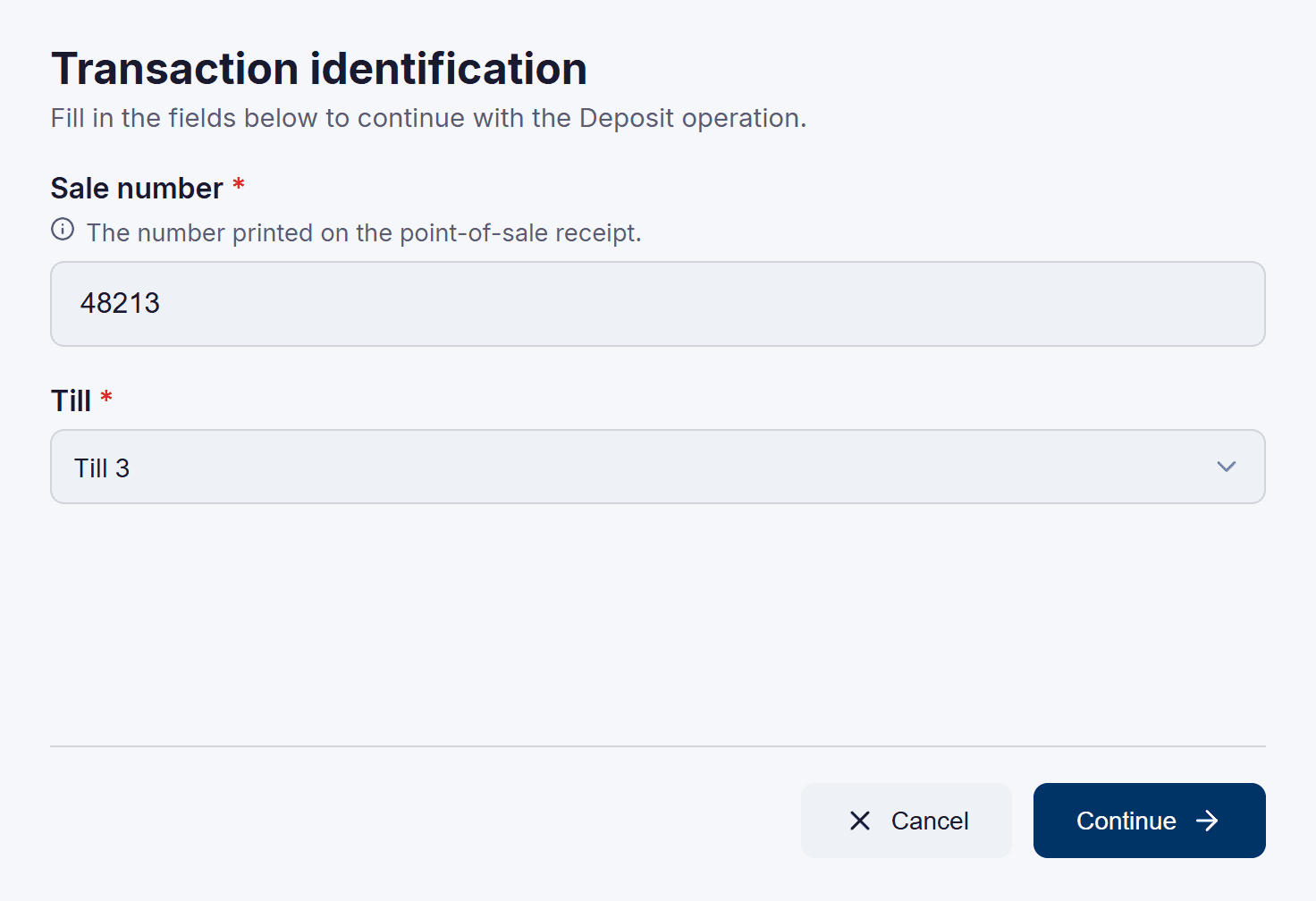
Create an identification
Open Settings › Transactions › Identifications. In Device, choose the device.
Tap Add identification.
In Field, choose the Field type:
| Field type | The operator… | Example |
|---|---|---|
| Text | types letters and numbers (up to 100 characters, or the Maximum length you set). | Sale number |
| Number | types a number, between the Minimum value and the Maximum value if you set them. | Number of envelopes |
| Date / Date and time | picks a date. It can come filled in with today. | Date of the sale |
| List (one choice) | picks one option. | Till |
| List (several choices) | picks one or more options. | Payment methods |
| Yes / No | ticks or not. | Bag sealed |
The Key is created from the name you type in the next step. It cannot be changed after you save.
In Texts, type the Name the operator sees and, if you want, a Hint (optional) shown below the field. There is one line per language: fill in the languages the operators use. A language left blank shows the key instead of the name.
For a list, in Configuration, add the Options: the Value that is recorded and the Displayed text the operator sees. For numbered options, such as tills 1 to 10, fill in Range — from and Range — to instead of typing them one by one.
Tick Let the operator type a value outside the list if the list may not have every option.
In Where it appears, choose the operations that ask for the field. Each device offers its own operations:
- DE-70: Deposit, Manual deposit, Collection, Count.
- Cash Infinity: Deposit, Manual deposit, Withdrawal, Payment, Change, Replenishment, Transfer, Emptying, Collection.
In Who fills it in, tick Shown for the profiles that see the field and, among them, Required for those who must fill it in.
Save. The field appears in the list, with its operations and profiles. An asterisk (*) marks the profiles for which it is required.
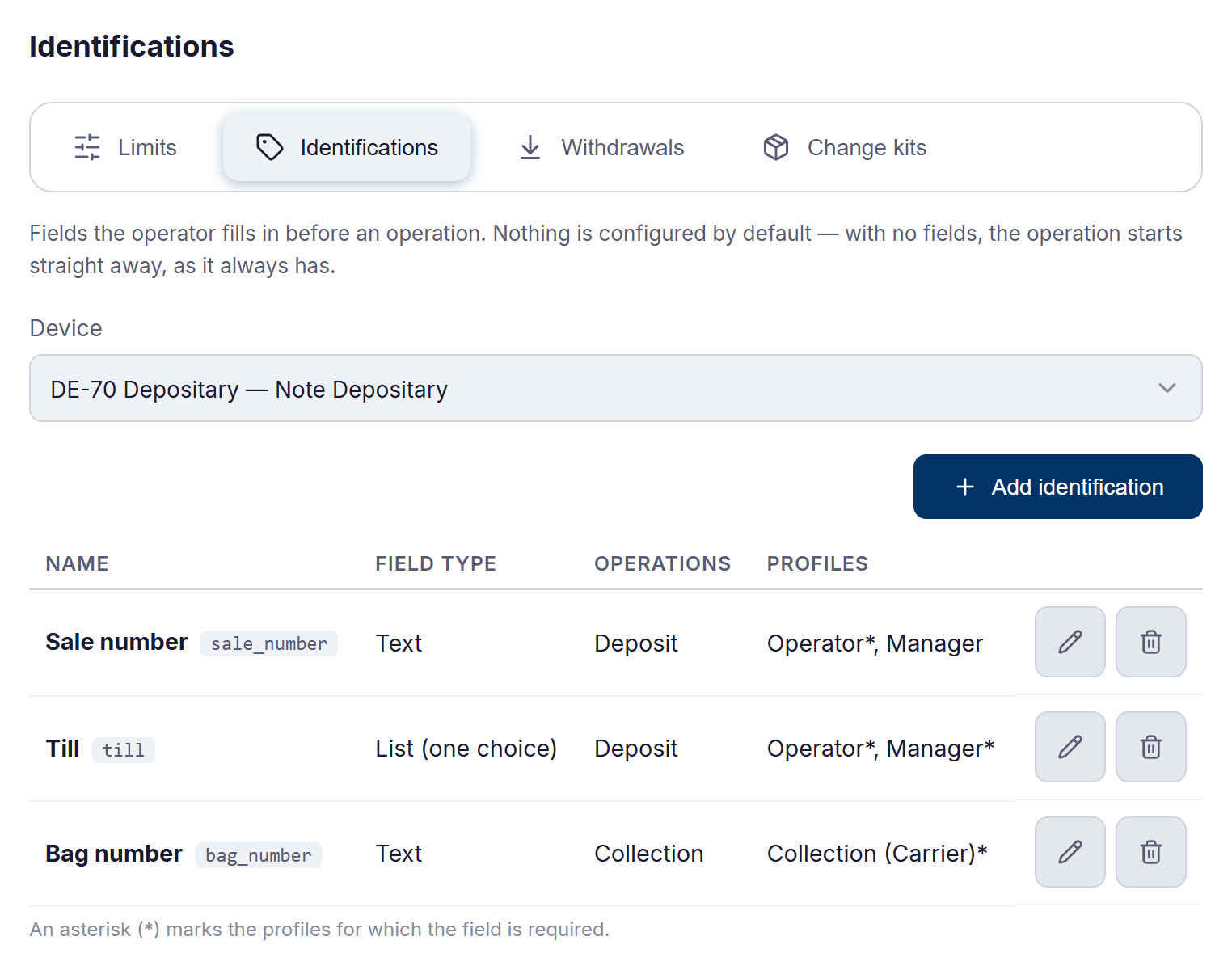
Change or remove
Tap the pencil to change an identification, or the trash icon to remove it. Operations already recorded keep the values and the names they had: nothing in the history changes.
Where the values appear
- On the receipt, below the date and time, one line per field.
- On the Reports screen, in the operation's details. See Transactions