
Accounts
When several establishments share the same safe, and how each one's operations reach the integrations under its own code.
An account is the owner of the money inside the safe. With accounts, several establishments can share the same GLORY device: each one has its own users, its own devices and its own currency, and none of them sees the others' figures.
Do you need to create accounts?
| Situation | What to do |
|---|---|
| The safe belongs to a single establishment. | Do not create accounts. Without accounts, everything works the same and nothing about accounts appears. |
| Several establishments share the safe, each with its own money (for example, each with its own contract with the cash-in-transit company). | Create one account per establishment. |
Anyone who is in no account can no longer sign in
When an active account exists, every user must be in at least one account, administrators included. Anyone who is in none sees “This user has no account assigned” and cannot sign in.
So, when you create the first account, select everyone who needs to sign in under Users. The Smart Safe Client does not save the first account if you are not in it.
The glory user can always sign in
The glory user can sign in even if it is in no account, so that the configuration can be fixed. Without an account, it sees no device to operate: it can only configure. To operate with glory, add it to an account (in Users it shows as Administrador (glory)).
Before you start
- Add the GLORY devices in Devices
- If the operations go to an outside system, such as a cash-in-transit company's, ask for each establishment's code in that system: see The account and the integrations
Create an account
Open Settings › Accounts and tap New account.
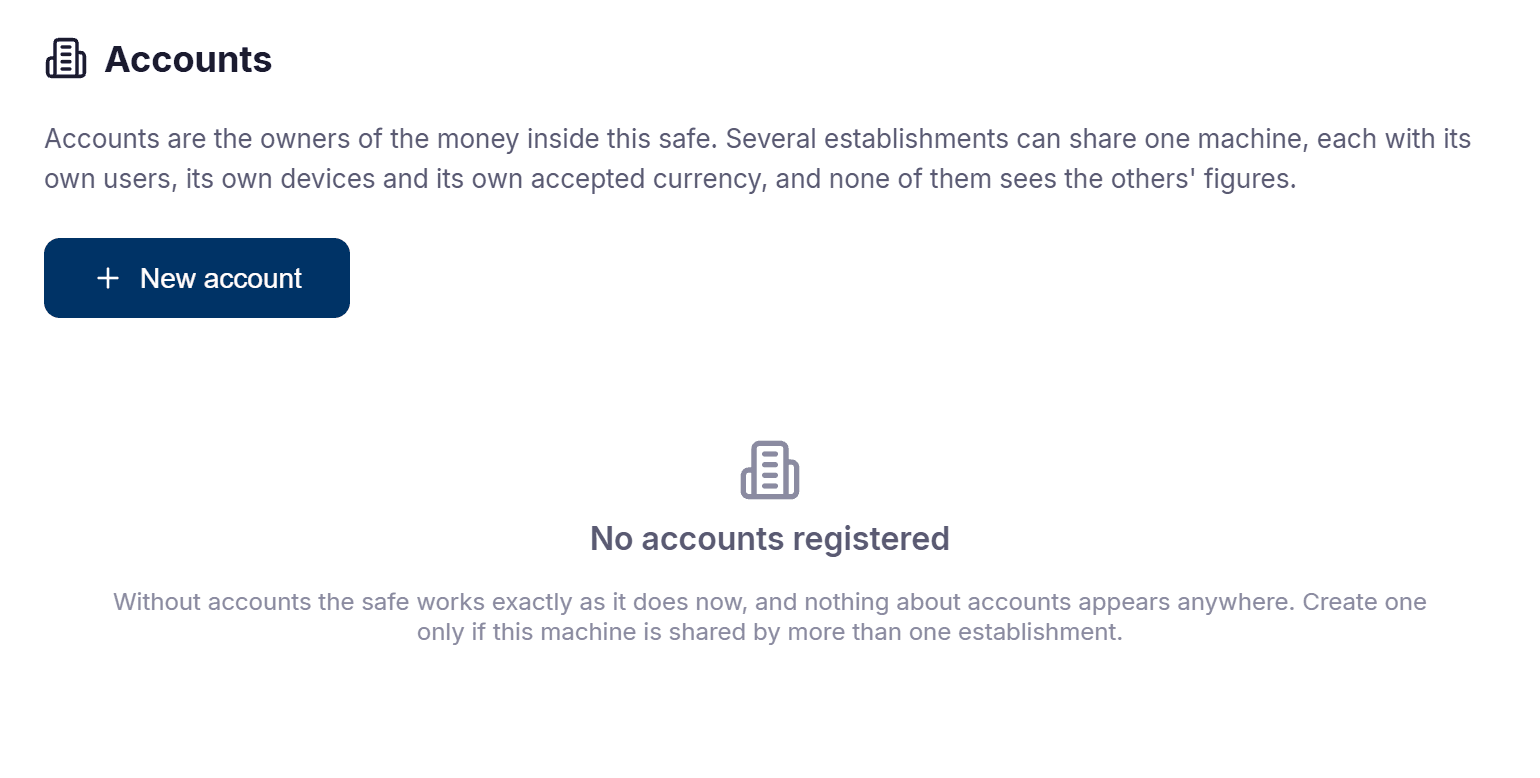
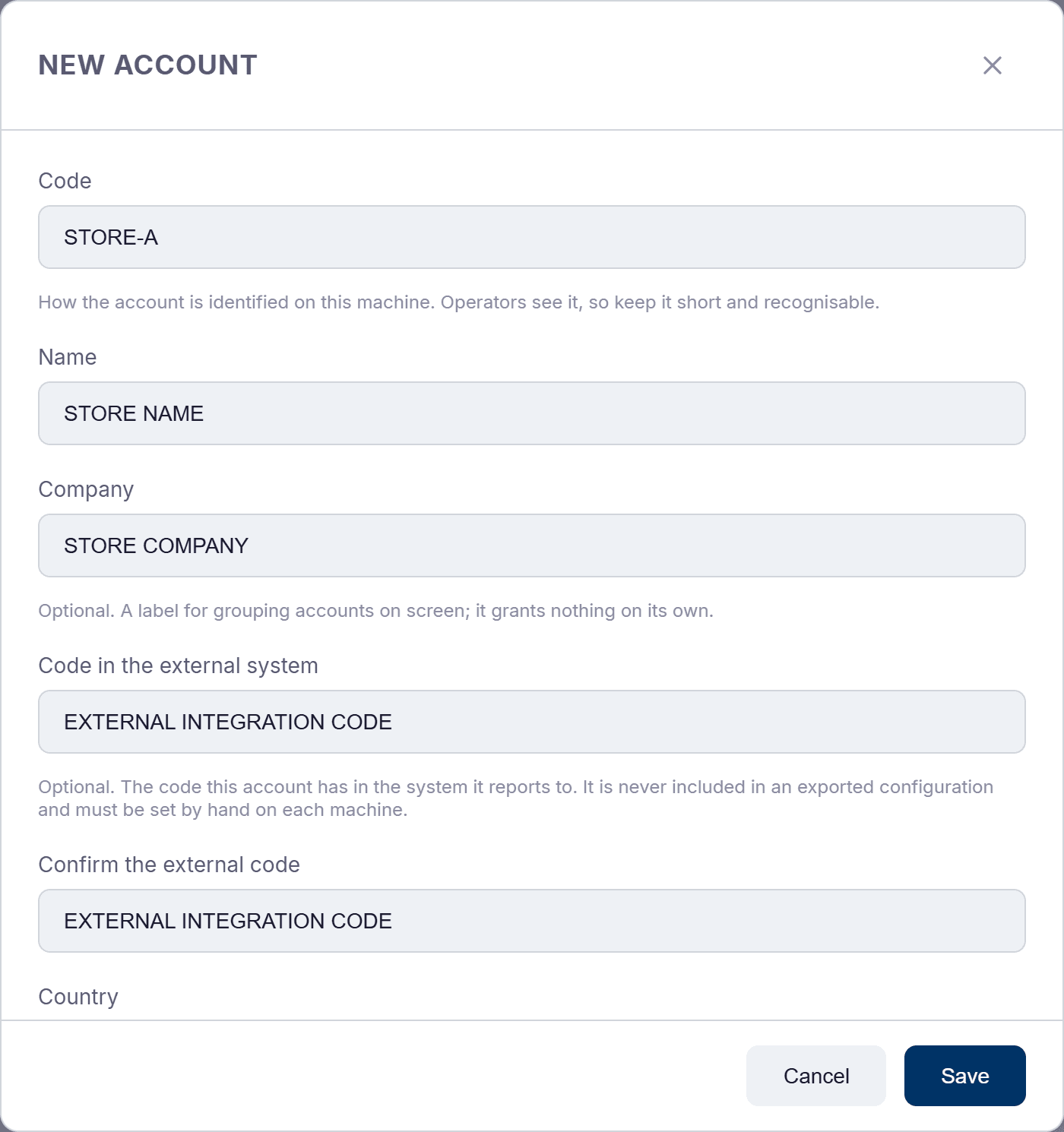
Fill in the fields (see the table below).
Tap Save. Repeat for each establishment.
Log out and sign in again. The accounts take effect from the next sign-in.
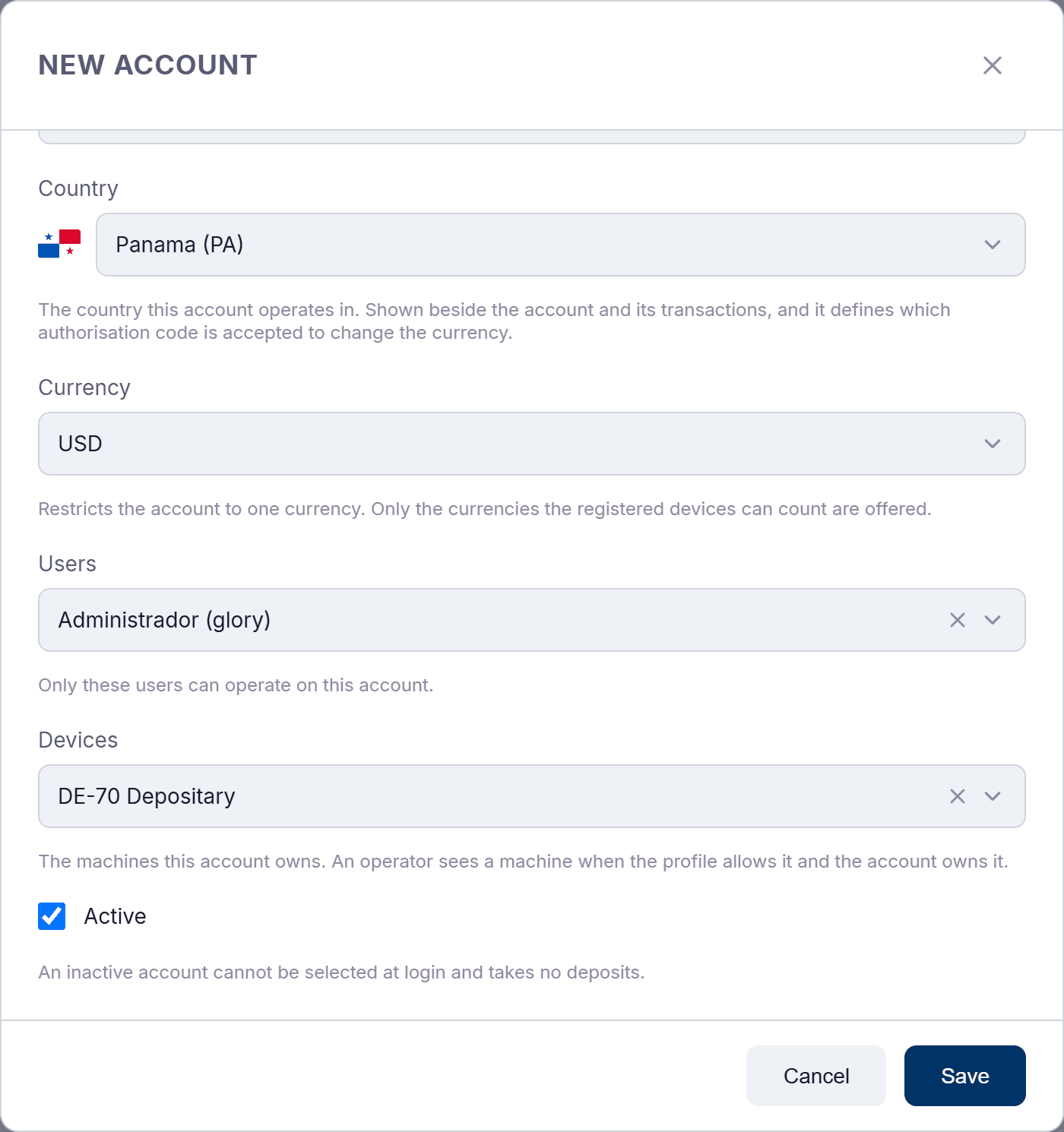
| Field | What to enter |
|---|---|
| Code | A short code, for example LOCAL-A. The operator sees it when signing in. Two accounts cannot have the same one. |
| Name | The name of the establishment. Two accounts cannot have the same one. |
| Company | Optional. Groups the accounts on the sign-in screen. |
| Code in the external system | Only for the integrations that send each establishment's operations to an outside system, such as a cash-in-transit company's: the establishment's code in that system. It is typed twice. See The account and the integrations |
| Country | The country where the establishment operates. It is required. |
| Currency | The establishment's currency, or No restriction. |
| Users | Who can operate on this account. The buttons with a profile's name select all the users of that profile. |
| Devices | The GLORY devices of this account. |
| Active | Leave it checked. |
A device with no account appears to no one
With accounts, each person only sees the devices of the account they signed in to. A device that is in no account disappears from the main screen. Add it in the account's Devices.
The currency must be on the device
With a Currency chosen, all of the account's operations use only that currency. If the device does not have it, the Smart Safe Client does not allow the operation and shows “Currency not available for this account”.
Signing in with accounts
After typing the user and the password:
| The user is in… | What happens |
|---|---|
| One account | Goes straight into it. |
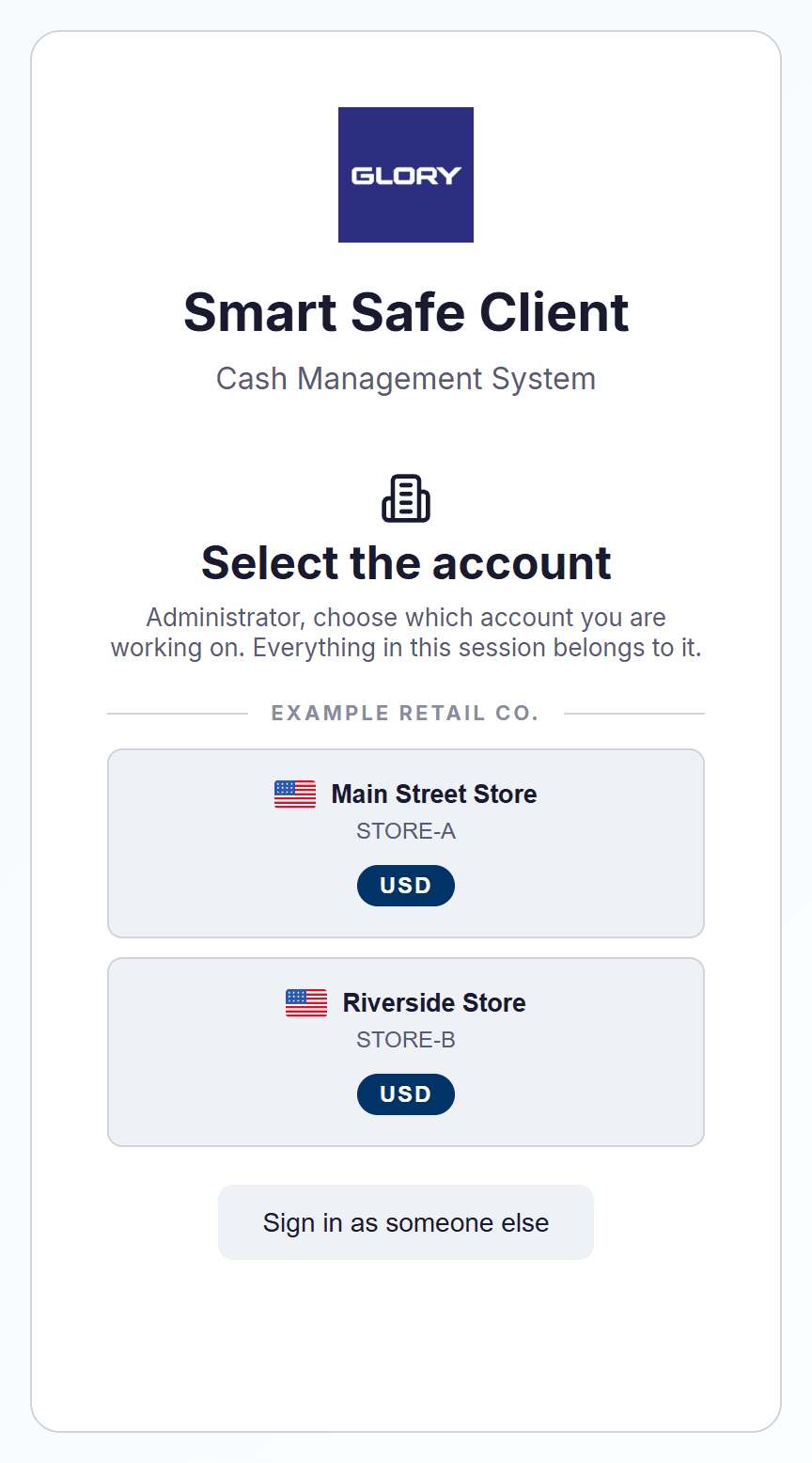
| Several accounts | Select the account appears. Tap the account you are going to work in. |
| No account | “This user has no account assigned” appears and the user cannot sign in. Only the glory user signs in without an account, to configure. |
Everything done in the session stays in that account. At the top, the screen shows the account, its flag and its currency. To work in another account, log out and sign in again.
On the receipts: the receipts show the operation's Account, except the collection receipt. On the DE-70, the collection empties the whole safe: its receipt shows under BY ACCOUNT how much belongs to each account. If what was counted does not match the sum of the accounts, the difference appears under SAFE DIFFERENCE.
The account and the integrations
When several establishments share the safe, the integrations that report to an outside system, such as a cash-in-transit company's, can send each establishment's operations under its own code in that system (with a cash-in-transit company, usually the establishment's contract). The Smart Safe Client knows which code each account's money goes under by the account's Code in the external system.
In each account, type in Code in the external system the establishment's code, exactly as the outside system gives it. The Smart Safe Client asks for it twice (Confirm the external code) to avoid mistakes.
Set up each integration as its page explains: which code it uses, and how to pick it from the accounts. See Integrations
Go back to Settings › Accounts. If Some accounts will not reach the right contract appears, fix what it points out before operating.
The external code is typed on each computer
The Code in the external system does not travel in the exported configuration file. After importing a configuration on another computer, type the code in each account.
Change an account's currency
Giving the first currency to an account that was on No restriction asks for nothing else. To change a currency already chosen, or to go back to No restriction:
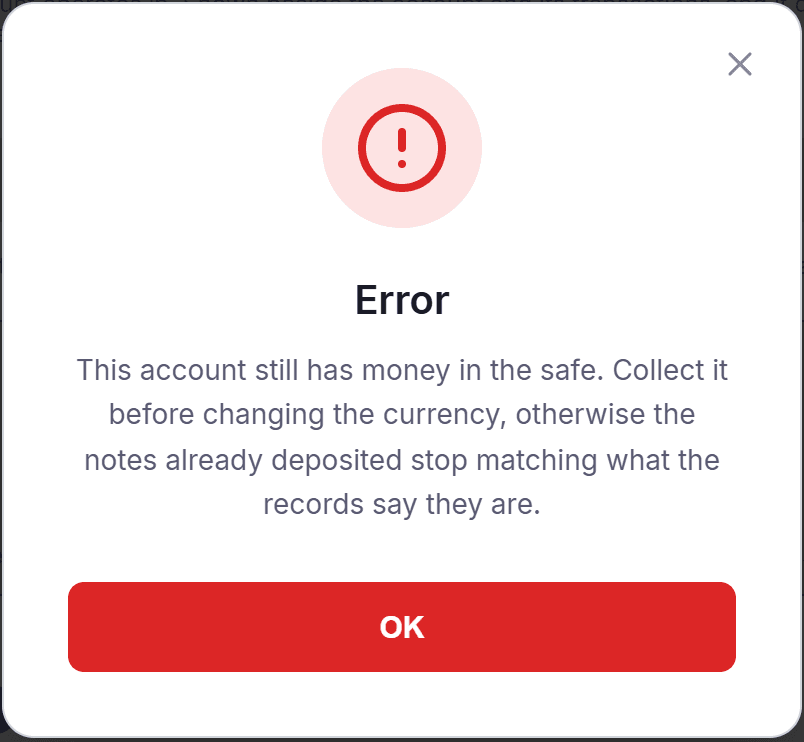
Do the collection. With the account's money in the safe, the change is not allowed and “This account still has money in the safe” appears.
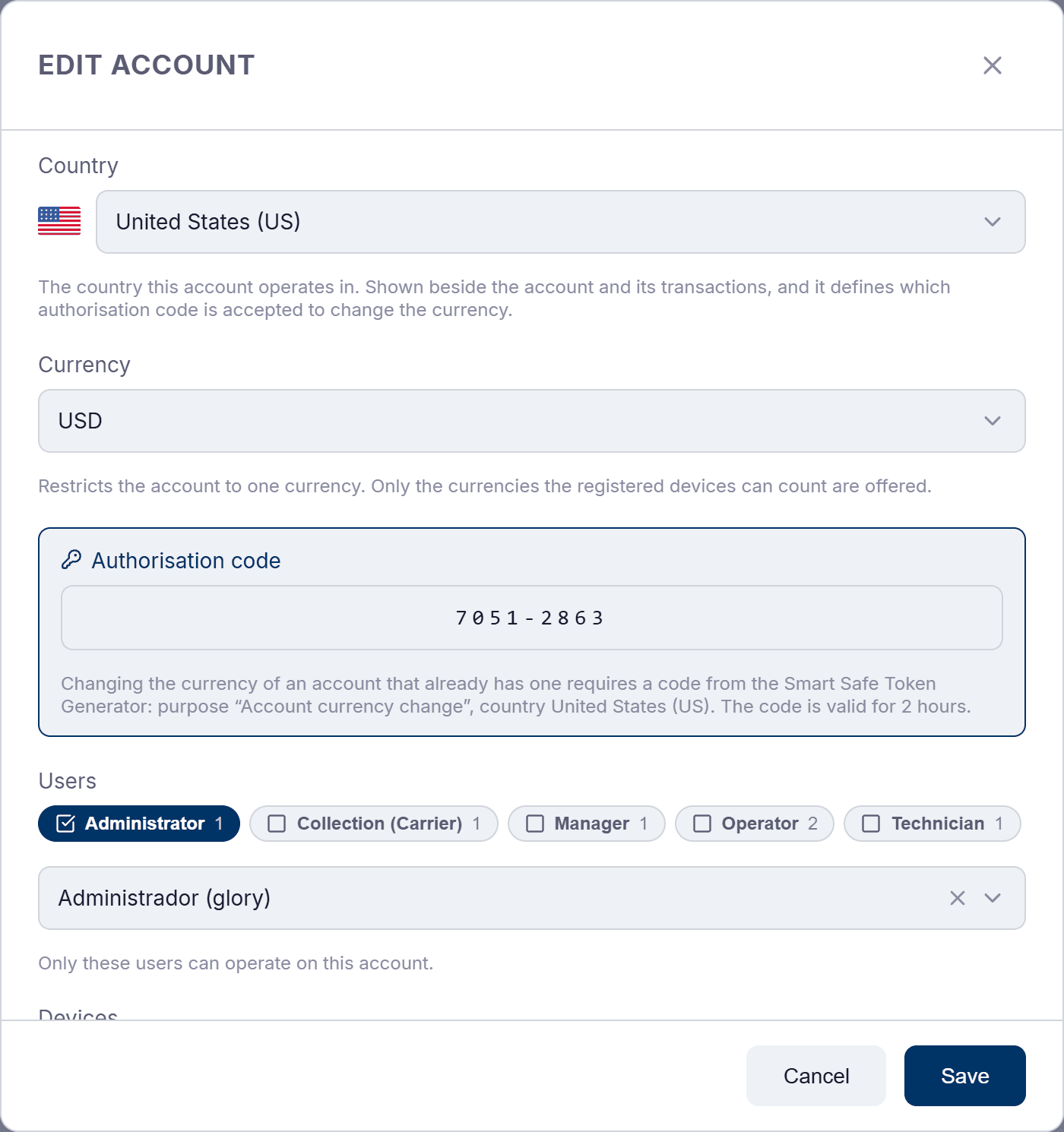
Open the account and choose the new Currency. The Authorisation code field appears.
In the Token Generator, choose Account currency change and the Country of the account (the one it has now).
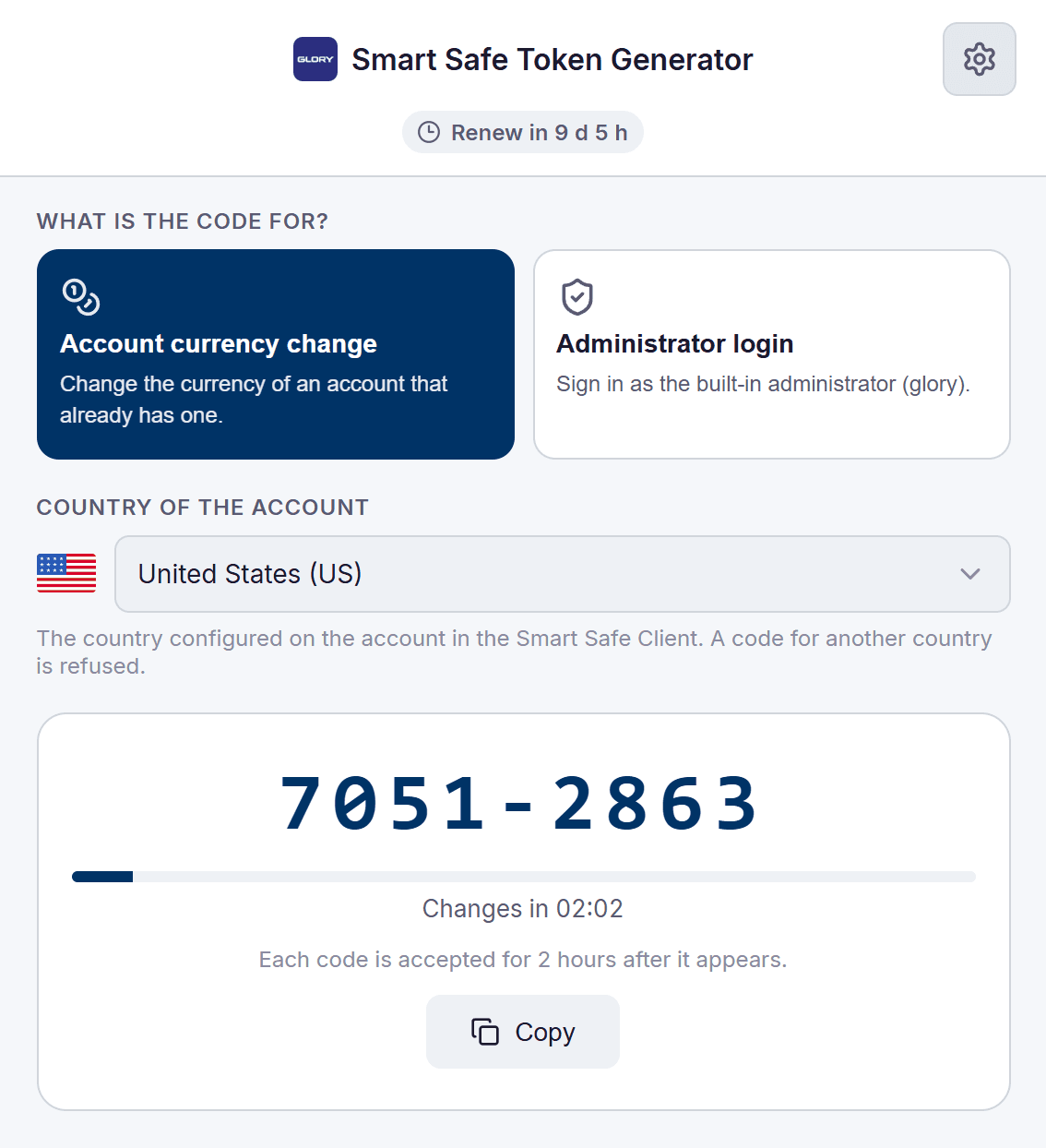
Type the 8-digit code and tap Save. The code is valid for 2 hours from the moment it appears.
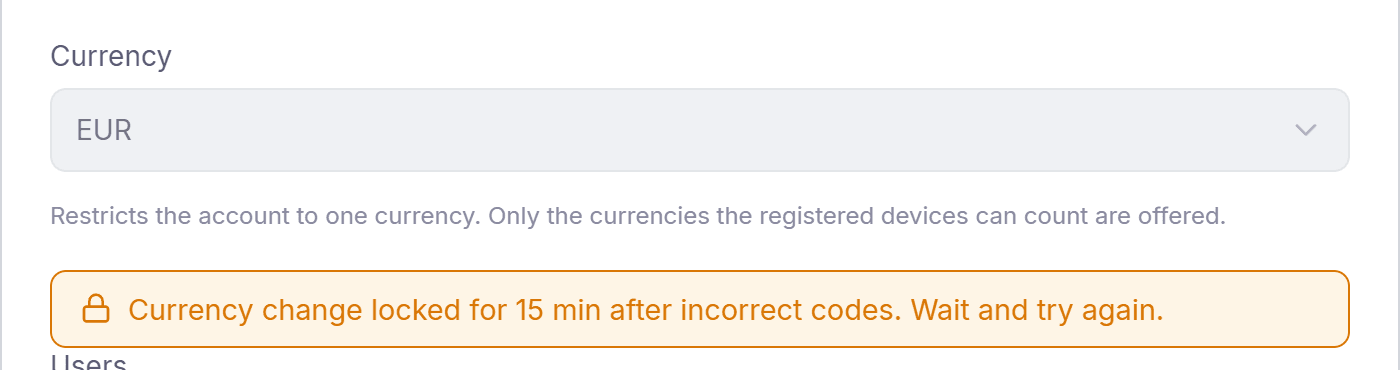
Three wrong codes lock the change
After 3 wrong codes in a row, the currency change for that account is locked for 15 minutes.
Country and time
- Operations are recorded with the computer's time. Set the computer's time zone to that of the account's country.
- If they do not match, at the top, next to the account, the time zone (UTC) shows in amber. When you save the account, the Smart Safe Client asks before continuing (Different time zone).
- Changing an account's Country does not change the operations already recorded: they keep the country they were recorded with.
Deactivate or delete an account
- Deactivate (uncheck Active): the account can no longer be chosen when signing in and does not receive deposits. It can only be done after the collection. If there are other active accounts, the users who were only in this one can no longer sign in: add them to another account first.
- Delete: only an account with no recorded operations. If it already has operations, deactivate it.
If all the accounts are deactivated, the Smart Safe Client goes back to working without accounts.
Users and permissions
- In Settings › Users, the Accounts field says which accounts each user works in. With accounts, it is required: at least one.
- To import users from a spreadsheet, the
accountscolumn holds the codes of their accounts, separated by;(for example,LOCAL-A;LOCAL-B). The accounts must exist beforehand.
| Permission | What it allows | By default |
|---|---|---|
| Accounts (in Settings Tabs) | See Settings › Accounts and assign accounts to users. | Only Administrator |
| See and administer every account (in Account Scope) | See every account in the settings and in the reports. Without this permission, only the session's account is shown. | Only Administrator |
To operate, everyone works in an account, the administrator included. The glory user without an account can sign in, but only to configure.
If something goes wrong
| Problem | What to do |
|---|---|
| “This user has no account assigned” | Someone with the Accounts permission must add the user to an active account. |
| No user can sign in | Sign in with the glory user and the code from the Token Generator, and add the users to an account in Settings › Accounts. |
| “This is the first active account, and you are not in it” | Add yourself in the account's Users and save again. |
| “No device for this account” | Add the device in the account's Devices. |
| “Currency not available for this account” | The device does not have the account's currency. Enable it on the device (Settings › Devices) or use another device. |
| “Some accounts will not reach the right contract” | Two accounts have the same external code, or an account's code is not that of any integration. Fix the Code in the external system. |
| “This account still has money in the safe” | Do the collection before changing the currency or deactivating the account. |
| The time zone next to the account shows in amber | Set the computer's time zone to that of the account's country. |
Next step
Continue with Profiles and permissions