
Users
Who can sign in to the Smart Safe Client, the rules for their passwords, and how each person changes their own.
Each person signs in with their own user, and each user has a profile that decides what they can see and do. See Profiles and permissions
The users are in Settings › Users. In a new installation, the Administrator and the Manager can open it.
The glory user
glory is the built-in administrator: use it to configure. It has no password: it signs in with the Administrator login code that the Token Generator shows. To operate, create users with their own profile.
glory does not appear in the list of users, except for glory itself.
Add a user
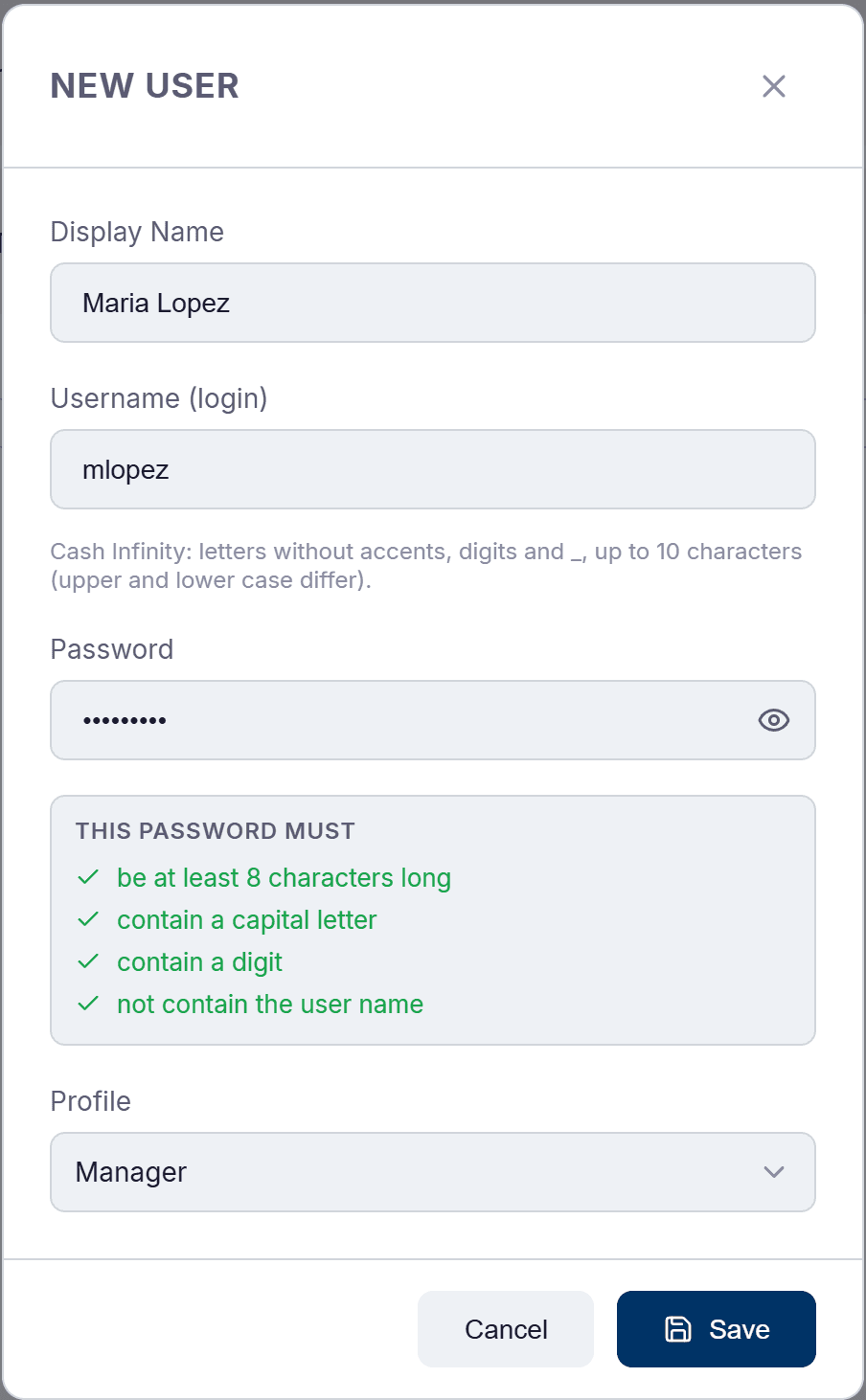
Open Settings › Users and tap Add User.
Fill in:
- Display Name: the name shown on the screen and on the receipts.
- Username (login): the one typed to sign in.
- Password: it must follow the rules of the user's profile (Password policies explains them). The list below the field shows each rule and ticks it as you type.
- Profile: what the user can do. Only an administrator can give the Administrator profile.
- Accounts: if the safe has accounts, the accounts this user works in. It is required: without an account, the user cannot sign in.
Tap Save.
With a Cash Infinity: short usernames and simple passwords
Each person signs in to the Cash Infinity with the same username and password. That is why, while a Cash Infinity is added:
- The Username (login) can have up to 10 characters: letters without accents, digits and
_. Uppercase and lowercase are different. - The Password can have 1 to 16 characters: letters without accents, digits and the symbols
! # $ % ( ) * + , - . / : ; = ? @ \ { | } ~
The Smart Safe Client does not accept other names or passwords.
Change, deactivate or delete
In the list, each user has Deactivate (or Activate), the pencil to change it and the trash icon to delete it.
- To change a password, open the user and type it in New Password (leave empty to keep).
- A user who already made operations cannot be deleted: Deactivate it instead. A deactivated user cannot sign in, and their operations stay in the reports.
- Nobody can deactivate or delete their own user.
Many users at once
Import loads users from a spreadsheet (CSV or Excel), with a template to download. See Import and export
Password policies
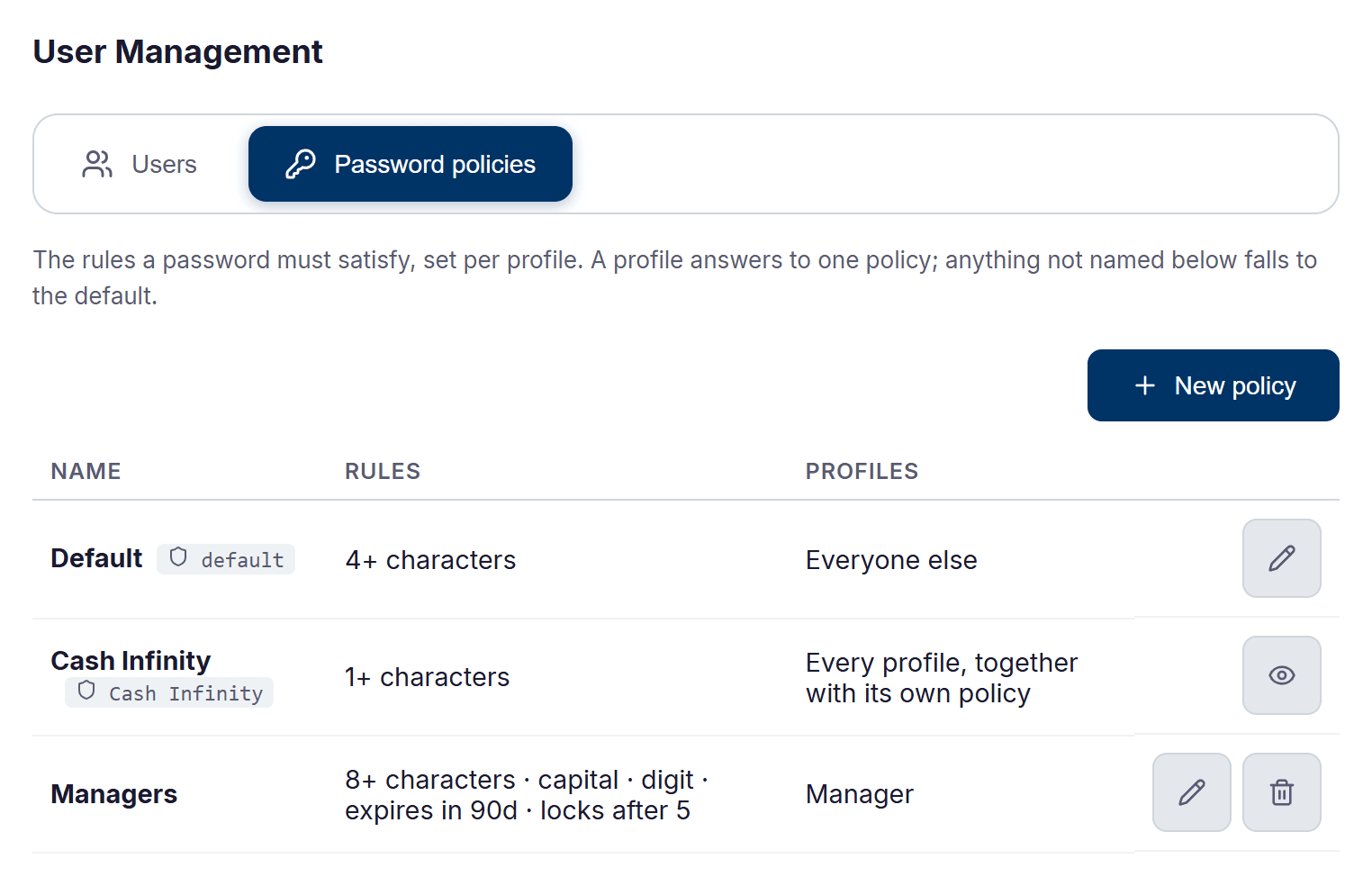
A password policy is the set of rules a password must follow: how long it is, which characters it needs, when it expires and what happens after wrong attempts. Each profile follows one policy.
The policies are in Settings › Users › Password policies. In a new installation, only the Administrator sees them.
- Default applies to every profile that no other policy names. It asks for 4 to 50 characters and nothing else. It cannot be renamed or deleted.
- Cash Infinity appears while a Cash Infinity is added. It applies to every profile, together with its own policy, and it cannot be changed (see the warning above).
Create a policy
Tap New policy and give it a Name.
Set the rules:
| Section | Rule | What it does |
|---|---|---|
| Length | Minimum length, Maximum length | How short and how long the password may be (at most 50). |
| Characters | Require a capital letter, Require a lowercase letter, Require a digit, Require a symbol | Each one ticked must appear in the password. |
| Symbols allowed | The only symbols the password may use. | |
| Do not allow the user name inside the password | Refuses a password that contains the username. | |
| Lifetime | Expires after (days) | After these days, the person must choose a new password. Empty: it never expires. |
| Cannot reuse the last | How many old passwords cannot be used again. Empty: no limit. | |
| Failed attempts | Lock after (attempts), Locked for (minutes) | After that many wrong passwords in a row, the user cannot sign in for that many minutes (15 if empty). The lock lifts on its own. With Lock after empty, it never locks. |
In Who this applies to, tick the profiles. A profile follows only one policy: ticking it here takes it out of the one it had.
Save.
Existing passwords keep working
A new policy only applies to passwords set from then on. Nobody's password stops working when you save a policy.
A password that no longer follows the rules
If a person's password has expired, or no longer follows the rules of their profile, the login screen says so and offers Set a new password. The person types the current password, then the new one twice, sees the rules ticked one by one, and taps Save the new password. Then they sign in with the new one.
My password
Each person can change their own password in Settings › My password: the current password, then the new one twice. In a new installation, every profile has this tab except the Operator.