
Network
The connection to GLORY's server, and the Wi-Fi and network cable of a Linux computer.
The network options are in Settings › Network.
API Server
The Smart Safe Client uses GLORY's server for the license, the updates, the logs it sends to support and the configurations it can download (see Import and export)
A new installation already comes with the server's address: https://api.smartsafe2.com. Next to it, the status must say Healthy.
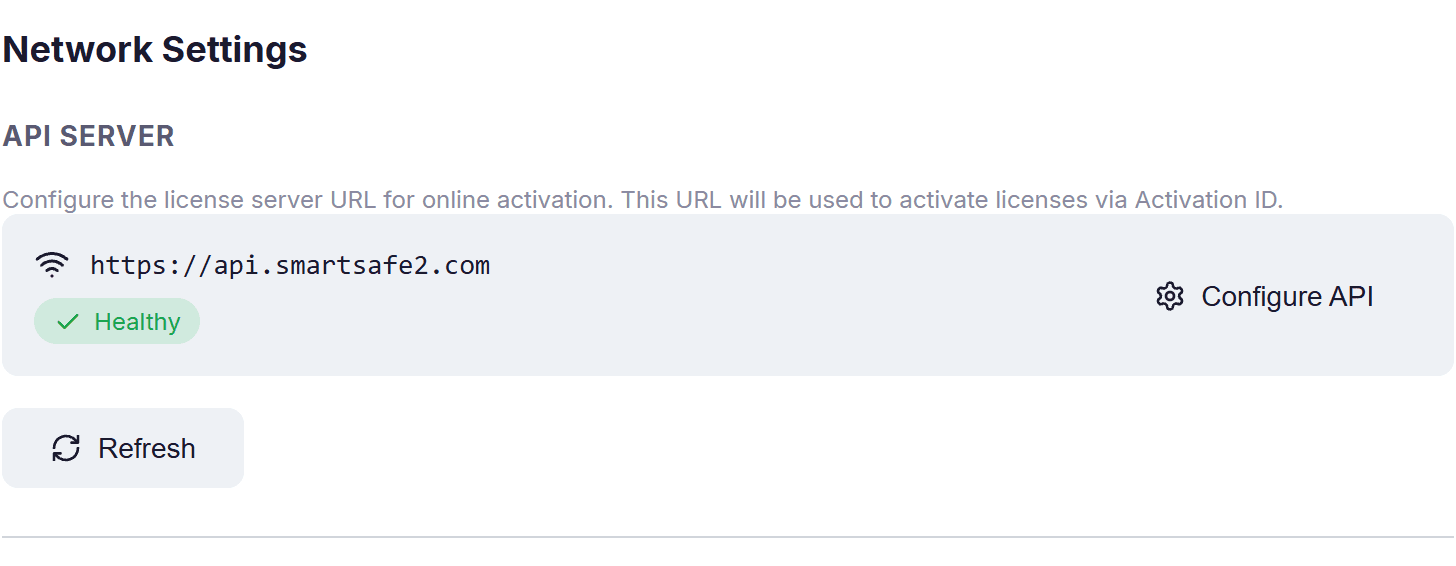
| Status | What it means | What to do |
|---|---|---|
| Healthy | The server answers. | Nothing. |
| Unavailable | The computer has internet, but the server does not answer. | Tap Refresh after a few minutes. If it continues, check the customer's firewall: see Network requirements |
| Disconnected | The computer has no internet. | Check the cable or the Wi-Fi (below) and tap Refresh. |
If the screen says API not configured:
Tap Configure API.
In API Server URL, type https://api.smartsafe2.com
Tap Test Connection. It must show Internet: Connected and API Server: Healthy.
Tap Save.
Connections (Linux)
On Debian and on the Raspberry Pi, Connections shows the computer's network and lets you join a Wi-Fi network or give the network cable a fixed address, without leaving the Smart Safe Client.
The same options open on the activation screen, with the Network button, before the computer has a license: see A new installation without internet
On Windows this part says On this computer the network is managed by the operating system: use the Windows network settings.
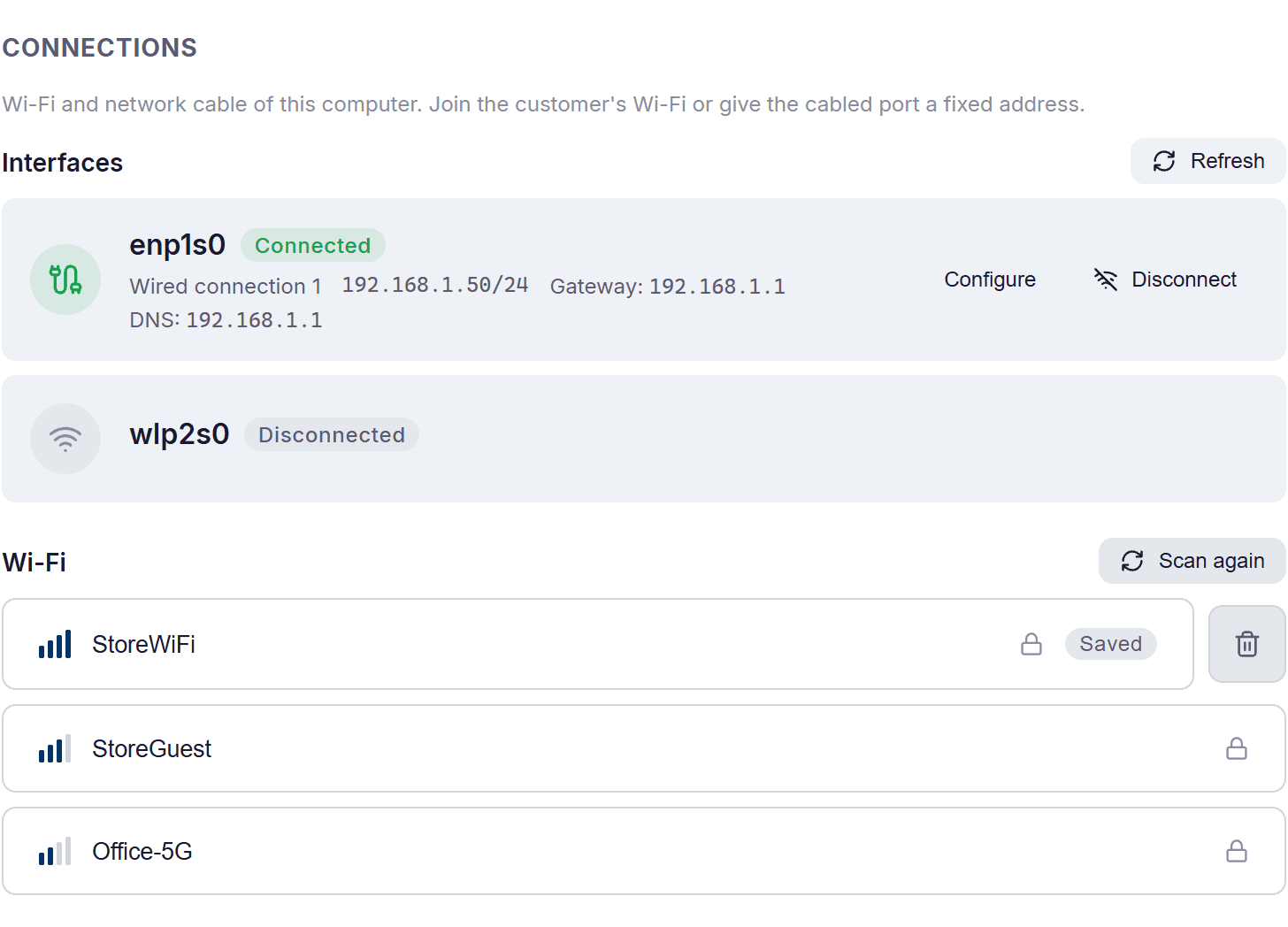
See the connection
In Interfaces, each network port of the computer shows its state (Connected, Disconnected…), its IP address, the Gateway (the router) and the DNS servers. Tap Refresh to read them again.
Join a Wi-Fi network
In Wi-Fi, the networks in range appear by themselves: while it searches, Scanning for Wi-Fi networks... shows where the list will be. To search again, tap Scan again.
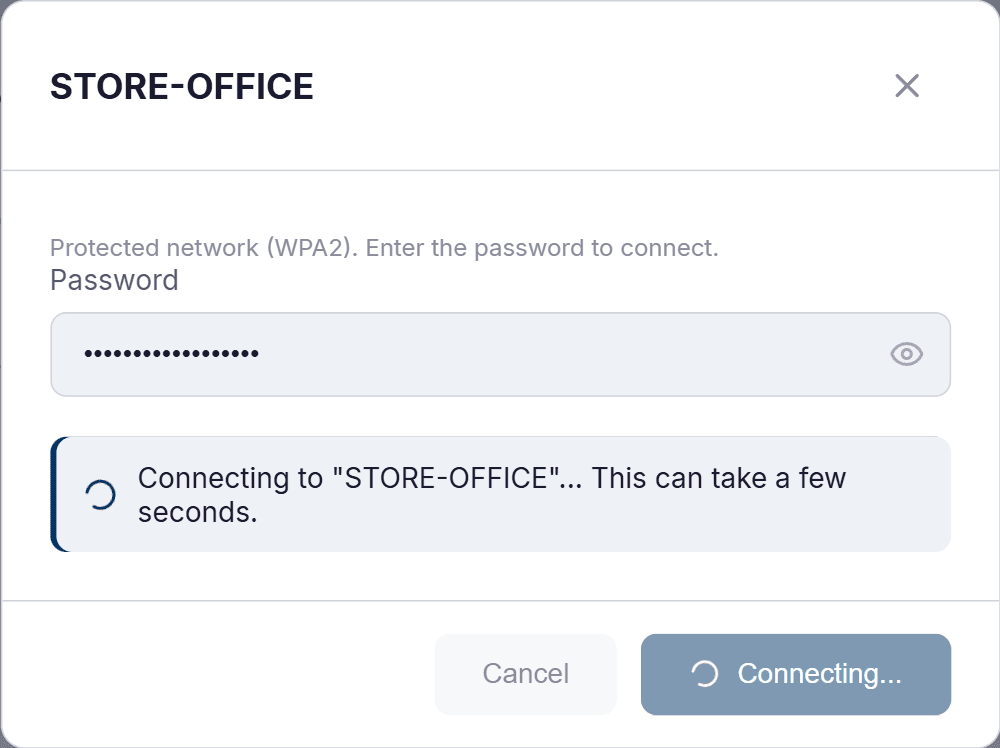
Tap the customer's network. If it has a password, type it in Password (8 characters or more) and tap Connect. The window stays open with Connecting to "…"... This can take a few seconds. until the network answers.
The network shows Connected. Next time, the computer joins it on its own (it shows Saved).
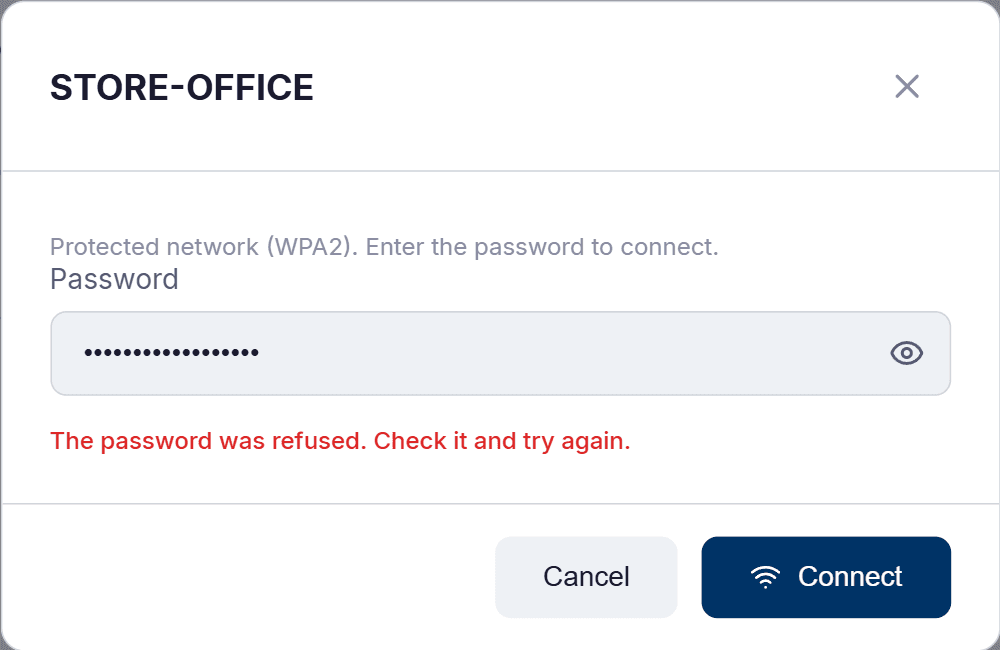
If the password is refused, the window stays open and The password was refused. Check it and try again. appears under the field: correct it and tap Connect again.
To stop using a network, tap its trash icon (Forget): the saved password is removed.
If the Wi-Fi is turned off
In Interfaces, the Wi-Fi port (its name starts with wl, for example wlp3s0 or wlan0) may say Wi-Fi is turned off.: that happens on a computer copied from an image whose Wi-Fi was off. Tap Turn on Wi-Fi on that line. The button says Turning on Wi-Fi... and, a moment later, the networks in range appear.
If it says Wi-Fi is blocked by a switch or by the computer's settings. instead, the Smart Safe Client cannot turn it on: look for a Wi-Fi switch or key on the computer, or use a network cable.
If it stays Unavailable with nothing saying that the Wi-Fi is turned off, or it says The Wi-Fi program is missing on this computer. Run the installation command again, with a network cable., the computer was installed without the program that drives the Wi-Fi card: the Smart Safe Client cannot fix that either. Plug in a network cable and run the installation command again, as Install on Linux explains. The Wi-Fi works as soon as it ends, without restarting.
A fixed address for the network cable
The customer's network usually gives the computer an address on its own (that is what DHCP does). If the customer's IT team asks for a fixed address:
In Interfaces, tap Configure on the cable port.
Choose Fixed address and fill in what the customer's IT team gives you:
- Address: the address with the network size, for example
192.168.1.50/24. - Gateway: the router, for example
192.168.1.1. - DNS: one or more servers separated by commas, for example
8.8.8.8. Leave it empty to use the network's own.
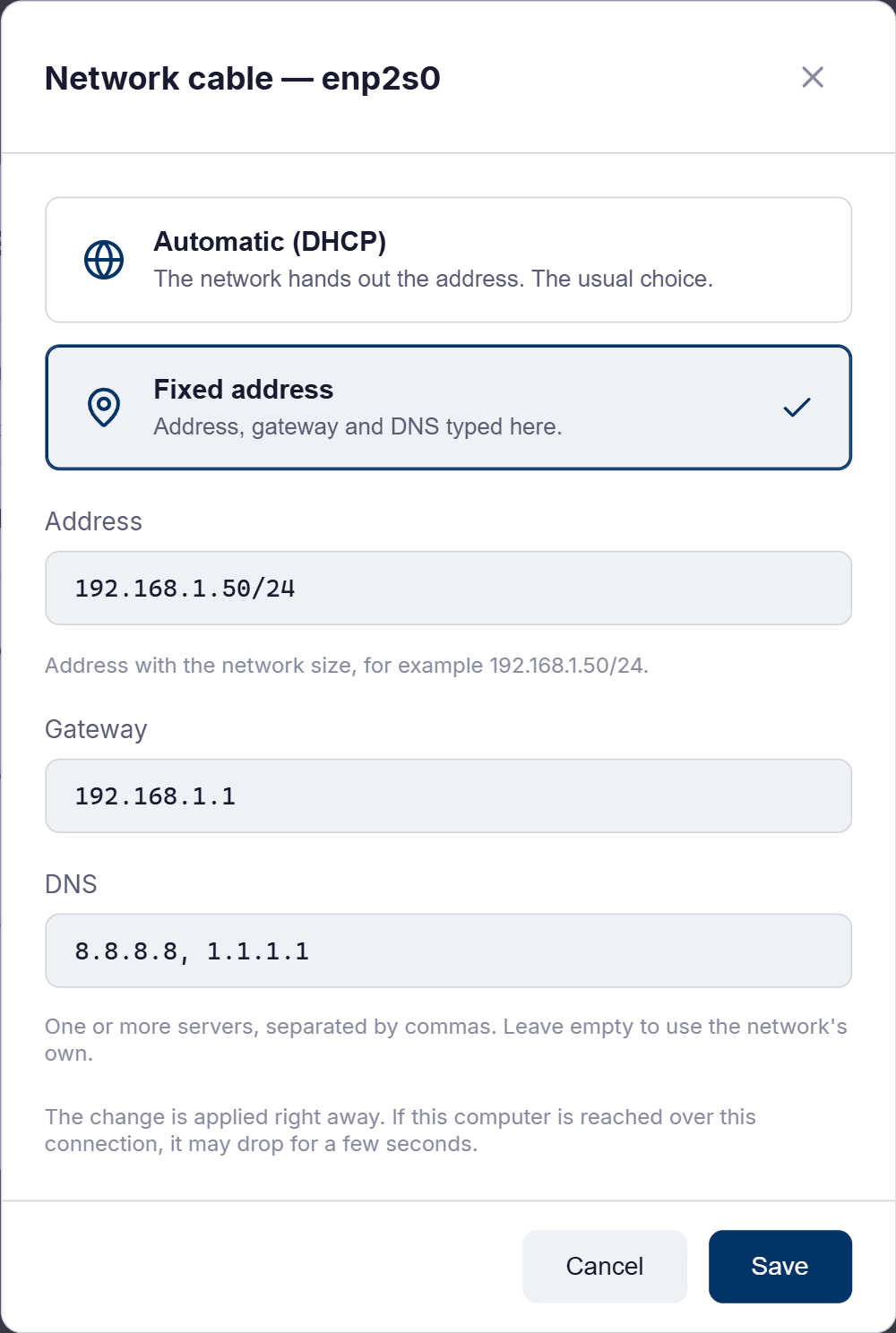
Save. The change takes effect at once.
If you are connected over SSH
If you are working on the computer from your laptop over the same cable (SSH), the connection may drop for a few seconds when you change the address. With a new address, connect again to the new one.
To go back, choose Automatic (DHCP).