
Devices
How to add the DE-70 or the Cash Infinity in the Smart Safe Client and test the connection.
The GLORY device is added in Settings › Devices › Add Device.
The first time the Smart Safe Client is opened with no device, a wizard with the same steps appears: Welcome to GLORY Smart Safe Client › Start Setup.
Prepare the device first
Before adding the device, do the Preparation: if the device is not ready, the Smart Safe Client does not find it.
DE-70
In Device Type, choose DE Depositary. In Model, choose DE-70.
Tap Find the device. The Smart Safe Client checks the computer's ports and, when it finds the DE-70, shows Found on … at 9600 baud and fills in the Serial Port and the Baud Rate.
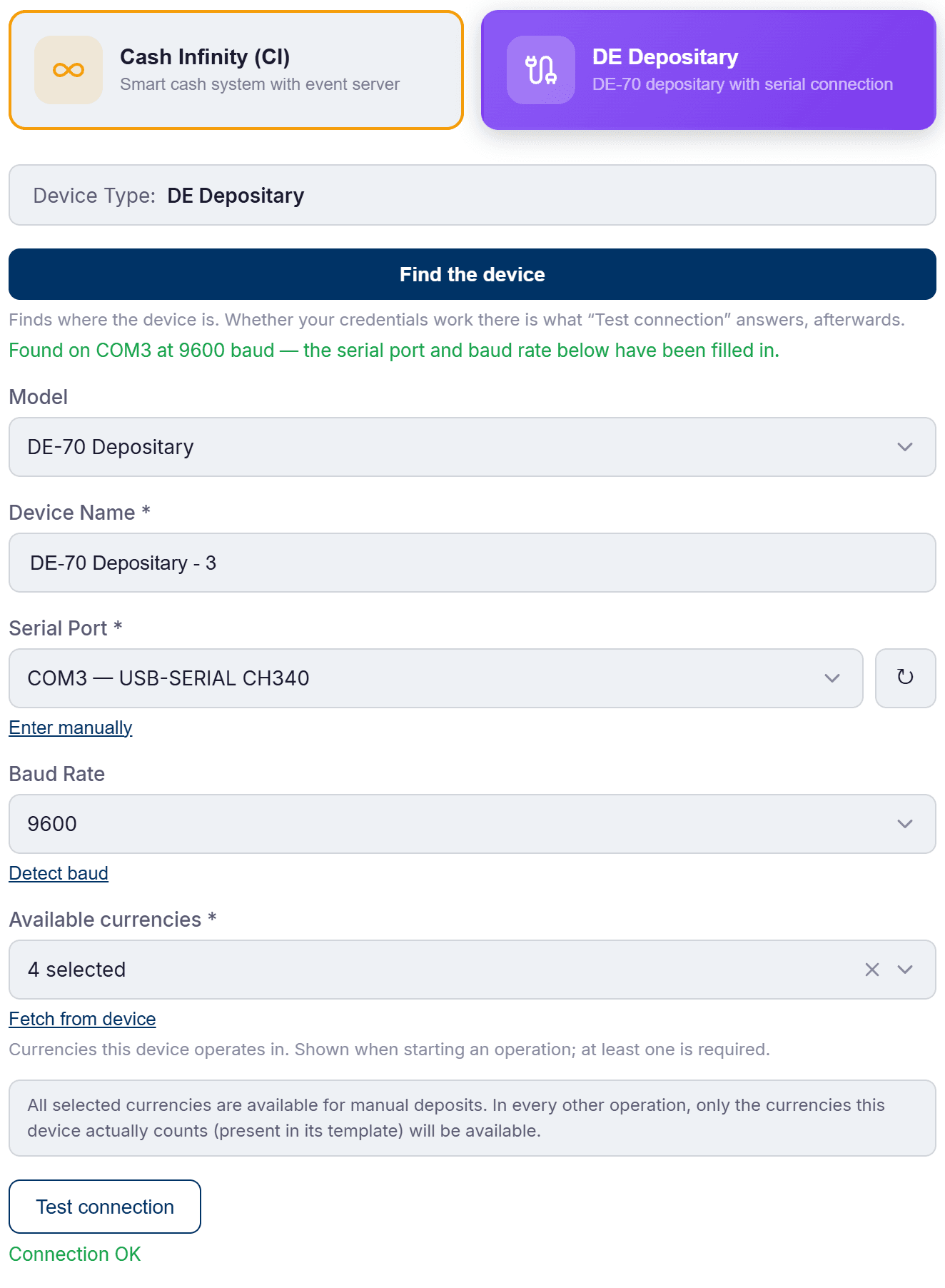
In Available currencies, tap Fetch from device. The currencies loaded in the DE-70 appear.
Tap Test connection. Connection OK must appear.
Tap Save.
- Check that the DE-70 is on the main menu (the counting screen), outside RAS: that is the only place where it communicates.
- Check the cable, and that the DE-70 is on and free of errors.
- Close any other program that uses the port (for example, an earlier program for the safe): the port cannot be shared.
- Choose the port by hand in Serial Port (or tap Enter manually) and leave Baud Rate at 9600.
- On Linux, check the user's permission to use the port: see Preparing the DE-70 and usermod
- If all of that is fine and it still cannot find it, confirm that the DE-70 is protocol A, the one the Smart Safe Client needs: in USER MENU › INFORMATION, MACHINE tab, the TYPE line must say DE-70A (Protocol A shows where to check). If it says something else, that cannot be fixed on the computer: open a ticket with a photo of that screen.
Tap Save first and then Test connection: the test uses the saved settings.
Cash Infinity
In Device Type, choose Cash Infinity (CI).
Tap Find on the network, or type the device's address in Host.
In Port leave 80, which is already filled in. It only changes, to 443, when you turn on the secure connection: see Secure connection (HTTPS)
Leave Event Host set to Automatic and Event Port set to 55562.
In Available currencies, tap Fetch from device.
Cash Infinity administrator user password is optional. Leave it blank when the device's glory user has one of the passwords recommended by GLORY. Fill it in only when the technician who installed the device gave that user another password (see The device's glory user).
Tap Test connection. Connection OK must appear, with the device's version.
Tap Save.
No operator user or password
The Cash Infinity does not ask for an operator's user or password on this screen: each operation is done with the user who signed in to the Smart Safe Client.
The administrator user's password
With a password filled in, the Smart Safe Client uses it instead of the recommended ones. It keeps it protected and never shows it again: when you edit the device, the field says Saved password (blank keeps it). To change it, type the new one and tap Save. To go back to the recommended passwords, tap Remove the saved password and then Save.
Confirm with a deposit
Test connection does not test the notifications the Cash Infinity sends to the computer. To confirm them, sign in with a user and make a deposit: the money must appear counted on the screen as it goes in. If it does not appear, check port 55562
Secure connection (HTTPS)
Optional. By default, the Smart Safe Client talks to the Cash Infinity over HTTP, and that is enough for most customers. Turn on HTTPS only when the customer asks for it: the communication then travels encrypted, and the users' passwords never cross the network in a way someone could read. What HTTPS and a certificate are: HTTPS and certificate
How it works
A certificate works like an ID card: before talking, one side can ask to see the other's. Between the computer and the Cash Infinity there are three connections, and each has its own check:
- 1HTTPS: the commands and the users' passwordsUse HTTPSSmart Safe Client computerport 443
 Cash Infinity
The Smart Safe Client checks the machine's certificate: Certificate check
- 2Client certificate: the computer's ID cardOptionalSmart Safe Client computerinside connection 1Cash Infinity
The machine checks the computer's certificate: SSL Configuration › E
- 3Encrypted events: the money counted, liveOptionalSmart Safe Client computerport 55562Cash Infinity
The machine checks the computer's certificate: SSL Configuration › A
- Connection 1 is all most customers need. The machine shows its certificate, and the Smart Safe Client checks it the way you choose in Certificate check.
- Connections 2 and 3 are only for a customer whose IT team asks for them. In both, it is the machine that asks for the computer's ID card: the client certificate
Which do I need?
| What the customer asks for | In the Smart Safe Client | On the machine |
|---|---|---|
| Nothing (most customers) | Leave Use HTTPS off | Nothing |
| The communication encrypted | Use HTTPS with Encrypt only | Nothing: it answers HTTPS from the factory |
| Encrypted, and only with this machine | Use HTTPS with This FCC's certificate only | Nothing |
| The company's own certificate on the machine | Use HTTPS with Certificate issued by the company's CA | The IT team installs its certificate, in section B |
| The machine only talks to computers with a certificate | Also: Client certificate | Section E |
| The notices (events) encrypted too | Also: Encrypted events | Section A |
The sections are those of the machine's SSL Configuration page, in its web interface: Client certification
Turn on HTTPS
In Settings › Devices, add or edit the Cash Infinity and open Secure connection (HTTPS) — optional, below Event Port.
Turn on Use HTTPS. Port changes to 443 by itself.
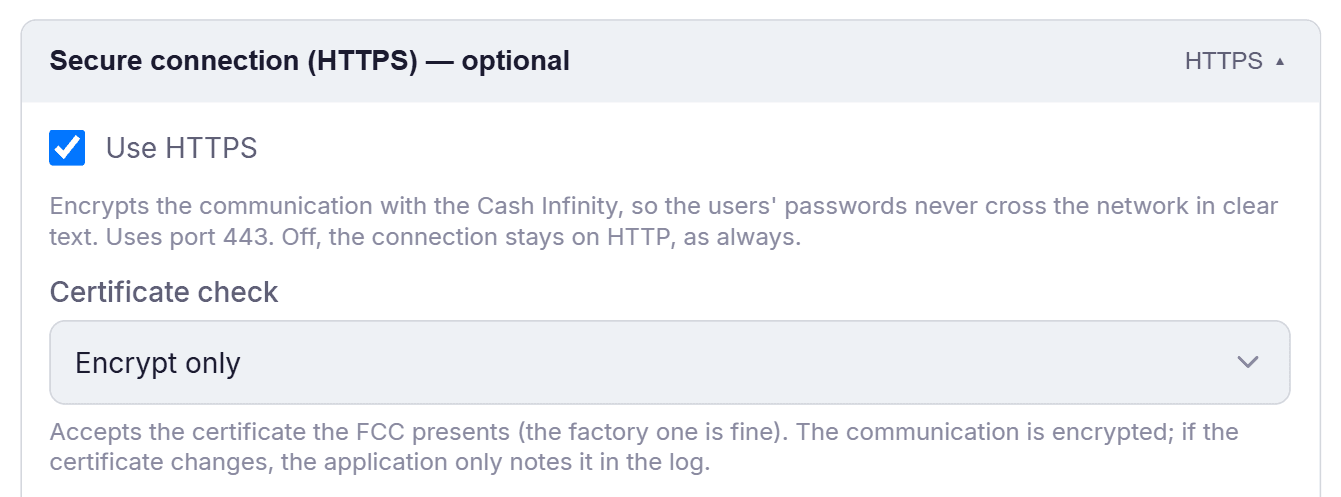
In Certificate check, choose how the Smart Safe Client checks the machine's certificate:
- Encrypt only: the usual choice. It accepts the certificate the Cash Infinity came with from the factory. Nothing else to do in this step.
- This FCC's certificate only: the Smart Safe Client only connects to a machine with the certificate you trust here. How: Trusting this machine's certificate
- Certificate issued by the company's CA: only when the company's IT team installed its own certificate on the machine. Tap Load file… and choose the file of the CA the IT team gave you (
.pem,.crtor.cer), with the intermediate certificates when there are any. Leave Also check that the certificate is for this address off, unless the IT team asks for it.
Tap Test connection. Connection OK must appear.
Tap Save.
Turning HTTP off on the machine
With HTTPS working, Accept HTTP Access can be set to Disable on the machine: it then closes port 80 and only answers HTTPS. See Settings
Trusting this machine's certificate
With This FCC's certificate only, the Smart Safe Client keeps the fingerprint of the machine's certificate: a long code that is different for each certificate. Do it with the computer on the customer's own network: the certificate you trust must come from the machine itself.
With This FCC's certificate only chosen, tap Read the FCC certificate. A box shows the certificate the machine presented:
- Certificate fingerprint (SHA-256): the code to compare.
- Issued to and Valid: whose certificate it is and its dates.
- Type: the machine's factory certificate is X.509 v1 · self-signed.
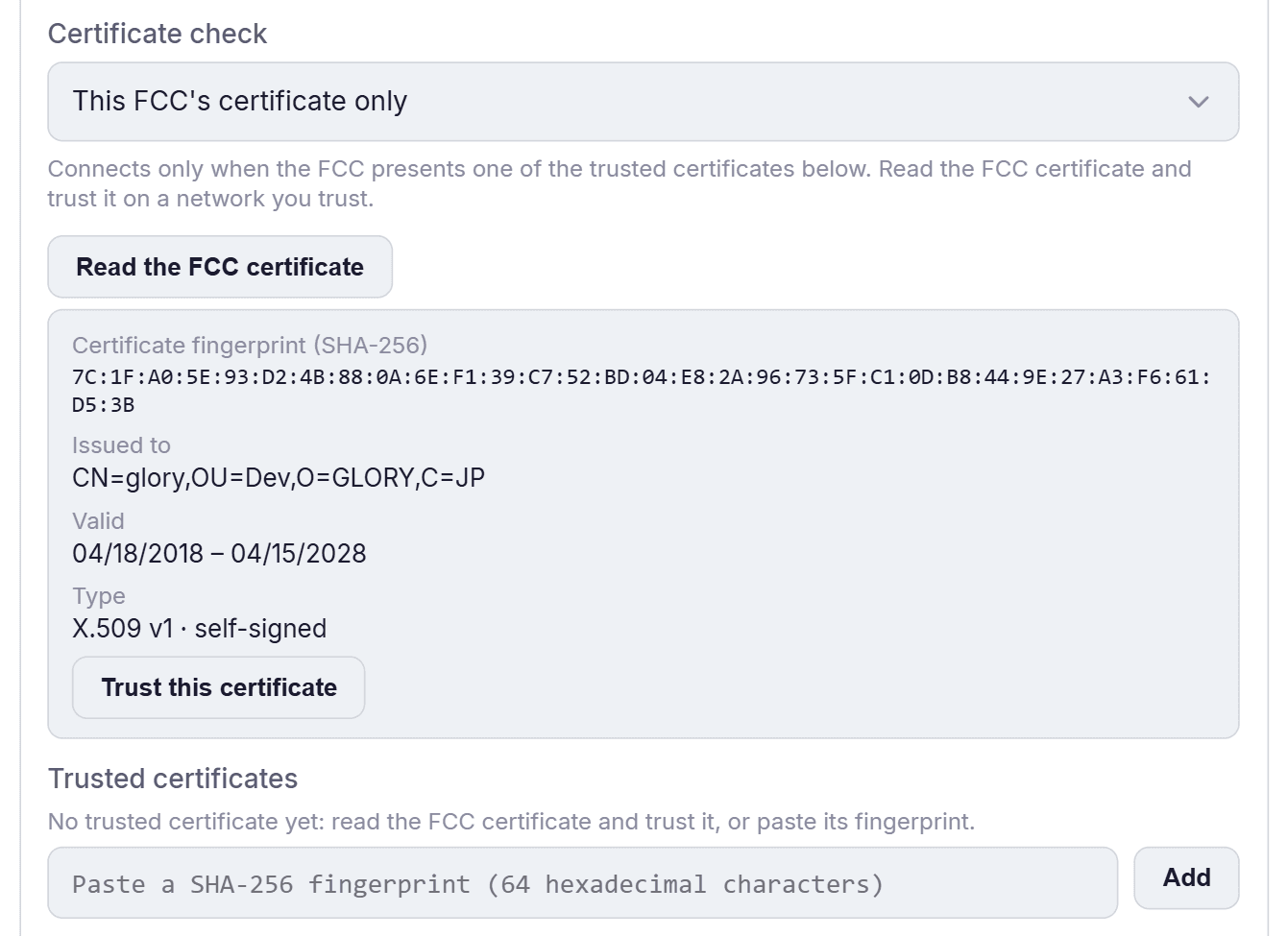
Compare the fingerprint with the one the browser shows for the machine (box below). If they are the same, tap Trust this certificate.
The fingerprint moves to Trusted certificates. Go on with Test connection and Save, as in Turn on HTTPS

Comparing the fingerprint
To be sure the certificate is the machine's own, look at it in the computer's browser too:
- Open Chrome or Edge and type
https://and the machine's address, for examplehttps://192.168.0.25 - The browser warns that the connection is not private. With the factory certificate, that is normal: you do not need to go on to the page.
- Tap Not secure, before the address, and then the certificate. Look for the SHA-256 fingerprint.
- Compare it with the one in the Smart Safe Client, pair by pair. The browser may write it in lowercase or without the colons: it is the same code.
If the IT team gave you the fingerprint, you can also paste it in Paste a SHA-256 fingerprint (64 hexadecimal characters) and tap Add.
If the company's IT team replaces the machine's certificate, a Cash Infinity on This FCC's certificate only stops connecting until you read the new certificate and trust it. The messages and what to do: Connecting it
Client certificate (optional)
Only for a machine with client certification turned on. It is connection 2 in How it works and, with it on, the Cash Infinity only accepts a computer that presents a client certificate issued by the CA loaded on the machine. Without one, Test connection says "The FCC is asking for a client certificate…" (the messages call the machine's controller the FCC).
A Cash Infinity on HTTP, or on HTTPS without client certification, needs none of this. That is most customers.
What to ask the customer's IT team
- The client certificate, in a
.p12file (it may also end in.pfx), and the file's password. - The file of the CA that issued it, to load on the machine.
- A certificate that may be used on both sides, client and server, and not one restricted to client use only. The same certificate also serves the encrypted events
The IT team gives you two files, and each goes to one place. Do not mix them up:
| The file | What it is | Where it goes |
|---|---|---|
.p12 or .pfx, with a password | The client certificate: the computer's ID card | In the Smart Safe Client: Import certificate file… |
.crt, .cer or .pem, without a password | The certificate of the CA: whoever issued that ID card | On the machine: sections E and A of SSL Configuration |
On the machine, load the CA's file in section E, turn client certification on and restart it. After the restart, wait about a minute before going on. How: Client certification
In Settings › Devices, edit the Cash Infinity and open Secure connection (HTTPS) — optional. Use HTTPS must be on, as in Turn on HTTPS
In Client certificate (optional), type the file's password in Certificate file password (blank if it has none). If the file has no password, leave it blank.
Tap Import certificate file… and choose the .p12 or .pfx file. The box shows Imported certificate: it is saved with the device. and three lines:
- Issued to: who the certificate is for.
- Issued by: the CA that issued it. It must be the CA loaded on the machine.
- Valid until: the date it expires. Before that date, ask the IT team for a new one.
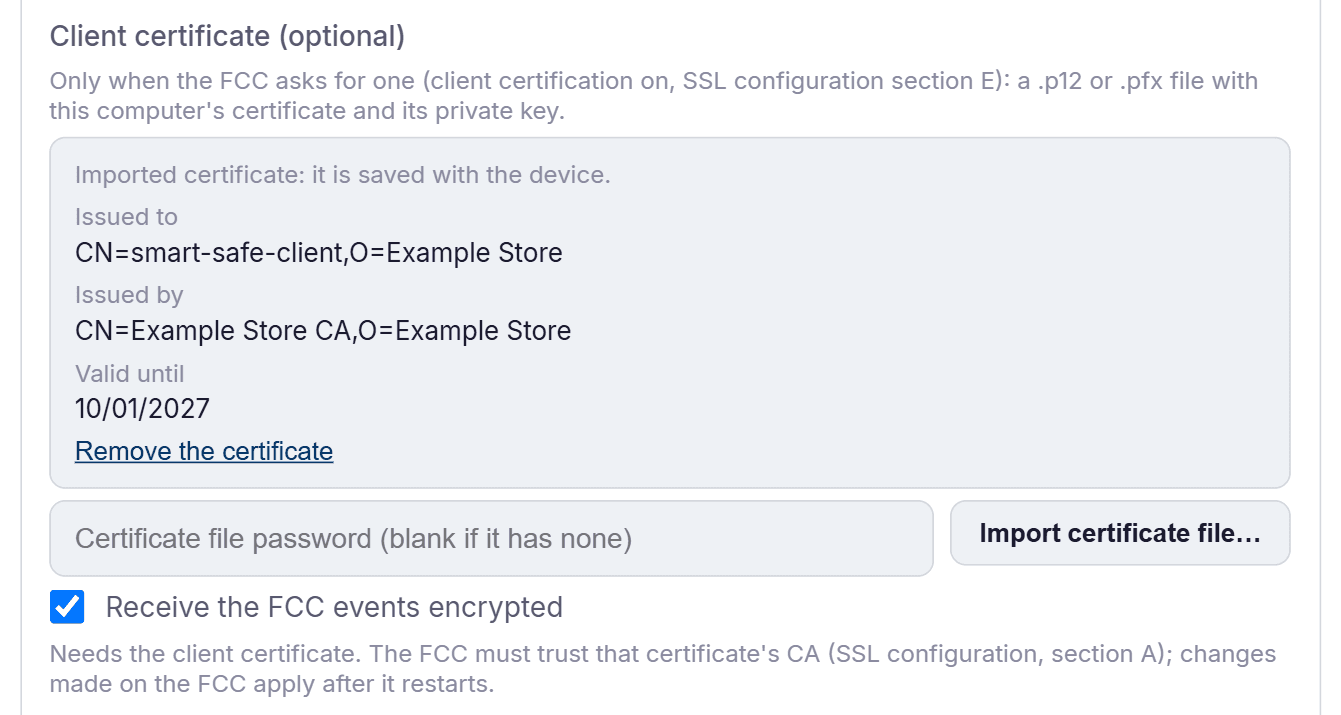
If "The certificate could not be imported. Check the file and its password." appears instead, type the password again and import the file again.
Tap Test connection. Connection OK must appear.
Tap Save.
When you edit the device later, the box says Saved certificate: kept when you save. and shows the same lines. The Smart Safe Client keeps the certificate and its password protected, and never shows the password again.
- To replace it, for example before it expires: import the new file the same way and tap Save.
- To remove it: tap Remove the certificate and then Save. Removing the certificate also turns the encrypted events off.
Encrypted events (optional)
The Cash Infinity sends its notices (events) to the computer on port 55562: that is how the Smart Safe Client sees the money being counted live. It is connection 3 in How it works and it goes the other way: from the machine to the computer. These notices can also travel encrypted, but only with a client certificate imported: without one, the option cannot be turned on.
This time, the machine asks for the computer's ID card and checks it against the CAs loaded in section A of its SSL Configuration page:
- With no CA in section A, it sends its events to any computer.
- With a CA there, it sends them only to a computer whose certificate that CA issued.
On the machine, load in section A the same CA's file you loaded in section E, and restart it. After the restart, wait about a minute before going on. How: Client certification
In Secure connection (HTTPS) — optional, with the client certificate imported, turn on Receive the FCC events encrypted.

Tap Save.
Sign in with a user and make a deposit: on the Deposit screen, the money must appear counted as it goes in. Test connection does not test the events.
If the machine refuses the computer's certificate for the events, the Smart Safe Client says so. The messages and what to do: Connecting it
After adding the device
- If the customer uses accounts, assign the device to each account in Settings › Accounts.
- Check the limits in Settings › Transactions. On the DE-70, the maximum number of notes comes from the device itself and shows as Set on the machine itself.
Next step
- If the device is a Cash Infinity: Cash Infinity settings
- If the safe has a sensor board, a UPS, a shutter or a point-of-sale screen reader: Peripherals
- If several establishments share the safe: Accounts
- If not: Profiles and permissions