
A new installation without internet
The Smart Safe Client opens on the activation screen and nobody can sign in, because the computer has no license yet and no internet to ask for one. How to connect it from that screen, step by step.
Right after the installation, the Smart Safe Client opens on the Activate your Smart Safe screen, with License file not found in red. That is normal: each computer needs its own license, and nobody can sign in before it is activated. To ask for the license and activate it, the computer needs internet.
This page shows how to connect the computer from that same screen, without leaving the Smart Safe Client and without a terminal
In short
- Tap Network, at the top right of the activation screen.
- Connect the computer: plug in a network cable, or join a Wi-Fi network (the customer's, or your phone's hotspot).
- Wait until the top of the window says Connected to the license server.
- Tap Close and ask for the license. A copy of a cloned image asks for it by itself.
1. Look at the Network button
At the top right of the activation screen, next to the language flags, the Network button shows whether the computer reaches GLORY's license server:
- Orange icon, with the Wi-Fi crossed out: it does not reach it. You cannot ask for the license yet.
- Green icon: it reaches it. Go straight to 5. Ask for the license
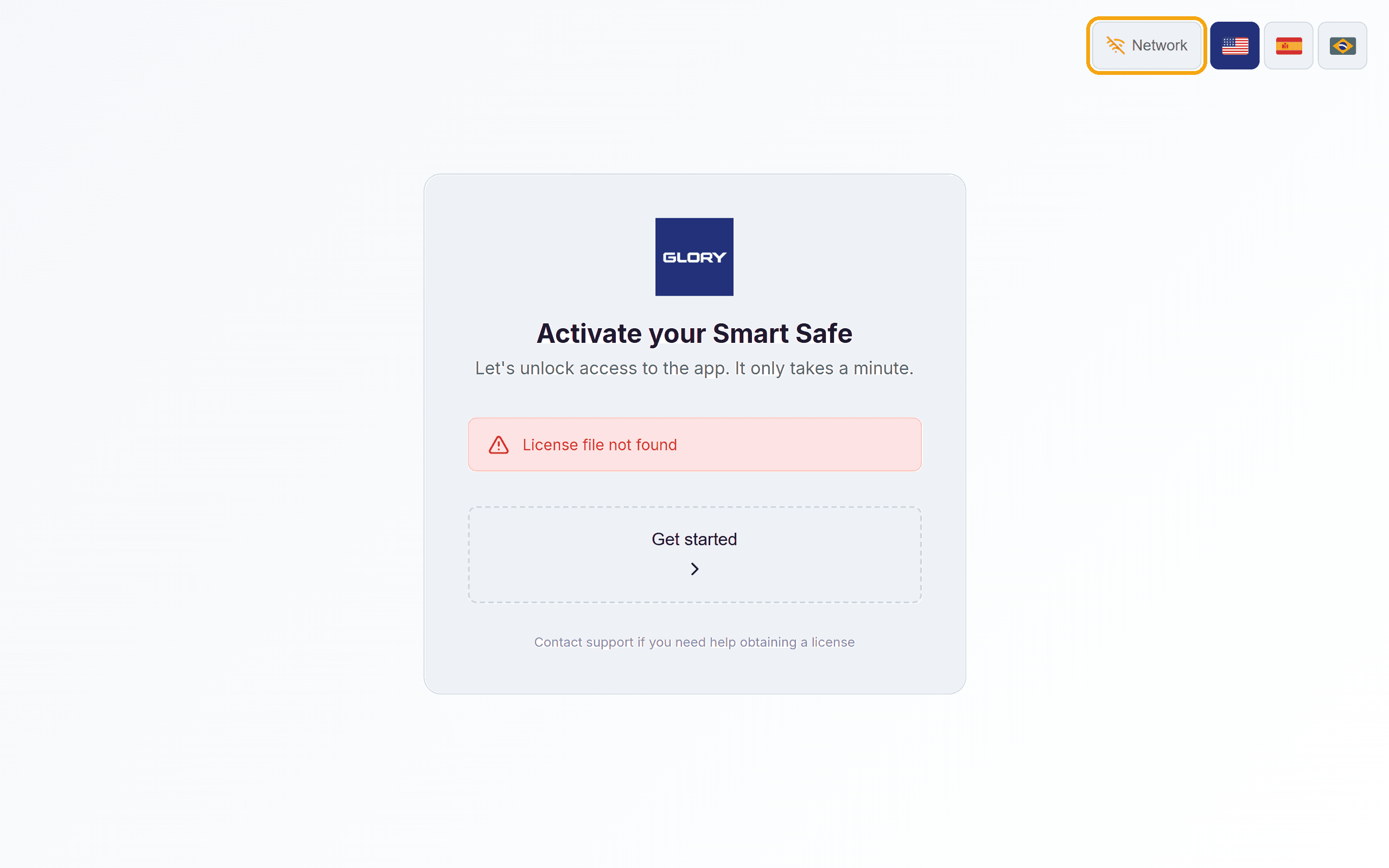
While the server does not answer, the activation screen asks again by itself every 15 seconds. As soon as the computer is connected, the button turns green: there is no need to restart the computer or the Smart Safe Client.
2. Open the window This computer's network
Tap Network. The This computer's network window opens, with the computer's Wi-Fi and network cable: the same options as Settings › Network, available before the computer has a license.
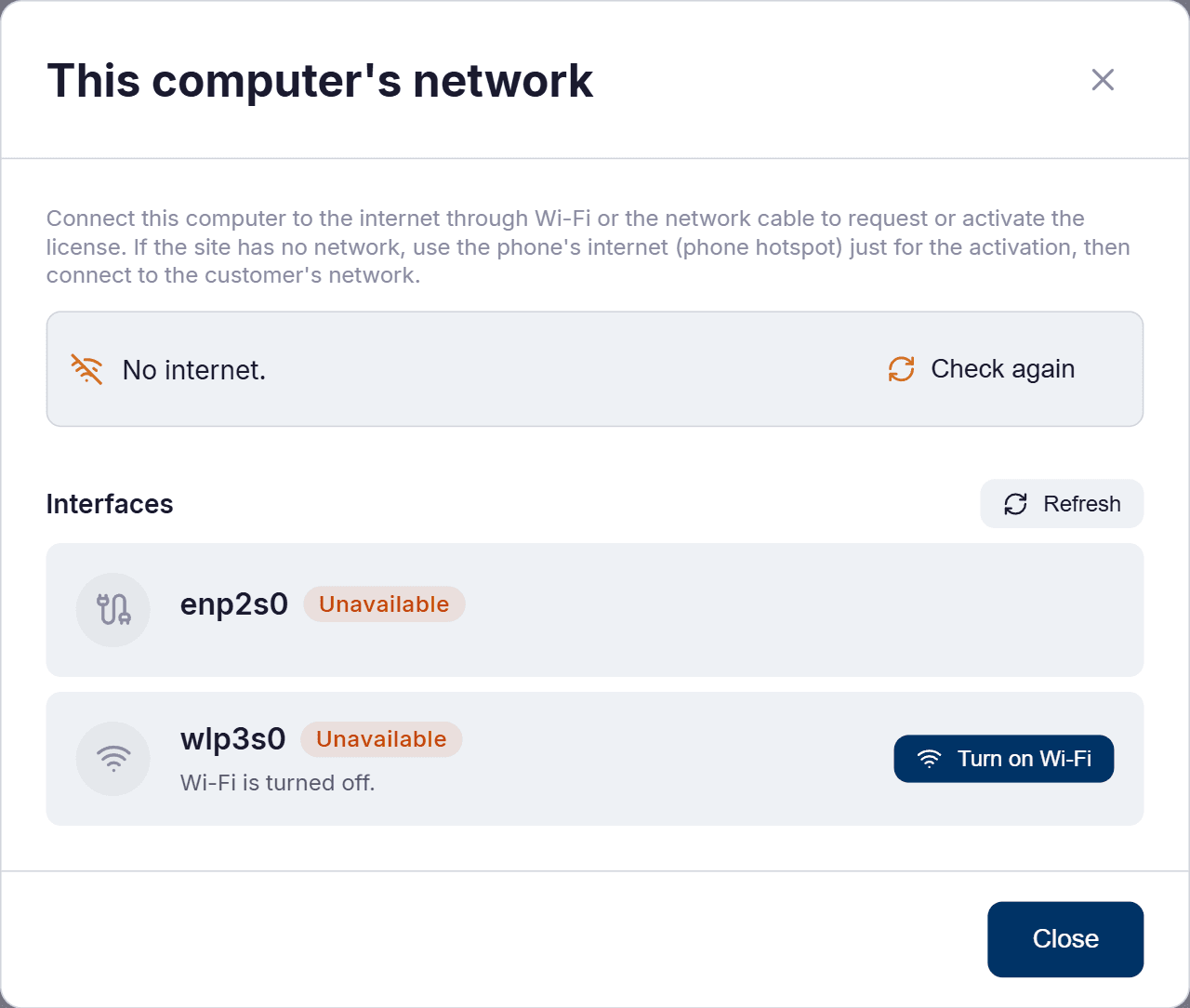
The line at the top says what the computer reaches:
| The line says | What it means | What to do |
|---|---|---|
| No internet. | The computer is not on a network with internet. | Connect it: with a network cable, by Wi-Fi or with your phone's hotspot |
| The internet is up, but the license server did not answer. | The computer has internet, but GLORY's server does not answer it. | See The internet works, but the server does not answer |
| Connected to the license server. | Everything is fine. | Tap Close and ask for the license |
| Checking the connection to the license server... | It is asking right now. | Wait a few seconds. |
Check again asks right away, without waiting for the 15 seconds. Close also asks again when it closes the window.
Under Interfaces, each network port of the computer appears with its state. The cable port has a name that starts with en or eth (for example enp2s0), and the Wi-Fi port a name that starts with wl (for example wlp3s0 or wlan0).
| State | On the cable port | On the Wi-Fi port |
|---|---|---|
| Connected | The cable is on the network. Its IP address, the Gateway (the router) and the DNS appear next to it. | The Wi-Fi is on a network, whose name appears next to it. |
| Unavailable | There is no cable, or the device at the other end (router or switch) is off. | The Wi-Fi is turned off, or the computer is missing the Wi-Fi program: see By Wi-Fi |
| Disconnected | The cable is plugged in, but the port is not on any network. | The Wi-Fi is on, but not on any network yet. |
| Connecting | The port is asking the network for an address. | The same, for the Wi-Fi network. |
| Not managed | Right after the installation, the Smart Safe Client only manages the network after the computer restarts. Restart it (step 5 of Install on Linux shows how) | The same. |
If the window says On this computer the network is managed by the operating system. Use its own network settings., see On Windows or, on Linux, The window does not show the network
3. Connect the computer
Connect it in one of these three ways. A network cable is always the best choice for a safe.
With a network cable
Plug a network cable from the customer's router or switch into the computer. Wait a few seconds and tap Refresh: the cable port says Connected, with an address such as 192.168.1.50/24. The line at the top changes by itself within 15 seconds, or at once when you tap Check again.
| What you see | What to do |
|---|---|
| The cable port stays Unavailable | Plug the cable in firmly at both ends. Try another cable, or another port of the router. |
| It stays Connecting, or Disconnected with no address | The network does not hand out addresses by itself. Ask the customer's IT team whether this network needs a fixed address, and type it as below. |
| It says Connected, but the line at the top still says No internet. | The cable is on the network, but the network does not get out to the internet. See The computer is connected, but there is no internet |
A fixed address given by the customer's IT
The customer's network usually gives the computer an address by itself (that is what DHCP does). If the customer's IT team gives you a fixed address:
On the cable port, tap Configure. It only appears with the cable plugged in.
Choose Fixed address and fill in what the IT team gives you:
- Address: the address with the network size, for example
192.168.1.50/24. - Gateway: the router, for example
192.168.1.1. - DNS: one or more servers, separated by commas, for example
8.8.8.8, 1.1.1.1.
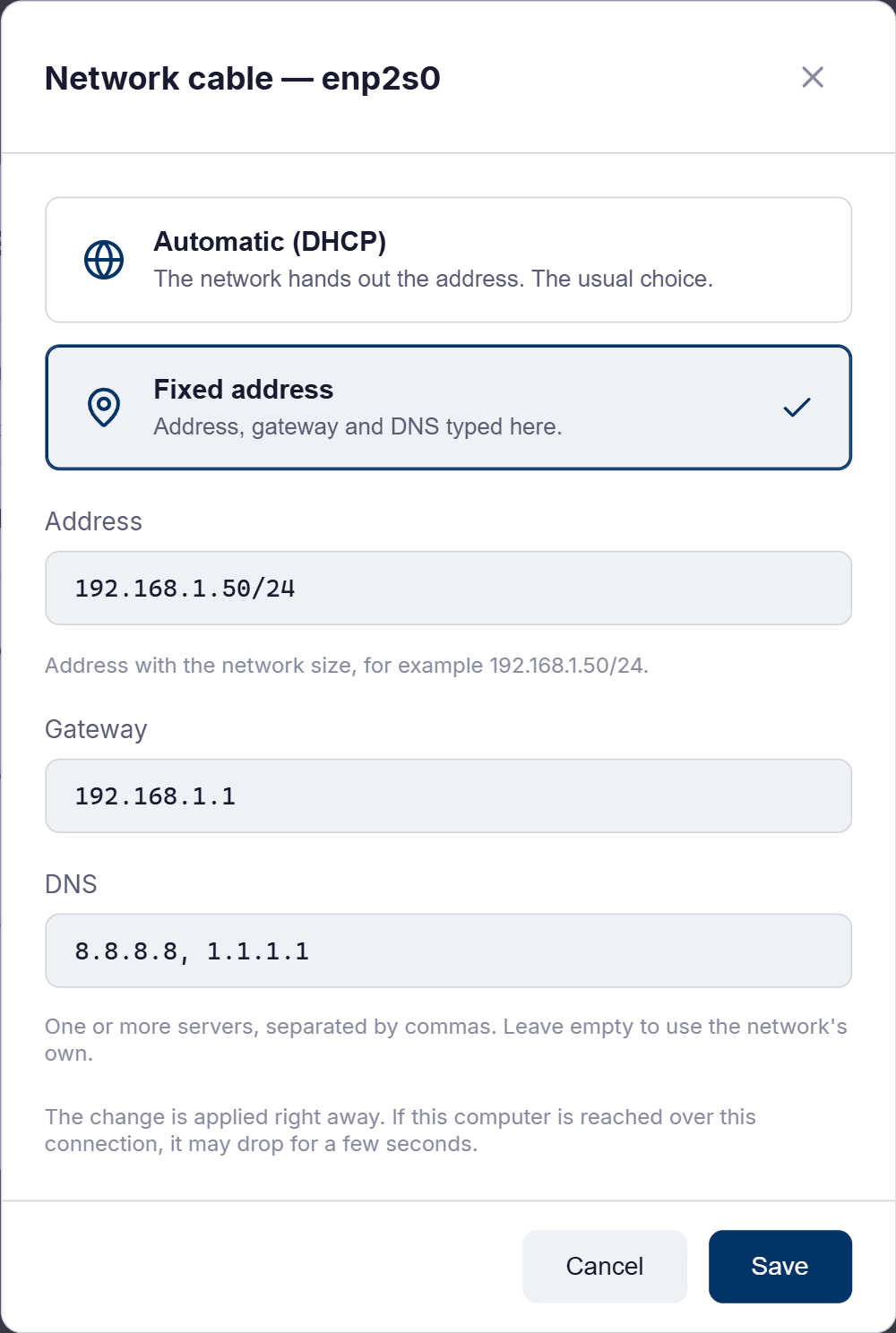
Tap Save. The change takes effect at once, and the line at the top asks the server again.
If a field is refused, or the internet does not come after saving, see A fixed address asked by the customer's IT
By Wi-Fi
Turn on the Wi-Fi, if it is off. On a computer copied from an image, the Wi-Fi may come turned off: the Wi-Fi port says Unavailable and Wi-Fi is turned off. Tap Turn on Wi-Fi on that line. The button says Turning on Wi-Fi... and, a moment later, the Wi-Fi part appears.
If it says Wi-Fi is blocked by a switch or by the computer's settings. instead, look for a Wi-Fi switch or key on the computer, or use a network cable.
If the Wi-Fi port stays Unavailable with nothing saying that the Wi-Fi is turned off, or it says The Wi-Fi program is missing on this computer. Run the installation command again, with a network cable., the computer was installed without the program that drives the Wi-Fi card. Plug in a network cable and run the installation command again, as Install on Linux explains. The Wi-Fi works as soon as it ends, without restarting. Without a network cable there, ask for the license with a file, as No network at all at the site explains.
Wait for the networks. Under Wi-Fi, the networks in range appear by themselves. While it searches, Scanning for Wi-Fi networks... shows where the list will be.
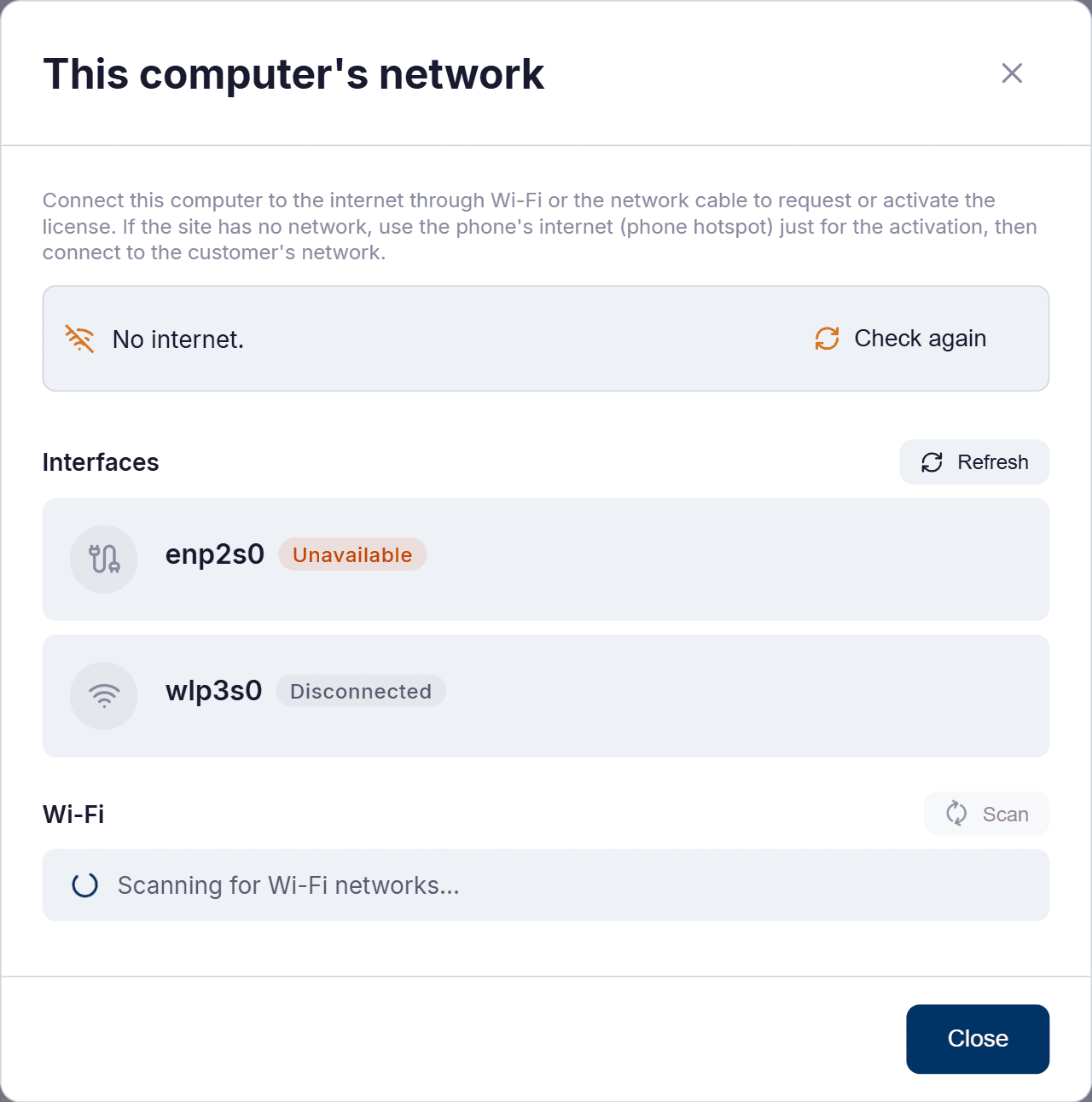
The bars next to each network show its signal: 4 is the best. A padlock means that the network has a password.
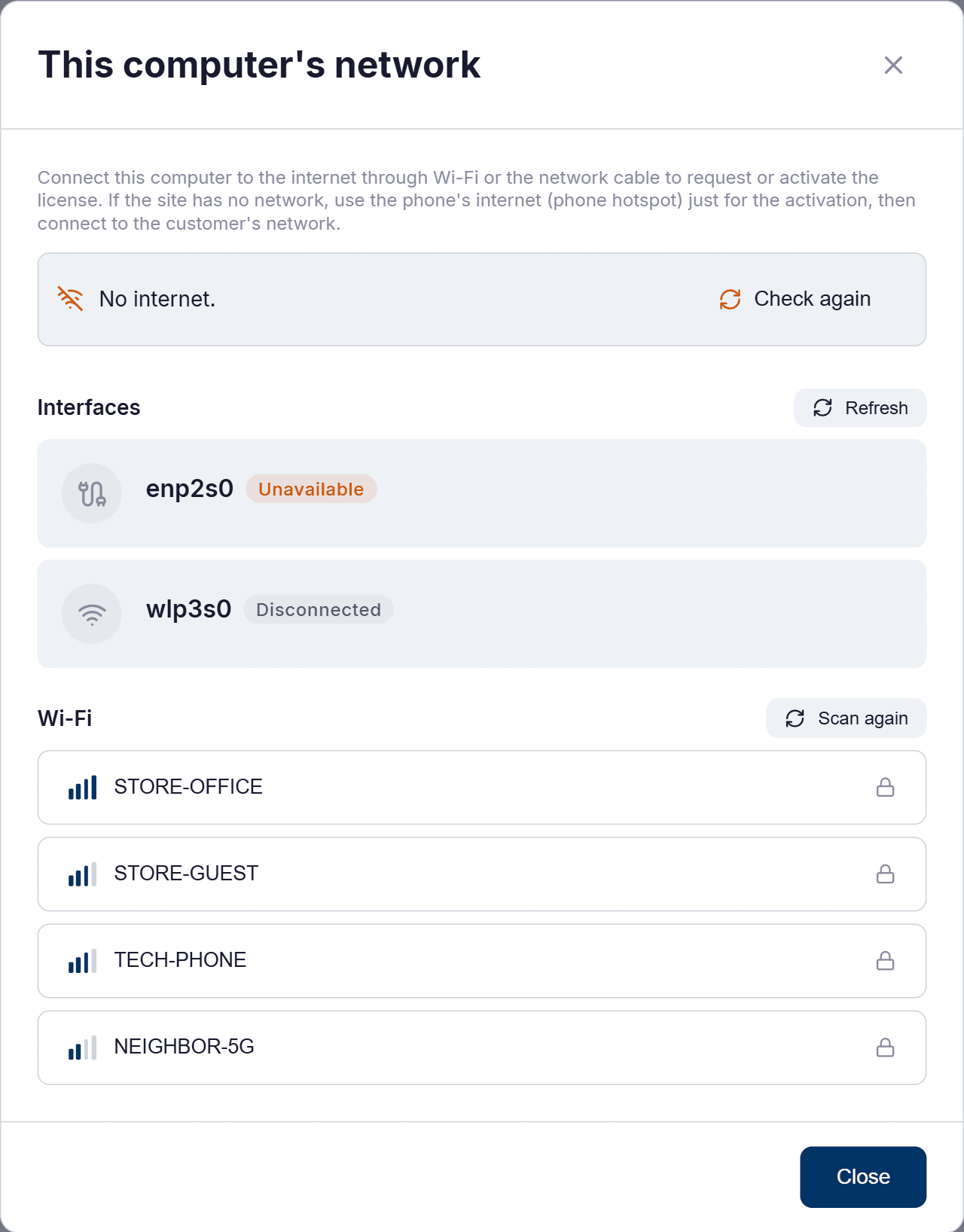
If the customer's network is not in the list, tap Scan again.
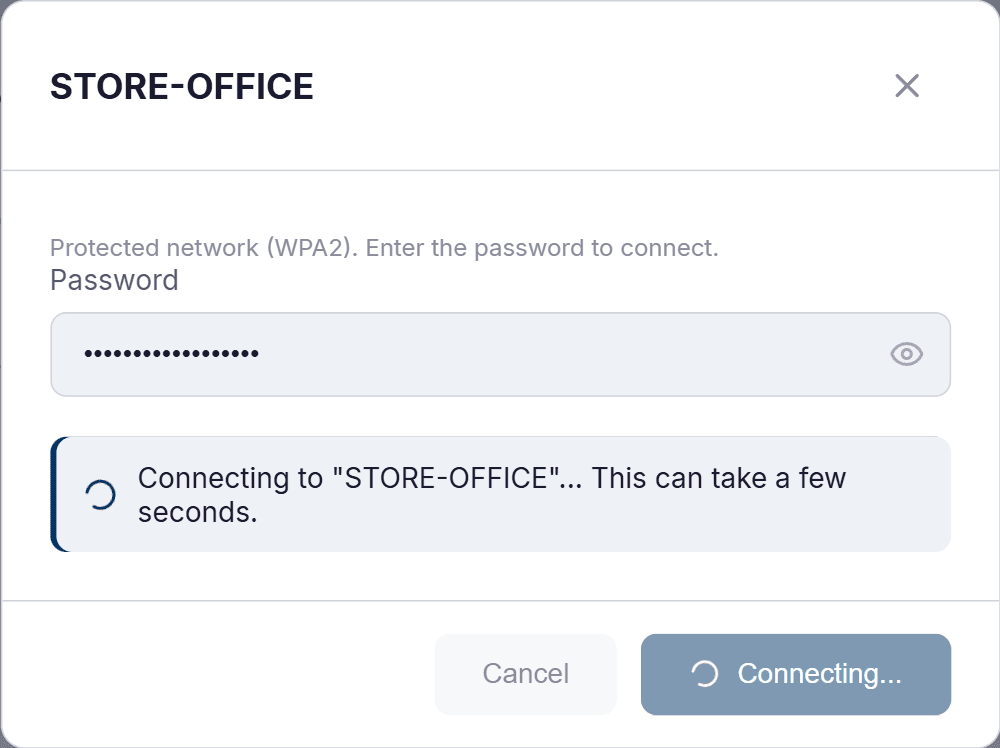
Tap the customer's network and type its password in Password. Connect stays gray until the password has 8 characters or more. Tap Connect: the window stays open with Connecting to "…"... This can take a few seconds. until the network answers.
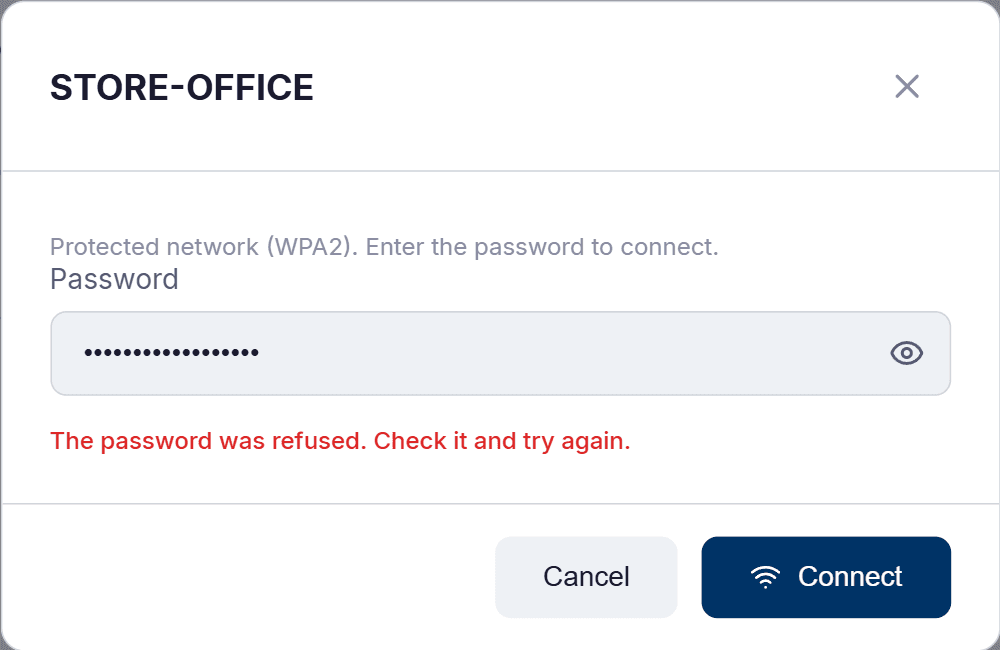
If the password is wrong, The password was refused. Check it and try again. appears under the field. Type it again (upper and lower case matter) and tap Connect.
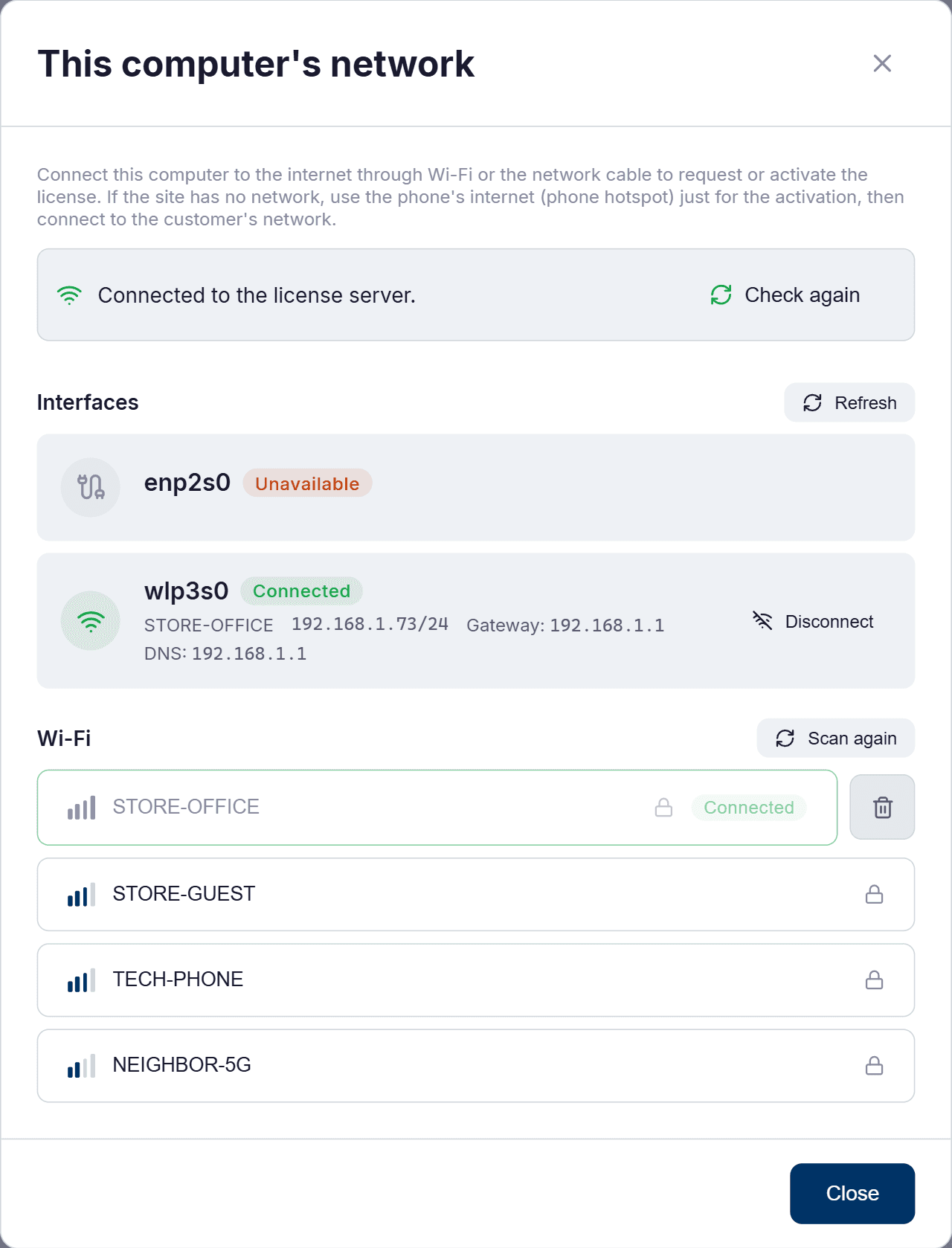
Connected. A message says Connected to "…".: tap OK. The Wi-Fi port says Connected, with its address, and the line at the top asks the server again by itself. Next time, the computer joins this network on its own.
| Problem | What to do |
|---|---|
| That network is not in range any more. Scan again. | Tap Scan again. If the network does not come back, move the computer closer to the router, or use a cable. |
| The connection took too long. Move closer to the access point and try again. | Bring the computer and the router closer together, then tap the network again. |
| No Wi-Fi network in range. | Check that the router is on and tap Scan again. |
| The customer's network does not appear | Hidden networks (the ones that do not show their name) do not appear in the list. Use a cable, or ask the customer's IT team to show the network's name. |
| The network asks for a user name as well as a password | The Smart Safe Client only asks for a password, so it cannot join this kind of company network. Use a cable, or a network with a password only. |
| A guest network that asks you to accept terms or to sign in on a web page | The Smart Safe Client cannot open that page. Use another network. |
| The network manager refused the request. Check the log for details. | Tap the network again. If it continues, restart the computer and try again. |
More about Wi-Fi problems in Wi-Fi
With your phone's hotspot
When the site has no network yet, use your phone's internet just for the activation.
On the phone, turn on the hotspot (the phone sharing its internet over Wi-Fi). It is in the phone's settings, usually under Hotspot or Personal Hotspot. The phone shows the network's name and password.
On the computer, join that network as in By Wi-Fi above.
If the phone's network does not appear, turn on the option that makes the hotspot compatible with more devices (Maximize Compatibility on the iPhone, the 2.4 GHz band on Android): some computers only see 2.4 GHz networks.
Ask for the license and activate it, as in 5. Ask for the license
Connect the computer to the customer's network, and forget the phone's network: tap its trash icon (Forget) in the list. Otherwise, the computer joins the phone again by itself every time it is in range, and an update may be downloaded over the phone's internet.
4. The computer is connected, but there is no internet
The port says Connected, with an address, but the line at the top still says No internet. The Smart Safe Client tests the internet by opening www.google.com, so the causes are:
- The network does not get out to the internet. Check on another device, such as your phone on the same Wi-Fi, whether the internet works there.
- The computer's date and time are wrong. With a wrong date, secure connections fail. Check them in a terminal with date
- The network has no DNS, the service that turns names into addresses. With a fixed address, fill in DNS (see A fixed address given by the customer's IT)
- The network blocks Google. Ask the customer's IT team to allow it (see A network that blocks the way out)
The tests, one by one and in order, are in The status says Disconnected
5. Ask for the license
With Connected to the license server. at the top, tap Close. The Network button turns green.
- A copy of a cloned image asks for its license by itself: Processing license request file... appears, then License request pending approval. Nothing else to do: when the approval arrives, tap Activate Now. More in Cloned image
- Any other computer: tap Get started, then Request a license, and type your Requester Key, as Ask for and activate the license explains step by step. If you do not have your key or a portal account yet, see Your Requester Key
- You already have the license's activation code: tap Get started, then I have an activation code (see An activation code)
After the activation, sign in with the user glory and the code from the Token Generator
The internet is needed only for the activation
With the license active, the Smart Safe Client works without internet: the operations of the DE-70 and the Cash Infinity, the reports and signing in with glory all work offline. The internet is needed again for the updates, the integrations and sending logs to support. More in What works without internet
The internet works, but the server does not answer
The line at the top says The internet is up, but the license server did not answer.
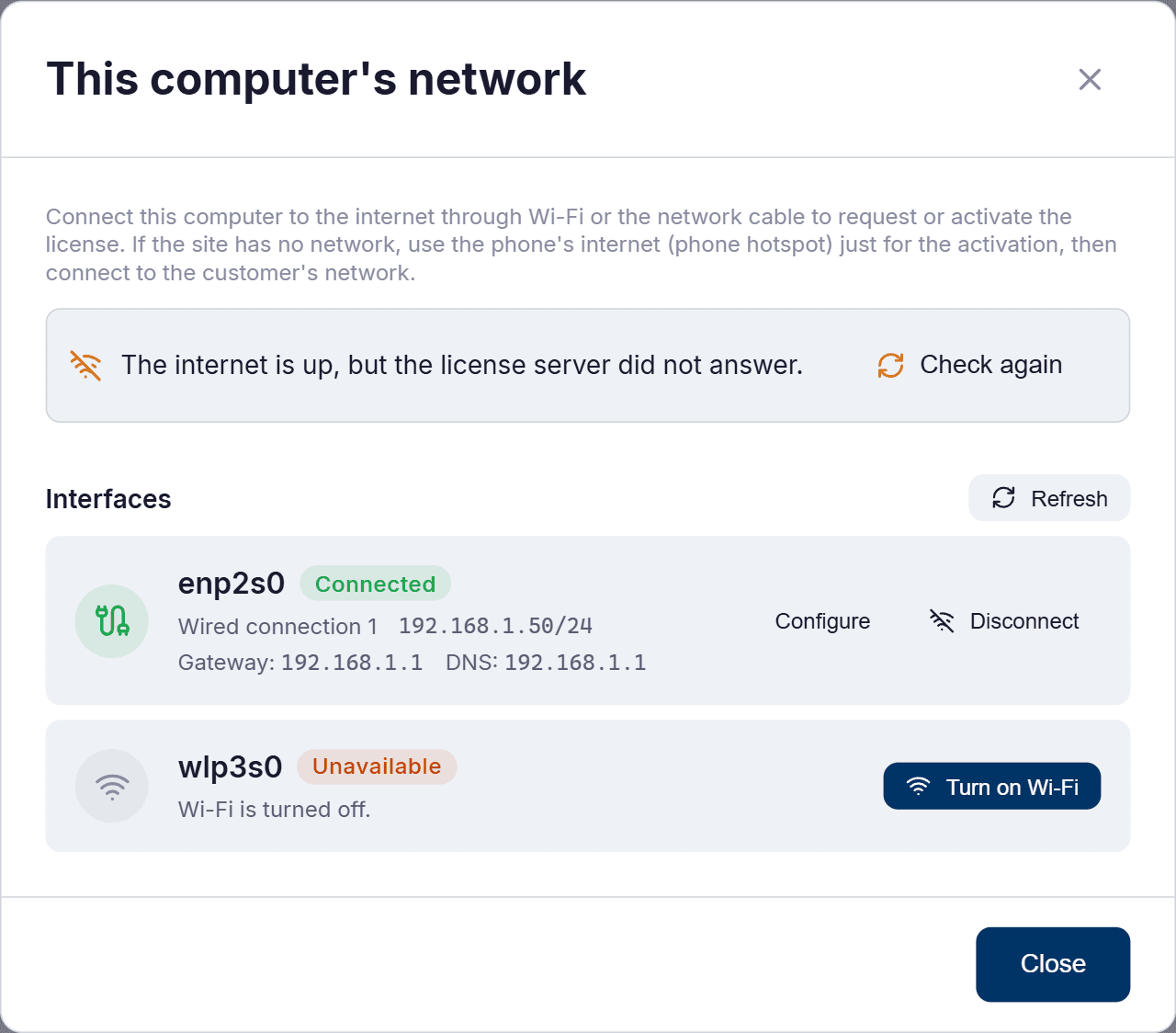
Wait a few minutes and tap Check again. GLORY's server may be under maintenance.
Ask whether the customer's network blocks the way out. Many companies have a firewall that only lets out what their IT team allows. Ask the customer's IT team to let this computer out to api.smartsafe2.com and www.google.com, on port 443 (HTTPS). The full list of addresses is in A network that blocks the way out
Meanwhile, use another network, such as your phone's hotspot (see With your phone's hotspot), to activate the license now.
No network at all at the site
If neither a cable, nor a Wi-Fi network, nor the phone's hotspot works there (for example, there is no phone signal), ask for the license on the portal from another computer or a phone, and take it to the safe's computer in a file:
- On the activation screen, tap Get started, copy the Device code with Copy and take it to a computer or phone with internet, for example in a text file on a USB drive.
- On the portal, ask for the license for A computer without internet: Ask for a license
- When it is approved, download the license file and copy it to a USB drive.
- On the safe's computer, tap I have a license file or key, then Activate from File, and choose the file.
The full steps are in No internet on the computer
The window does not show the network (Linux)
If, on Linux, the window says On this computer the network is managed by the operating system. Use its own network settings., the computer was installed without the network tool that the Smart Safe Client uses. Connect it with a network cable, run the installation command again (Install on Linux has it) and restart the computer.
On Windows
On Windows, the window says On this computer the network is managed by the operating system. Use its own network settings. That is normal: connect the computer with the Windows network settings (the network icon next to the clock), then tap Check again.
Already activated: the login screen asks for an update
If the computer already has its license and opens on the login screen with Update ready to install, an update was downloaded before the internet went away. Without a connection to GLORY's update server, the window says so and offers Sign in without updating: tap it and operate normally. The window comes back when the connection returns.
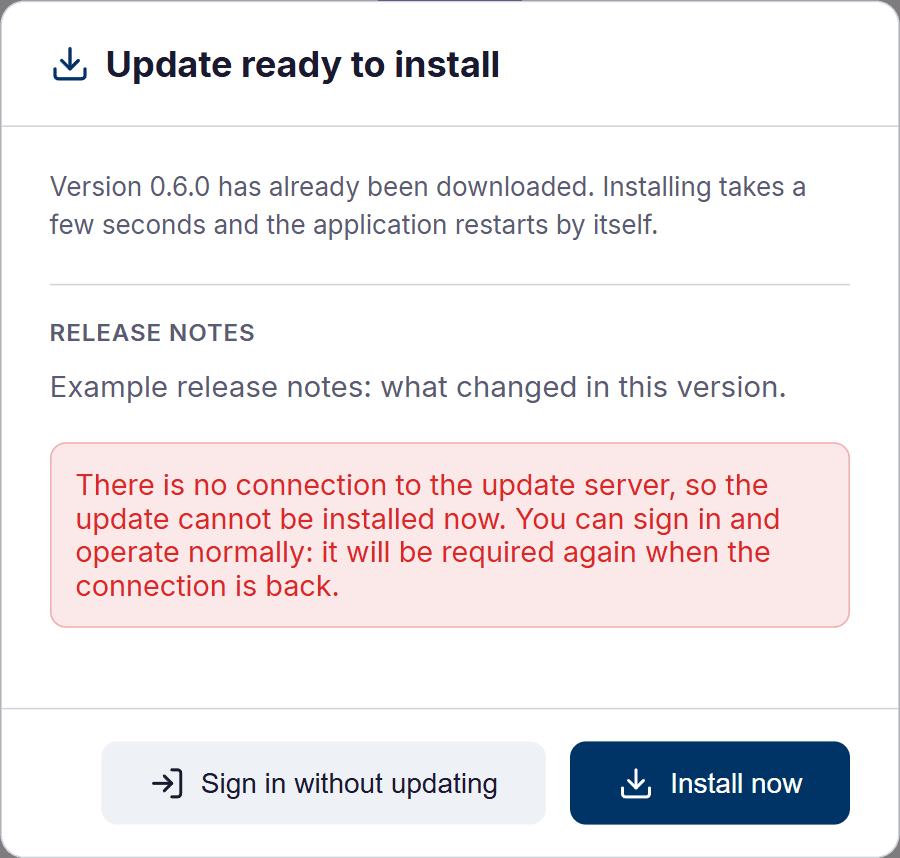
While GLORY's server answers, the update cannot be postponed: tap Install now. More in Updates
Still not solved?
Open a ticket from your phone or another computer, with:
- A photo of the activation screen and of the This computer's network window, showing the line at the top and the ports under Interfaces.
- The Device code (on the activation screen, after Get started).
- What you tried: the cable, the customer's Wi-Fi, the phone's hotspot, and what the line at the top said each time.