
Integrations
A transaction that did not reach its destination, the integration service, deliveries that stay waiting, and the other problems common to every integration.
This page is for when an operation does not reach its destination. It goes through what every integration has in common, in the order to check it. The first thing to look at: in Settings › Integrations › Service, the State must say Up.
Each destination's own problems are on its page:
Notices that do not arrive, and the messages of the e-mail integration.
Brinks NCWP
What Brinks's refusals mean, and the setup problems.
How an operation reaches its destination
- The operation ends and is recorded on the computer.
- Within a few seconds, the Smart Safe Client hands it to the integration service, a program that runs on the same computer. If the service is not running, the operation waits in line on the computer.
- The service offers it to each turned-on integration whose Restrictions take it: its type, its safe and its currency.
- Each integration sends it over the internet to its destination. If the destination does not answer, it tries again by itself.
So an operation can stop in two places: before the service (the screens call it Integration service) or at a destination (the screens show the integration's Identifier). The checks below tell you which.
A transaction does not reach its destination
Have the operation's reference at hand (it is on the receipt and on the Reports screen, for example DEPO-7K2M-Q9XA), with the date and time it happened. Then do these checks in order.
The integration exists and is turned on. Open Settings › Integrations. It has three tabs: Service (the integration service), Integrations (the destinations) and Deliveries (what was sent). Only profiles with the Integrations permission see it.
On the Integrations tab, the destination must have its card. If the tab says No integration configured. Nothing is being sent., create it as 2. Create the integration explains.
At the right of each card, a green check means the integration is turned on, and a gray X means it is off. To turn it on, tap Edit, tick Enabled and tap Save.
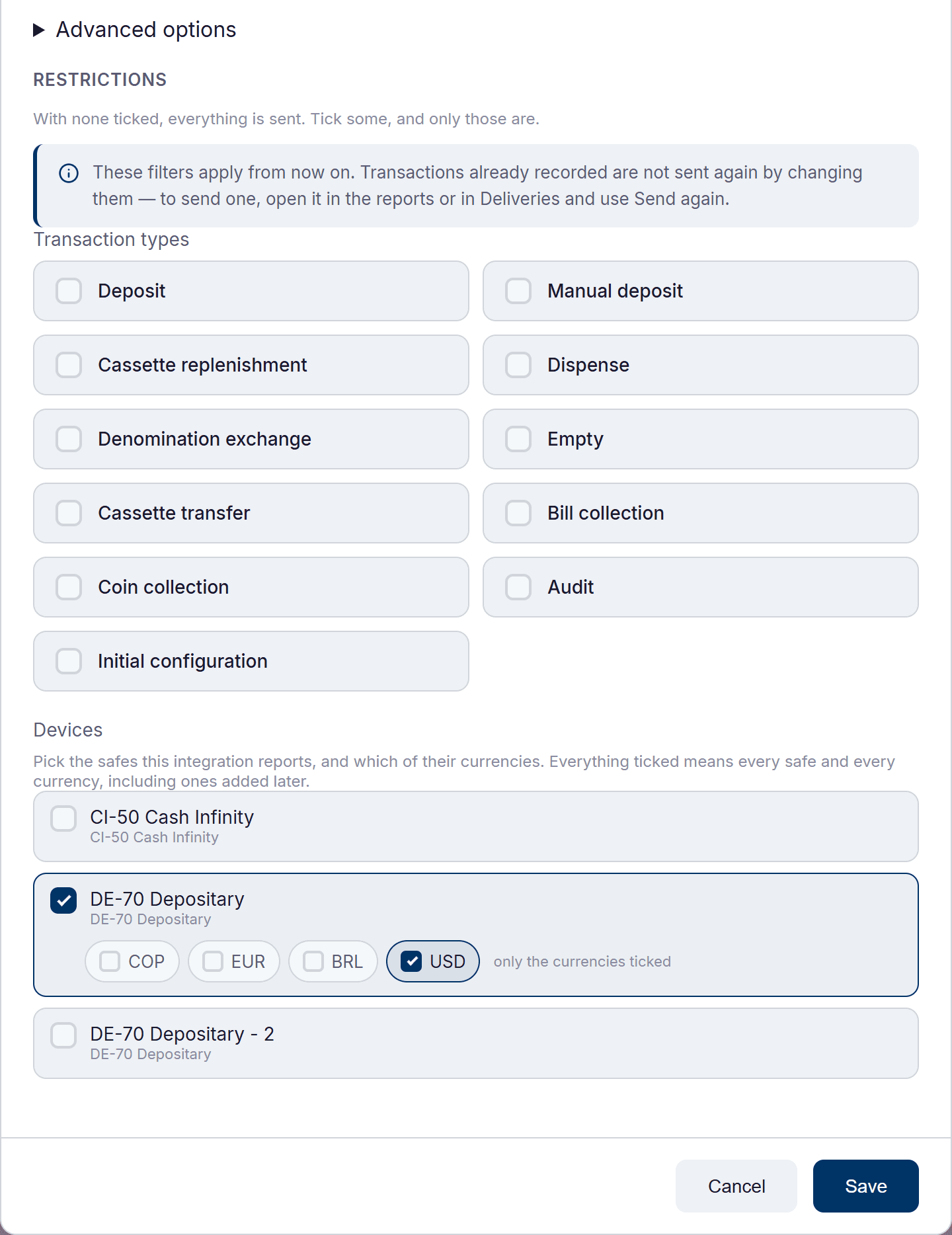
In the same Edit window, look at Restrictions:
- Transaction types: with none ticked, every type is sent. With some ticked, only those are, so the operation's type must be one of them.
- Devices: the operation's safe must be ticked, with the operation's currency.
If the tab shows a message instead of the cards, such as The integration service is disabled. Enable it on the Service tab. or This installation has not registered with the service yet. Use Register on the Service tab., go to the next check.
The integration service is running. On the Service tab:
- State must say Up.
- Mode must say Managed by this application (or External (already running), only if support set it up that way).
- Credential must show a code. If it says This installation has not registered with the service yet., tap Register.
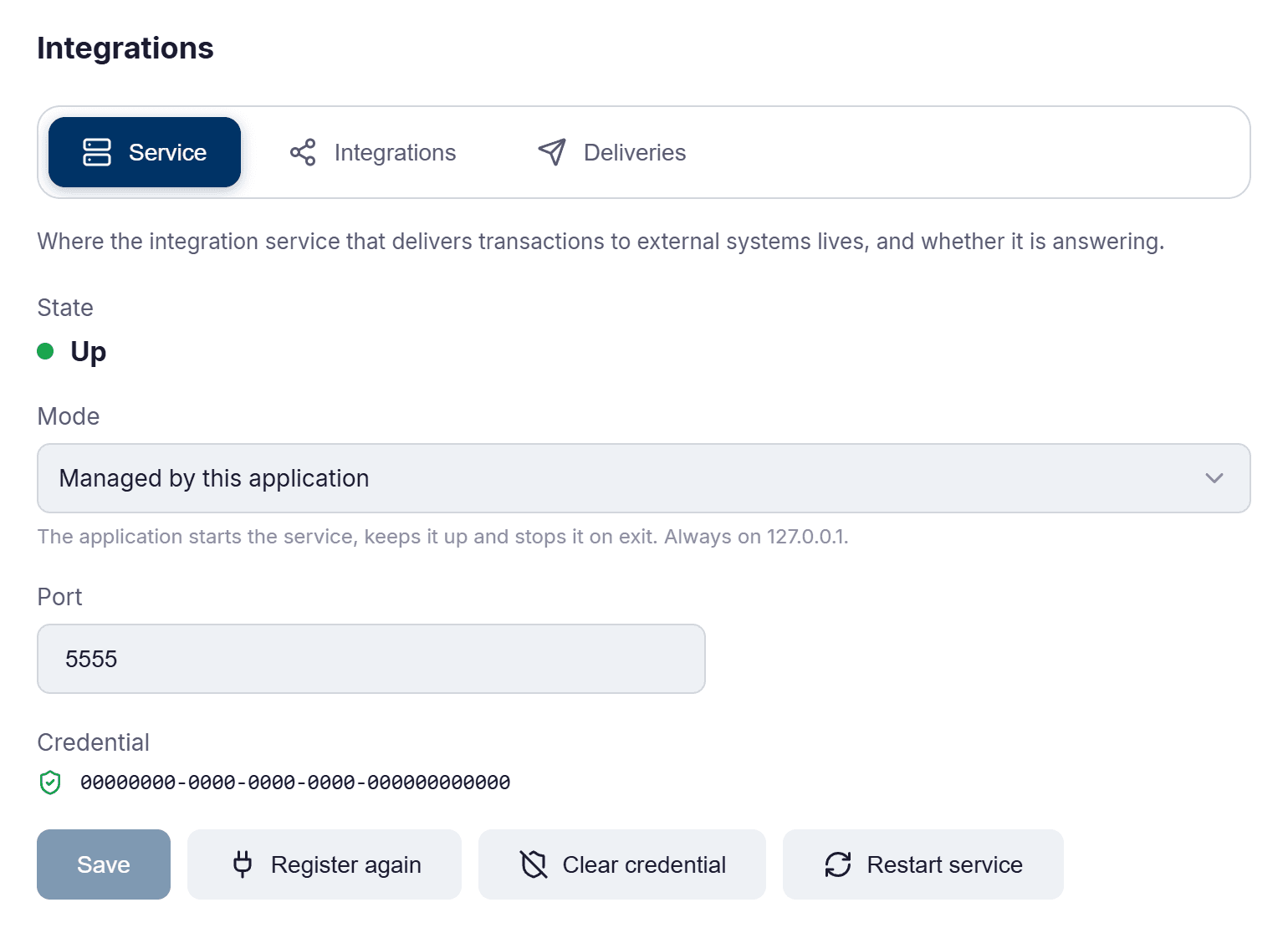
Any other State: see The integration service is not Up below. While the service is not Up, the operations wait in line on the computer, and they go out by themselves once it is. With Mode on Disabled, nothing is put in line at all.
The installation has internet. In Settings › Network, the status must not say Disconnected: the destinations are on the internet. (Unavailable only means that GLORY's server does not answer, and it does not stop the integrations.) Without internet, the deliveries wait, and they go out by themselves when the connection comes back. If the customer's network has a firewall, it must let the computer out to the destination, as A network that blocks the way out explains.
Test the integration. On the Integrations tab, tap Test on its card. Sending a test through "…"... appears while it works, and then one of these answers:
| Answer | What it means | What to do |
|---|---|---|
| The delivery was refused. Retrying will not help — correct the configuration and test again. Reason given by the destination: and the reason | The destination refused it. | Read the reason. If it mentions error sending request, dns error or timed out, the problem is the connection, not the configuration: go back to the third check. Otherwise, correct what the reason says, tap Save and test again. |
| The destination did not accept it now, but may later (down, timed out). The configuration may well be right. Reason given by the destination: and the reason | The destination did not answer in time, or it was down. | Check the internet and test again in a few minutes. |
| Nothing was sent: this integration’s restrictions excluded the test transaction. Not an error — review the ticked types and devices. | The restrictions left the test out. | Review Transaction types and Devices in Restrictions. |
| The integration service did not answer. Check that it is running. | The test did not reach the service. | Go back to the second check. |
What a test sends, and what it answers when everything is right, depends on the destination: see its page, in the cards at the top.
Look at the deliveries. Two places show them.
In the operation itself. Open Reports › Transactions and tap the eye of the operation. At the end of the details window, open Deliveries. Its first line, Integration service, says whether the operation reached the service. The lines below it, one per integration, say what each destination did. Under a line, What came back shows the destination's answer.
| What Deliveries shows | What it means | What to do |
|---|---|---|
| There is no Deliveries part | The operation was never put in line for the integrations. | See Operations that are never sent |
| Integration service: Waiting to be sent | It has not reached the service yet. | See the second check, and Deliveries that stay waiting |
| Integration service: Refused by the service | The service refused it. | Read What came back. If it speaks of the license, fix the license first, as The integration service is not Up explains, and then tap Send again. |
| Accepted by the service, with no integration below it | No turned-on integration was set to receive it. | See the first check, and Operations that are never sent |
| An integration with Waiting or Retrying | It is on its way: the destination has not taken it yet, and it is tried again by itself. | See the third check, and Deliveries that stay waiting |
| An integration with Refused | The destination refused it, and it is not tried again. | Read What came back (the seventh check). |
| An integration with Not applicable | The destination does not take this kind of operation, so nothing was sent. | Read What came back: it says why. |
| An integration with Delivered | The destination accepted it. | If the destination does not show it, see the destination's page. |
On the Deliveries tab of Settings › Integrations, which updates by itself every 10 seconds:
- These have not been reported and need attention:, with a number, at the top. Tap it: each operation appears with its reference, the integration that refused it (or Integration service) and Send again.
- One section per integration, by its Identifier. Tap it to see how many were sent, are waiting, were refused and were not sent, the Last attempt and View list.
- View list shows the deliveries of the last 30 days. To see others, change From and To. Find the reference in the Transaction column. The Result column says what happened and how many attempts were made, and What came back shows the answer. Tap the result to open What was sent and what came back: Request is what was sent, and Answer is what the destination said.
| Result | What it means |
|---|---|
| Delivered | The destination accepted it. |
| Waiting | It has not been sent yet. |
| Retrying | The destination did not take it yet (no internet, a server down). It is sent again by itself. |
| Refused | The destination refused it, and it is not tried again. Read What came back. |
| Failed | It failed. Read What came back and tap Send again. |
| Not applicable | The destination does not take this kind of operation, so nothing was sent. What came back says why. |
If What was sent and what came back says This delivery kept no record of the exchange. Older deliveries, and failures that never reached the far end, have none., read What came back in the list instead.
View list only shows the operations that reached the service. One that is still waiting on the computer only appears in its own details, as Integration service: Waiting to be sent.
Send again is in the list at the top of the Deliveries tab and in the operation's Deliveries (when something was refused). It sends with the integration's current configuration, so correct the configuration first. Its answers:
| Answer | What it means |
|---|---|
| Queued to be sent again. | The operation had not reached the service. It is handed to it again. |
| … delivery(ies) put back in the queue. | The refused deliveries go out again within seconds. Look at the result again after a minute. |
| Nothing was refused, so there is nothing to send again. | It was delivered, or it is still on its way. Wait. |
| No integration accepted this transaction, so there is nothing to send again. Add the transaction kind to an integration and it will be reconsidered. | No integration was set to receive it. Fix the integration (first check) so that the next operations go out. This one does not go out by changing it: open a ticket with its reference. |
| This transaction was never queued for delivery. | See Operations that are never sent |
| A message about the service | See the second check. |
Some refusals are final, and sending again brings the same answer: the destination's page says which.
Know how long it waits. Nothing is lost while there is no internet or while a destination is down: the deliveries keep being tried, with a growing pause and no limit.
| Stage | When it tries again |
|---|---|
| From the computer to the integration service | After 10 seconds, then twice as long each time, up to every 5 minutes. |
How long the service waits before trying a destination again is on that destination's page.
When the connection comes back, the waiting deliveries go out on their own at their next attempt, oldest first. A Refused delivery is not tried again: it needs Send again.
Read the refusal. In What came back (or in Answer, in What was sent and what came back), the destination says why it refused. In general: correct the configuration, tap Save, test, and tap Send again. What each destination's answers mean is on its own page, in the cards at the top.
What to put in the ticket:
- The operation's reference, its date and time, and the safe (DE-70 or Cash Infinity).
- The integration's name and Identifier.
- A photo of the Service tab, and one of the integration's Edit window.
- A photo of the Test answer.
- A photo of the operation's Deliveries, and of What was sent and what came back with Request and Answer open.
- The logs: in Settings › Support, under Select Attachments, also tick Integration service logs (see Attach the logs)
Changes apply from now on
Turning an integration on, or changing its Restrictions, applies to the operations recorded from then on. The screen says so in Restrictions: the operations recorded before are not sent again by the change.
Operations that are never sent
Some operations are never put in line for an integration. In their details there is no Deliveries part, or Deliveries shows no integration. Send again does not help in these cases: there is nothing to send again.
| Case | Why | What to do |
|---|---|---|
| It happened before the integration service was turned on for the first time | The deliveries start from the moment the service is first turned on. | If they are needed at the destination, open a ticket with their references. |
| It happened while Mode was on Disabled | Nothing is put in line while the service is Disabled. When it is turned on again, the operations of the last 7 days are sent, and older ones are not. | Turn the service on (the second check). For older operations, open a ticket |
| The integration was off, or did not exist yet, when the operation reached the service (an imported integration, for example) | An operation is only offered to the integrations that are on at that moment. Turning one on later does not send the operations before. | Turn it on for the next operations. For the ones before, open a ticket |
| The Restrictions left it out: its type, its safe or its currency was not ticked | The same: a change in the restrictions applies from then on. | Fix the Restrictions. For the operations before, open a ticket |
| The operation is still in progress, or it was cut halfway and not closed yet | Only finished operations go out. One that failed only goes out if money moved. | Close it as When an operation fails explains, and it goes out by itself. |
The integration service is not Up
On the Service tab, the State says how the service is. When it is not Up, a box under it may show the service's own words, in English: take a photo of it for the ticket.
| State | What it means | What to do |
|---|---|---|
| Disabled | Mode is on Disabled: nothing is started, nothing is put in line and nothing is delivered. | In Mode, choose Managed by this application, tap Save and then Register (see 1. Enable the service) |
| Checking... | It is being checked. | Wait a few seconds. |
| No answer | The service does not answer: it is not running, or it stopped. | Tap Restart service. If it continues, see the rows below. |
| Credential refused | The service does not accept this installation's credential. | Tap Register again. |
Service not licensed, or Faulted with a box that mentions no valid license | The service did not find a valid license. | Check in Settings › License that the license is valid, and tap Restart service: the service takes the license again when it starts. If the license expired, renew it first (see License and activation) |
| Faulted, for another reason | The service answered with something that cannot be used. | Tap Restart service. If it continues, open a ticket with a photo of the box. |
After 3 restarts in a row, the Smart Safe Client stops restarting the service by itself. Fix the cause and tap Restart service.
Operations refused while the license was not valid
While the service has no valid license, it refuses the new operations, and they show Refused by the service. After fixing the license, tap Send again on each one, in the list at the top of the Deliveries tab.
| Message | What to do |
|---|---|
| This installation has not registered with the service yet. (in Credential) | Tap Register. The computer must have a valid license. |
| There is no valid licence on this machine, so the integration service will not accept changes. or The integration service refused the request. Check the licence on this machine. | As for Service not licensed above. |
| This installation is not authorised by the integration service. Register it again. | Tap Register again on the Service tab. |
| The integration service did not answer. Check that it is running. | Look at the State and follow the table above. |
| The integration service failed while handling the request. Try again shortly. | Wait a moment and try again. If it continues, tap Restart service. |
| The integration service program was not found next to the application. Reinstall the application, or use External mode. | The service's program is missing. Run the installation command again (see Install on Linux or Install on Windows) |
| The box under State says that the address is already in use | Another program on the computer uses the same Port (5555). Change Port, for example to 5556, tap Save and then Register. |
| Changing the address clears the credential: it belongs to the old service. You will need to register again. | It appears before you save a new Port. After Save, tap Register. |
| Restart service does not appear, or Only a service managed by this application can be restarted from here. | Restart service only works with Mode on Managed by this application. |
| Enter the address of the service., Enter only the name or IP, without http:// or https://., The address must not contain a path. or The address must not contain spaces. | These are for the External (already running) mode, which is only used when support sets it up. Use Managed by this application. |
| The port must be between 1 and 65535. | Leave Port on 5555, unless another program uses it. |
Deliveries that stay waiting
| What you see | What it means | What to do |
|---|---|---|
| In the operation's Deliveries, Integration service: Waiting to be sent, with a number of attempts | The service is not taking it. | It goes out by itself once the service is Up: see The integration service is not Up |
| An integration with Waiting or Retrying, or a number waiting in its section of the Deliveries tab | The destination has not taken it: no internet, a network that blocks it, or the destination is down. | Read What came back. The deliveries go out by themselves, at the times of the sixth check. If there is no internet, see Network and internet |
| Many operations waiting after days without internet | Normal. When the connection comes back, they go out by themselves, a few at a time, oldest first. | Wait, with the Smart Safe Client open. The Deliveries tab updates every 10 seconds. |
| Nothing goes out while the Smart Safe Client is closed | With Managed by this application, the service starts and stops with the Smart Safe Client. | Leave the Smart Safe Client open: the deliveries go out while it runs. |
| Send again answers Nothing was refused, so there is nothing to send again. | The delivery is still on its way. | Wait. |
| A delivery stays Retrying for hours with the same answer | The destination keeps refusing it for now. | Open a ticket with a photo of What came back. |
An integration imported from another computer
When a configuration is imported, the integrations arrive turned off and without their passwords, which are never in the file (see Import)
| Message or problem | What to do |
|---|---|
| Integrations created DISABLED, waiting for their credentials: followed by their names | Open each one in Settings › Integrations and tap Edit. Type its password again, if it has one, tick Enabled, tap Save and then Test. |
| The integrations were not created: the integrator could not be reached (…). Import again once it is running. | Turn on the service on this computer first: Mode, Save and Register, as 1. Enable the service shows. Then import again. |
| Integrations already here, left as they were: followed by their names | An integration with the same Identifier already exists on this computer, and the file does not change it. Check it by hand. |
| Integration not created: followed by the reason | Read the reason and create the integration by hand (Integrations shows how) |
| The installation that exported this file could not read its integrations (…): they are not in it. | Create them by hand, or export again on the old computer with its service Up. |
| When exporting: The integrations could not be read and are NOT in the file (…). | The service of that computer was not Up. Fix it (see The integration service is not Up) and export again. |
| After importing, the integration sends nothing from a safe | Tap Edit and check, in Restrictions › Devices, that the safes and currencies of this computer are ticked. |
An imported integration only sends the operations made after you turn it on.
Other messages on these screens
| Message or problem | What to do |
|---|---|
| Settings › Integrations does not appear | Your profile does not have the Integrations permission. Sign in with a user whose profile has it, such as the Administrator. |
| Nothing has been queued for delivery yet. (on the Deliveries tab) | No operation was put in line yet: see the first and second checks above. |
| No integration has been sent anything yet. | No delivery reached an integration yet: see the first, second and third checks above. |
| The service offered no destinations. (in Choose the destination) | Tap Restart service on the Service tab and try again. If it continues, open a ticket |
| Deleting an integration shows An integration with this identifier already exists. Choose a different one. | An integration that has already sent operations cannot be deleted (the message is not really about the identifier). To stop it, tap Edit, untick Enabled and tap Save. |
| Delete "…"? Transactions will stop being sent to this destination, and nobody currently receiving them is told. This cannot be undone. | Confirm only if the customer no longer uses this destination. To stop it for a while, untick Enabled instead. |
| This identifier is already in use. Leave it empty to use … | Leave Identifier empty: the Smart Safe Client uses the one it suggests, with a number at the end. |
| Enter a name. or Enter an identifier. | Fill in Name. Identifier can stay empty: it is made from the name. |
| The service refused this configuration. Check the fields and try again. | Check every field and save again. |
| The integration no longer exists on the service. | Leave the tab and open it again. |
| In Settings › Devices: Currency in use by an integration | An integration sends only that currency for this safe. Change the integration's Restrictions › Devices first, then remove the currency. |
| In Settings › Devices: This safe cannot be removed: followed by the integrations | Untick the safe in the integration's Restrictions › Devices first. |
| In Settings › Devices: The integration service did not answer, so it is not possible to check whether a currency is in use. Start the service and try again. | See The integration service is not Up |
Still not solved?
Open a ticket with what the eighth check lists: the reference and the photos. Attach the logs that come checked in Settings › Support, plus the Integration service logs, from the day before the problem (or from the day the operation was made) until today. More about the logs: Which logs to send, and which days