
Network and internet
What Settings › Network shows, no internet, GLORY's server not answering, Wi-Fi, a network that blocks the way out, DNS, a fixed address, and what works without internet.
This page is about the computer's connections: to the internet, to GLORY's server and to the customer's network. Start here: open Settings › Network and look at the status next to the server's address. Healthy means that the internet and GLORY's server are both fine. Anything else, find it below.
On a new installation that still opens on the activation screen, start with A new installation without internet
What Settings › Network shows
The screen has two parts: API Server at the top and Connections below it. Only profiles with the Network permission see this tab (in a new installation, the Administrator, the Manager and the Technician).
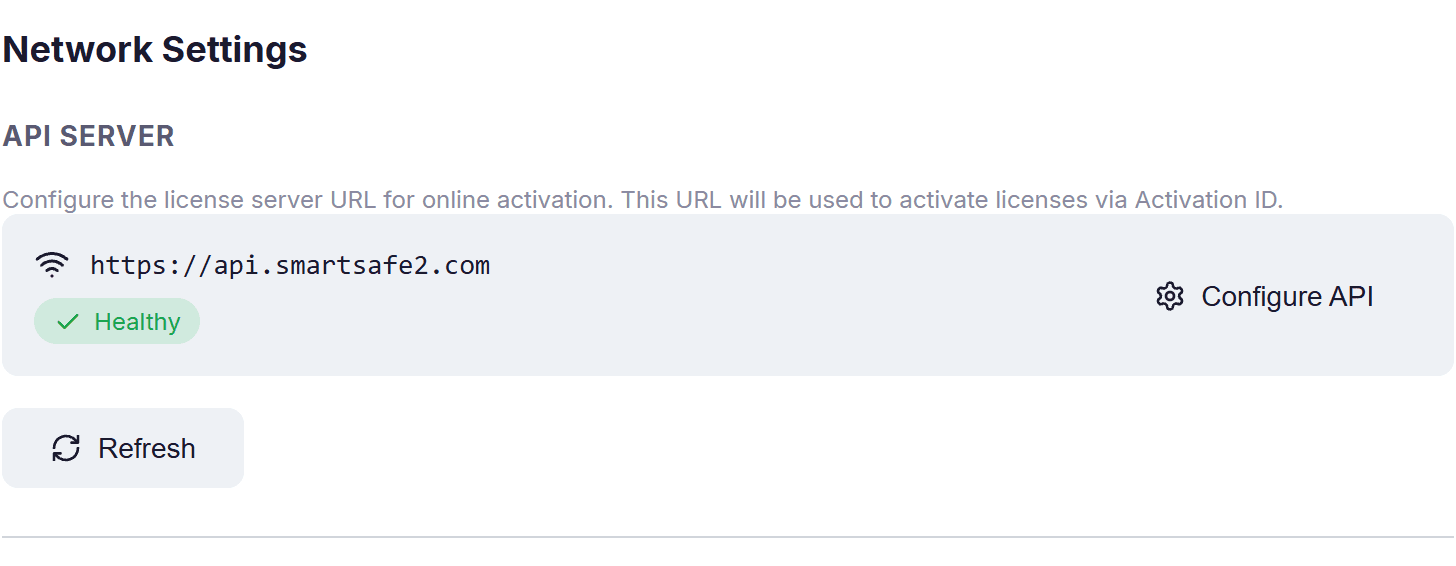
The two checks
When the screen opens, and every time you tap Refresh, the Smart Safe Client makes two checks, one after the other:
- The internet. It opens a Google address (
www.google.com). If nothing answers within 5 seconds, the status says Disconnected, and the second check is not made at all. - GLORY's server. It asks the server (
https://api.smartsafe2.com) whether it is working. If the server says it is, the status says Healthy. If not, Unavailable.
| Status | What it means | What to do |
|---|---|---|
| Healthy | There is internet, and GLORY's server answers. | Nothing. |
| Unavailable | There is internet, but GLORY's server does not answer. | See The status says Unavailable |
| Disconnected | The Google check failed: there is no internet, or the network blocks Google. | See The status says Disconnected |
| API not configured, in place of the address | The server's address is missing. | Tap Configure API and type it (see The status says Unavailable) |
The screen does not check again by itself. After you fix something, tap Refresh.
When the status is not Healthy, a line with a warning sign may appear under it with the technical reason, in English: for example No internet connection, API server not healthy, or Failed to reach API: followed by details. Take a photo of it for the ticket.
API Configuration
Configure API opens the API Configuration window, with the API Server URL field and the Test Connection, Cancel and Save buttons. Test Connection shows two lines: Internet (Connected or Disconnected) and API Server (Healthy or Unavailable). The test does not save anything: tap Save to keep the address.
Connections
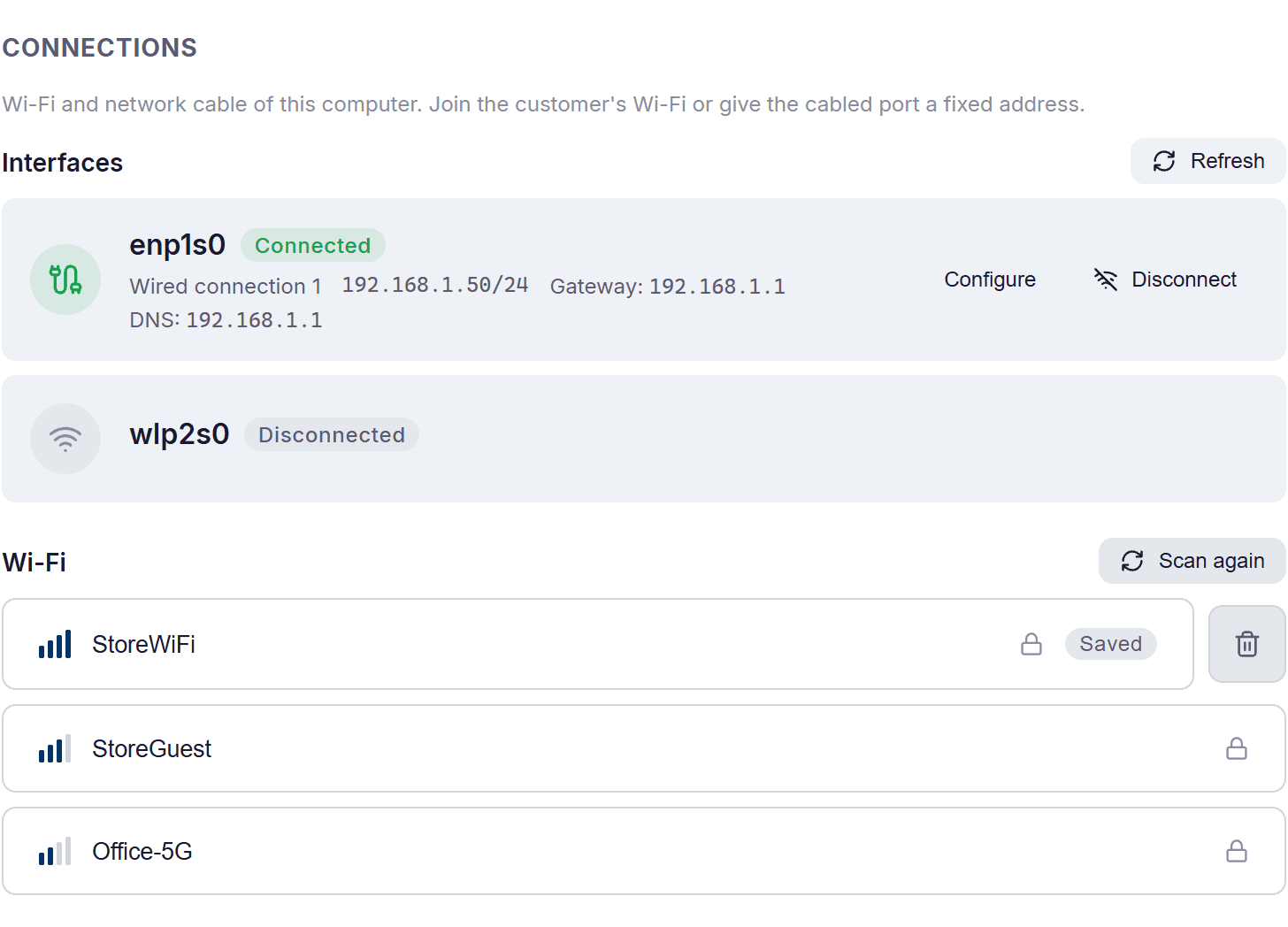
On Debian and on the Raspberry Pi, Connections shows the computer's network ports (Interfaces) and the Wi-Fi networks in range (Wi-Fi). How to join a Wi-Fi network or give the cable a fixed address is in Network
On Windows, this part only says On this computer the network is managed by the operating system. Use its own network settings. That is normal: use the Windows network settings.
The status says Disconnected
The Smart Safe Client could not reach Google. Do these checks in order, and after each one tap Refresh in Settings › Network.
Check the cable or the Wi-Fi. In Settings › Network › Connections › Interfaces, one port must say Connected, with an IP address such as 192.168.0.50/24. If none does, The network cable and Wi-Fi below show what to do. On Windows, look at the network icon next to the clock.
Check the date and the time. With a wrong date, secure connections (HTTPS) fail, and the status says Disconnected even when there is internet.
- On Linux, open a terminal and run
date. If the date or the time is wrong, fix them withtimedatectl(see date and timedatectl) - On Windows, check the clock in the Windows settings.
Test the connection from the terminal, as explained in Test the connection with ping below. The result tells you whether the problem is the way out to the internet, the DNS or a block.
Ask whether the network blocks Google. If the test says that the internet works and the status still says Disconnected, the customer's network may block www.google.com. The Smart Safe Client uses it to know whether there is internet, so ask the customer's IT team to allow it, as in A network that blocks the way out below.
Test the connection with ping
ping sends a small test to an address and waits for the answer. Run the two commands below, one at a time. The first tests the way out to the internet with a number only, and the second also needs the DNS to turn the name into an address.
Open a terminal and run:
ping -c 3 1.1.1.1
ping -c 3 www.google.com
Each line with bytes from is an answer.
| Result | What it means | What to do |
|---|---|---|
The first one gets no answer, or says Network is unreachable | The computer cannot get out to the internet. | Check the cable or the Wi-Fi, the router and the customer's internet. Try another device on the same network to see whether the internet works there. |
The first one answers, and the second says Temporary failure in name resolution on Linux, or could not find host on Windows | The internet works, but names are not turned into addresses: a DNS problem. | See DNS |
| Both answer, and the status still says Disconnected | The internet works, but the secure connection to Google fails. | Check the date and the time (step 2 above). If they are right, the network blocks Google: see A network that blocks the way out |
| Neither answers, but the status says Healthy | The customer's network blocks ping, not the Smart Safe Client. | Nothing. |
The status says Unavailable
There is internet, but GLORY's server does not answer.
Check the address. It must be exactly https://api.smartsafe2.com, with nothing after it. If it is different, or the screen says API not configured, tap Configure API, type it in API Server URL and tap Test Connection: Internet must say Connected and API Server must say Healthy. Then tap Save.
Read the line under the status:
- Failed to reach API, followed by details: the request does not get to the server. The customer's network may block
api.smartsafe2.com, as explained in A network that blocks the way out below. - API server not healthy: the server answered, but it is not ready. Wait a few minutes and tap Refresh.
Wait a few minutes and tap Refresh. The server may be under maintenance. If it stays Unavailable, open a ticket with a photo of the screen, including the line under the status.
Messages in the API Configuration window:
| Message | What to do |
|---|---|
| URL is required | Type the address in API Server URL. |
| URL must start with http:// or https:// | Type the whole address, with https:// at the start: https://api.smartsafe2.com |
| No internet connection. Check your network. | See The status says Disconnected |
| API server is unreachable, or a technical message in English | The server did not answer. Check the address, wait a few minutes and test again. If it continues, see A network that blocks the way out |
A network that blocks the way out
Many companies have a firewall that only lets out what their IT team allows. The Smart Safe Client only needs to go out to the internet: nothing has to come in from the internet. Ask the customer's IT team to let the computer out to these addresses, on the ports shown:
| Address | Port | What for |
|---|---|---|
api.smartsafe2.com | 443 (HTTPS) | The license, the updates, the logs sent to support and the configurations from GLORY's server. |
www.google.com | 443 (HTTPS) | To know whether there is internet (Settings › Network). |
github.com, api.github.com and *.githubusercontent.com | 443 (HTTPS) | Only to install the RustDesk remote access. |
| GLORY's remote access server | 21115 to 21119, TCP and UDP | The RustDesk remote access. |
| The destination system of each integration | 443 (HTTPS) | Only with that integration. Its page gives the address. |
The e-mail server, for example smtp.office365.com | 587 or 465 | Only with the E-mail (SMTP) integration. |
The first four lines are the same as in the network requirements of the installation list. The last two are only for the integrations that use them.
No proxy setting
Some companies only let computers out through a proxy (a server that goes out to the internet for them). The Smart Safe Client has no setting for a proxy. Ask the IT team to let this computer out directly to the addresses above.
The Cash Infinity is not on this list: it talks to the computer inside the customer's network, without going out to the internet (see The Cash Infinity on the same network)
DNS
The DNS is the service that turns a name, such as api.smartsafe2.com, into an address the computer can reach. Without it, the computer reaches numbers (ping 1.1.1.1 answers) but not names, and the status says Disconnected.
| What you see | What to do |
|---|---|
| In Interfaces, the connected port has no DNS line | The network did not give the computer any DNS server. If the port uses Automatic (DHCP), ask the customer's IT team to check the router. If it has a Fixed address, type the DNS servers (next line). |
| The cable has a Fixed address, and names do not work | Tap Configure on the cable port and fill in DNS with the servers the customer's IT team gives you, separated by commas (often the router's address, or 8.8.8.8). Tap Save, then Refresh. |
| Each DNS server must be an address like 8.8.8.8. | In DNS, type only addresses (four numbers separated by dots), separated by commas. |
| On Windows | Check the DNS in the Windows network settings, with the customer's IT team. |
The network cable
A cable is always better than Wi-Fi for a safe. In Settings › Network › Connections › Interfaces, each port shows its state:
| State | What it means | What to do |
|---|---|---|
| Connected | The port is on the network. Its address, the Gateway (the router) and the DNS appear next to it. | Nothing. If there is still no internet, see The status says Disconnected |
| Unavailable | On the cable port: there is no cable, or the device at the other end (router or switch) is off. | Plug the cable in firmly at both ends. Try another cable, or another port on the router. |
| Connecting | The port is asking the network for an address. | Wait a few seconds and tap Refresh. If it stays like this, the network is not giving addresses: check that the router is on, and ask the customer's IT team whether this network gives them automatically (DHCP) or needs a fixed one (see A fixed address) |
| Disconnected | The port works, but it is not on any network. | On the Wi-Fi, join the network again as in Wi-Fi below. On the cable, someone may have tapped Disconnect: restart the computer, or run sudo nmtui and choose the option to activate a connection (see reboot and nmtui) |
| Not managed | The Smart Safe Client cannot manage this port yet. Right after the installation, this lasts until the computer restarts: that is when the installation hands the network over. | Restart the computer (step 5 of Install on Linux shows how) |
| Unknown | A state the Smart Safe Client does not recognize. | Tap Refresh. If it stays, restart the computer. |
| No network interface was found on this computer. | The computer shows no cable port and no Wi-Fi to the Smart Safe Client. | Restart the computer. If it continues, open a ticket with a photo of the screen. |
Disconnect means disconnect
Disconnect takes the computer off that network at once, and it stays off until another connection is made. Do not tap it on the port you are using, unless you are going to connect another one.
Wi-Fi
How to join a network: Join a Wi-Fi network
| Problem | What to do |
|---|---|
| The password was refused. Check it and try again. | Type the password again: upper and lower case matter. Connect stays gray until the password has 8 characters or more. |
| The router's password changed, and a Saved network no longer connects | A saved network joins with the old password, without asking. Tap its trash icon (Forget) and confirm, then tap the network again and type the new password. |
| That network is not in range any more. Scan again. | Tap Scan again. If it does not come back, move the computer closer to the router, or use a cable. |
| The connection took too long. Move closer to the access point and try again. | Bring the computer and the router closer together, then tap the network again. |
| No Wi-Fi network in range. | Check that the router is on and tap Scan again. If nothing appears, use a cable. |
| The customer's network is not in the list | Hidden networks (the ones that do not show their name) do not appear in the list. Use a cable, or ask the customer's IT team to show the network's name. |
| The network asks for a user name as well as a password | The Smart Safe Client only asks for a password, so it cannot join this kind of company network. Use a cable, or a network with a password only. |
| The Wi-Fi part does not appear in Connections | Look at the Wi-Fi port in Interfaces (its name starts with wl). If it says Wi-Fi is turned off., tap Turn on Wi-Fi on that line. If it says Wi-Fi is blocked by a switch or by the computer's settings., look for a Wi-Fi switch or key on the computer, or use a cable. If there is no Wi-Fi port, the computer has no Wi-Fi: use a cable. More in If the Wi-Fi is turned off |
| The Wi-Fi program is missing on this computer. Run the installation command again, with a network cable., or the Wi-Fi port stays Unavailable with the Wi-Fi on | The computer was installed without the program that drives the Wi-Fi card. Plug in a network cable and run the installation command again, as Install on Linux explains. The Wi-Fi works as soon as it ends, without restarting. |
| The Wi-Fi drops now and then | Tap Scan again: the bars next to each network show its signal, 4 being the best. With 1 or 2 bars, move the computer or the router, or use a cable. A Saved network joins again on its own. |
| You tapped Disconnect on the Wi-Fi by mistake | Tap the network in the list: a Saved network joins without asking for the password. |
| The network manager refused the request. Check the log for details. | Tap the network again. Right after the installation, restart the computer first. If it continues, open a ticket and send the logs from Settings › Support. |
| On this computer the network is managed by the operating system. Use its own network settings. | On Linux, the network tool is missing: run the installation command again (Install on Linux has it) and restart. On Windows, this is normal: use the Windows network settings. |
You can also join a Wi-Fi network from the terminal with sudo nmtui (see nmtui)
A fixed address asked by the customer's IT
The customer's network usually gives the computer an address on its own. If the customer's IT team asks for a fixed one, give it to the network cable: in Interfaces, tap Configure on the cable port, choose Fixed address, fill in Address, Gateway and DNS with what the IT team gives you, and tap Save. The full steps are in A fixed address for the network cable
| Problem | What to do |
|---|---|
| The address must look like 192.168.1.50/24. | Type the address with the network size after the slash: /24 when the mask is 255.255.255.0. |
| The gateway must be an address like 192.168.1.1. | Type the router's address: four numbers separated by dots. |
| Each DNS server must be an address like 8.8.8.8. | Type only addresses, separated by commas. |
| After saving, there is no internet | Tap Configure again and check the Gateway and the DNS with the IT team. Without the right gateway the computer only reaches its own network, and without DNS it does not find names (see DNS above). |
| After saving, the SSH connection from your laptop dropped | The screen warns about it: The change is applied right away. If this computer is reached over this connection, it may drop for a few seconds. Connect again, to the new address. |
| Another device stops working on the network, or this computer loses the network now and then | Two devices may have the same address. Use only an address the IT team gives you for this computer. |
| You need a fixed address on the Wi-Fi | Configure only appears on the cable port. Ask the customer's IT team to always give this computer the same address in their router. |
| You want to go back | Tap Configure on the cable port, choose Automatic (DHCP) and tap Save. |
On Windows, the fixed address is set in the Windows network settings.
The Cash Infinity must stay on the same network
After changing the computer's address, check that it is still on the same network as the Cash Infinity: in Settings › Devices, tap Test connection on the Cash Infinity.
The Cash Infinity on the same network
The Cash Infinity talks to the computer inside the customer's network, not over the internet: it works even with no internet. (The DE-70 uses a serial cable and is not on the network at all.)
- Both must be on the same network. On most customer networks, the first three numbers of the address are the same:
192.168.0.50for the computer and192.168.0.25for the Cash Infinity, for example. More examples in Are they on the same network? - Compare the two addresses. The computer's address is in Interfaces, and the Cash Infinity's is its Host in Settings › Devices. On Linux,
hostname -Ialso shows the computer's address (see hostname) - Test it from the computer, with the Cash Infinity's address:
ping -c 3 192.168.0.25on Linux,ping 192.168.0.25on Windows. No answer means the computer does not reach it: check the cables, the switch and the addresses. - Not on the guest Wi-Fi. A guest network (for visitors) usually cannot see the other devices.
- On Windows, the firewall must let in TCP port 55562, or the money is not seen while it is counted (see Allow port 55562 on Windows)
Everything else about connecting the Cash Infinity: Cash Infinity
What works without internet
| What | Without internet |
|---|---|
| The operations of the DE-70 and the Cash Infinity (deposits, collections and the rest) | Work. The DE-70 uses its cable, and the Cash Infinity the customer's network. |
| The reports, and printing a receipt again | Work. Everything is on the computer. |
| The license | Keeps working. Internet is needed only to activate it with an activation code, to ask for one and to renew it. A renewal reaches the computer when the Smart Safe Client opens with internet. More in License and activation |
Signing in with the user glory and the Token Generator's code | Works. The computer checks the code without internet, but its date and time must be right. |
| The integrations | Wait. The operations wait in line on the computer and go out on their own, oldest first, when the internet comes back. More in Integrations |
| The updates | Wait. The Smart Safe Client looks for them at the login screen and every 3 hours. An update already downloaded needs GLORY's server to install: without it, the login screen offers Sign in without updating (see Updates) |
| The license request of a copy of a cloned image | Waits. It goes out by itself as soon as the computer reaches GLORY's server (see Cloned image) |
| Sending logs to a support ticket, and the RustDesk remote access | Need internet. Without it, tap Save to Local Disk and attach the file to the ticket from another computer (see Support) |
| Importing a configuration from GLORY's server (Import from API) | Needs internet. Import from File works without it. |
| Joining a Wi-Fi network, or giving the cable a fixed address | Work. They are the computer's own network. |
Messages on other screens that point to the network
| Message | What to do |
|---|---|
| API server is not configured. Go to Network settings first. (in Settings › Support) | Configure the address in Settings › Network (see The status says Unavailable) |
| API is not configured. Configure the API URL first. (in Import from API) | The same: configure the address in Settings › Network. |
| Could not check for updates: update server not configured. | The same: configure the address in Settings › Network. |
| The update server must use a secure connection (https). The configured API URL uses http. Correct the URL on the Network tab. | Tap Configure API and type the address with https://: https://api.smartsafe2.com |
| Could not check for updates, or Could not check for updates. The application will try again automatically. | Look at the status in Settings › Network and follow this page. More in Updates |
| Could not connect to the license server. Check your internet connection. | Look at the status in Settings › Network. On the activation screen, the same status appears next to the gear button, and the Network button (top right) opens the computer's Wi-Fi and network cable. Step by step in A new installation without internet |
| Couldn't detect the latest version. Check the network connection and try again. (RustDesk, in Settings › Support) | The computer must reach github.com (see A network that blocks the way out) |
| Settings › Network does not appear | Your profile does not have the Network permission. Sign in with a user whose profile has it, such as the Administrator. |
Before opening a ticket
Put in the ticket:
- A photo of Settings › Network, with the status and the line under it.
- A photo of Interfaces (on Linux), showing each port's state, address, Gateway and DNS.
- What the
pingtests answered (see Test the connection with ping) - What the customer's IT team said: whether the network gives addresses automatically, whether there is a firewall or a proxy.
- The logs that come checked in Settings › Support, plus the Integration service logs when an integration is involved, from the day before the problem until today.
Then open the ticket with all of it. More about the logs: Which logs to send, and which days
Signing in, users and accounts
The glory user, a password that is refused, locked or expired, signing out by itself, the accounts and their currency, and what a profile does not show.
DE-70
Finding and connecting the DE-70, its serial port, and what to do with each message it shows in a deposit, a collection, maintenance or a count.