
Token Generator
Activating and renewing the Token Generator, the codes the Smart Safe Client refuses, and the app on a phone or a Mac.
The Token Generator is the app that shows the codes to sign in with the user glory and to change an account's currency. The first check is always the same: the date, the time and the time zone of the phone or computer you are using, and those of the Smart Safe Client's computer, must be right.
How to install and activate it: Token Generator
Activating
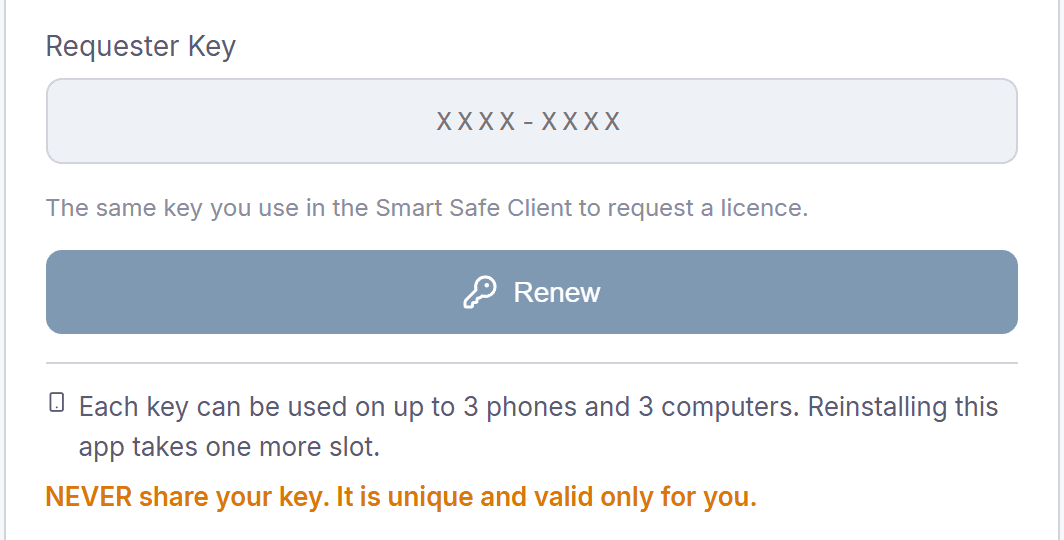
The Token Generator is activated once on each phone or computer, with your Requester Key and internet. The steps are in Activate with your key
Problems with the key itself (no key, a revoked key, a new code) are in The Requester Key
| The Token Generator says | What to do |
|---|---|
| Activate stays gray | Type the 8 letters and numbers of your key. The hyphen appears by itself. |
| Enter your requester key. | Type your key in Requester Key. |
| Key not found. Check the digits and try again. | Check the letters and numbers. If you gave your key a new code, the old one no longer works: copy the current key from Requester keys |
| This key has been revoked. Contact the administrator. | Open Requester keys on the portal, tap New code and use the new code. |
| This key is already in use on 3 devices of this type. Contact the administrator or open a support ticket to free a slot. | Each key works on up to 3 phones and 3 computers, and a phone or computer where the app was installed again counts as a new one. Token Generator devices, in Requester keys, lists them with Last seen. Open a ticket asking to free one, and say which (Windows, macOS or Android, and its Last seen): Open a ticket |
| Could not reach the server. Check the connection and the server address. | Check the internet. Then open the gear at the top: Update server must be https://api.smartsafe2.com |
| The server's answer could not be verified. Update this app or contact support. | Look for a new version: gear › Check for updates. If there is none, open a ticket with a photo of the message: Support |
| The server refused the request. Try again later or contact support. | Try again later. If it continues, open a ticket with a photo of the message: Support |
Renewing
An activation lasts 30 days. Renew in …, at the top, shows how long is left: it turns amber in the last 3 days and red in the last day.
| What you see | What to do |
|---|---|
| You want to renew before it ends | Open the gear at the top, tap Renew now, type your key and tap Renew. It needs internet. The current activation keeps working until the new one is granted, and renewing does not use another of your 3 places. |
| The gear says Renewal opens in the last 10 days of the activation. | Renew now appears only in the last 10 days. Come back then. |
| Your 30 days are over. Enter your requester key to renew. and The activation for … has expired. No code can be generated until it is renewed. | Type your key and tap Renew, with internet. |
| This device is not activated. | Activate it with your key, as Activating explains. |
A code refused by the Smart Safe Client
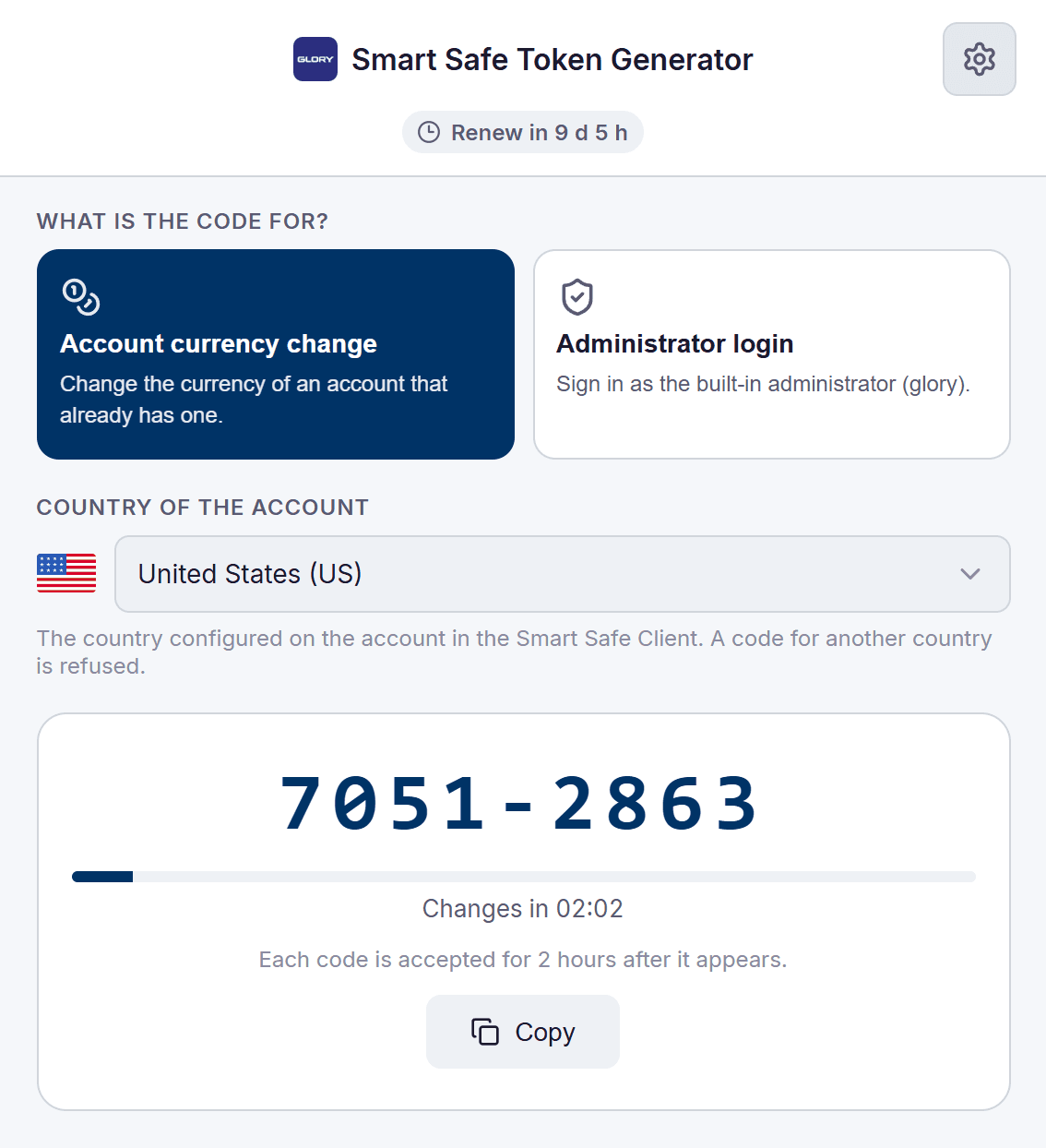
Each code is accepted for 2 hours after it appears. It changes every 30 minutes (Changes in …). The Smart Safe Client checks it against its own clock, without internet, so the date, the time and the time zone of both devices must be right: see The clock and the time zone
| Problem | What to do |
|---|---|
glory with the code gets Invalid username or password | Check that What is the code for? says Administrator login, that the username is glory in lowercase, and type the code shown now. If a code that has just appeared is refused, check the clocks, as The clock and the time zone explains. See glory cannot sign in |
| Invalid authorisation code. (changing an account's currency) | Check that the purpose is Account currency change and that Country of the account is the country the account has now: the line under Authorisation code names it. A code for another country is refused. |
| Authorisation code expired. Generate a new one in the Smart Safe Token Generator. | The code is more than 2 hours old: type the one shown now. If it has just appeared, the Smart Safe Client computer's clock is ahead: see The clock and the time zone |
| Currency change locked for … min after incorrect codes. Wait and try again. | Three wrong codes in a row lock that account's currency change for 15 minutes. Wait, and check the purpose and the country before you try again. |
| The code is typed right, but always refused | Compare the two clocks: This device's time, under the code in the Token Generator, and the date, time and time zone of the Smart Safe Client computer. See The clock and the time zone |
| Select the country to see the code. | Choose the Country of the account. The Token Generator remembers the last one. |
| The code could not be generated. | Close the Token Generator and open it again. If it continues, open a ticket with a photo of the message: Support |
The clock and the time zone
The Token Generator and the Smart Safe Client work the code out from world time (UTC). That is why it is valid in any time zone: a code generated in Brazil works on a safe in Chile, with nothing to adjust.
What has to be right is each device's clock: the date, the time and the time zone. A computer with the wrong time zone and the time set by hand, to look right, is in fact hours ahead or behind.
If the Smart Safe Client computer's clock is more than 2 hours ahead, or more than 30 minutes behind, the Token Generator's, it refuses even a code that has just appeared. And the screen does not say it is the clock:
- Signing in with
glory, it says Invalid username or password, as for a wrong password. That is on purpose: the sign-in screen does not say why it refused. - Changing an account's currency, it says Authorisation code expired when the computer's clock is ahead, and Invalid authorisation code. when it is behind.
To compare the two clocks, the Token Generator shows, under the code, This device's time with its time zone, for example 10:42 (UTC-03:00). Correct the device that is wrong: on a phone, turn on the automatic date and time; on a computer, follow System time manipulation detected
On a phone
| Problem | What to do |
|---|---|
| Android does not let you install the app | Allow Install unknown apps for the browser you downloaded it with, then open the file again. It needs Android 7 or later. See Install the app |
| The phone has no internet | The codes work without internet. Only activating and renewing need it. |
| The codes are refused | Turn on the automatic date and time in the phone's settings, then see A code refused by the Smart Safe Client |
| You want to install a new version | Open the gear and, under Version, tap Download version …. Install the file over the app you have: do not uninstall it first. On Windows and macOS, tap Install version …. |
| You changed phones, uninstalled the app or cleared its data | The app comes back as a new phone, one of your 3. If the 3 are used, see the device limit in Activating |
| Someone asks for your key | Do not give it. NEVER share your key. It is unique and valid only for you. |
On a Mac
| Problem | What to do |
|---|---|
| The Mac does not open the Token Generator and warns that it could not verify it | Allow it once: Apple menu › System Settings › Privacy & Security › Open Anyway. The steps are in Install the app |
| Open Anyway does not appear | It appears for about an hour after the warning. Open the Token Generator again, then go back to Privacy & Security. |
| The Mac has an Intel processor | The Token Generator for macOS only works on a Mac with an Apple chip (M1 or later). Use it on a phone or on a Windows computer. |
Not solved?
Open a ticket with a photo of the Token Generator's screen. For a code the Smart Safe Client refuses, attach its logs too, from the day before the problem until today. More about the logs: Which logs to send, and which days