
Signing in, users and accounts
The glory user, a password that is refused, locked or expired, signing out by itself, the accounts and their currency, and what a profile does not show.
This page covers signing in to the Smart Safe Client, the users, their profiles and the accounts. First check the basics: the username is typed exactly as it was created, because uppercase and lowercase letters are different, and the password is the one of that user. The glory user has no password: it signs in with the code of the Token Generator
glory cannot sign in
The glory user cannot sign in and the screen says Invalid username or password. Use the current Administrator login code from the Token Generator, and check the date and time on the Token Generator and on the computer:
In Username, type glory in lowercase.
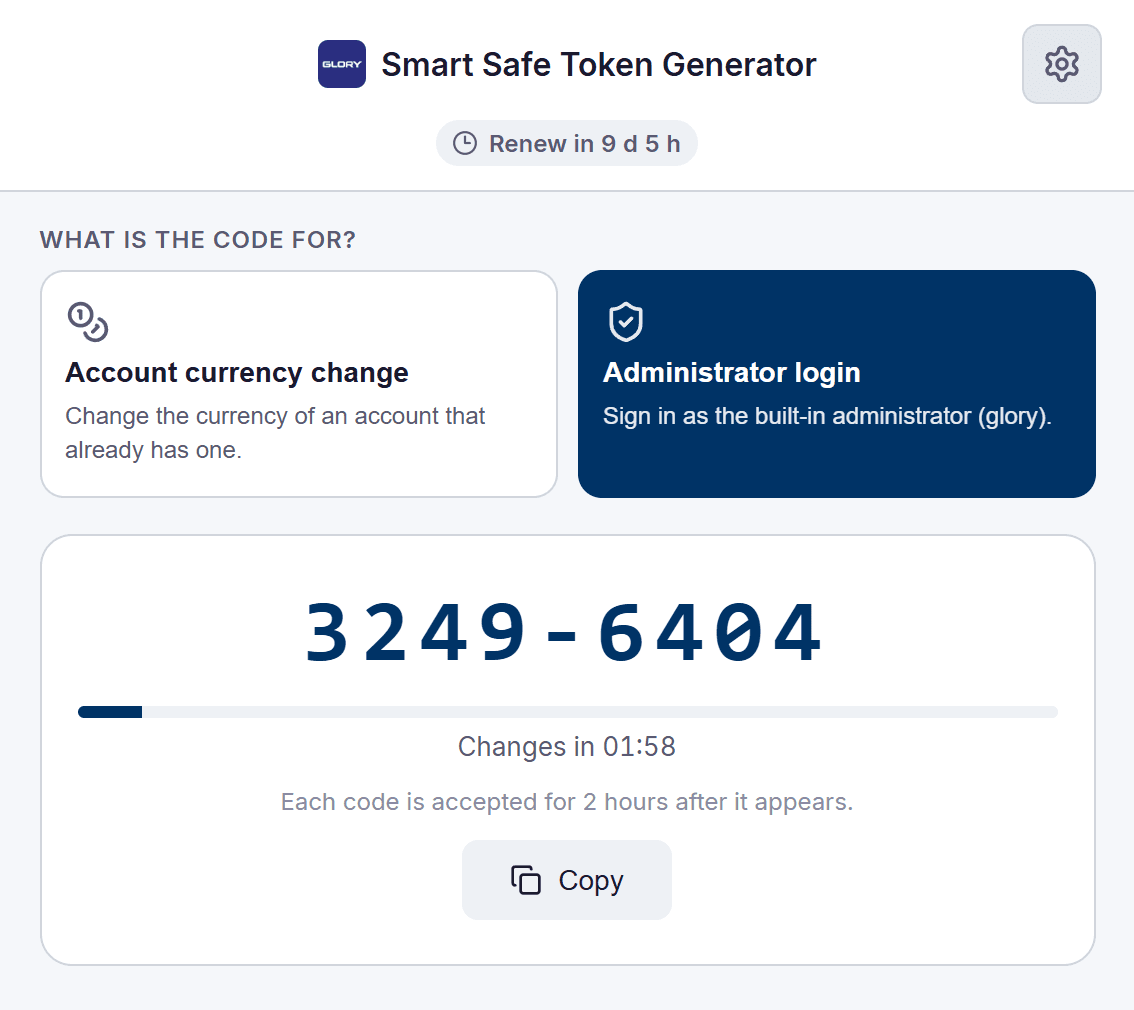
In the Token Generator, choose Administrator login in What is the code for?. A code for Account currency change does not open the session.
In Password, type the code the Token Generator shows now, with or without the hyphen, and tap Sign In. Each code is accepted for 2 hours after it appears; Changes in shows when the next one appears.
Still refused? The clock of one of the two devices is wrong: the phone or computer with the Token Generator, or the Smart Safe Client computer. Compare them with This device's time, under the code, and turn on the automatic time on both. The sign-in screen does not say it is the clock: see The clock and the time zone
glory is never locked after wrong codes: you can try again right away.
| Problem | What to do |
|---|---|
| The Token Generator shows no code, only the Requester Key field | Its activation is over or was never done. Renew it with your key: see Renewing |
| This user signs in with a code and has no password to change. | glory has no password to change. Always sign in with the Administrator login code. |
glory signs in, but the home screen shows no device | With accounts, glory signs in without an account only to configure. See Accounts |
A user cannot sign in
| The login screen says | What to do |
|---|---|
| Please fill in username and password | Fill in both fields and tap Sign In. |
| Invalid username or password | Type the username exactly as it was created, with the same uppercase and lowercase letters. Then type the password again, slowly. After several wrong passwords the user may be locked (next row). If the person forgot the password, see A forgotten password |
| Too many failed attempts. Try again after … | The password policy locked the user after too many wrong passwords in a row. Wait: the lock lifts on its own after the minutes the policy says (15 if it says nothing). Nobody can lift it sooner, and a new password set in Settings › Users does not lift it either. Then sign in with the right password. |
| User account is deactivated | Someone with the Users permission opens Settings › Users and taps Activate next to the user. If the safe uses accounts, they also check the user's Accounts. |
| This password has passed the … days allowed. Set a new one to continue. | The password expired. Tap Set a new password, as Set a new password explains. |
| This password does not meet the password policy in force. Set a new one to continue. | The password is right, but the rules changed after it was chosen. Tap Set a new password, as Set a new password explains. |
| This username is not accepted by the Cash Infinity (letters without accents, digits and _, up to 10). Ask an administrator to rename the account. | With a Cash Infinity added, each username must be one the machine accepts. Someone with the Users permission changes the user's Username (login) in Settings › Users: up to 10 characters, letters without accents, digits and _. See Users |
| This user has no account assigned. Ask an administrator to assign one. | The user is in no active account. See This user has no account assigned |
| Error signing in | Tap Sign In again. If it continues, restart the computer. If it still continues, open a ticket with a photo of the screen: Support |
| System Configuration Required (“This application requires a security service that is not running on your system…”) | The computer's security service, where the Smart Safe Client keeps its key, is not running. Restart the computer. If the message comes back, open a ticket with a photo of it: Support |
| The Smart Safe Client opens on Activate your Smart Safe instead of the login screen | The license is missing or no longer valid. See License and activation |
Set a new password
When the login screen offers Set a new password, the person chooses a new password without anybody's help: they type their Username, the Current password (the one just refused) and the New password twice. The list below the fields shows the rules of their profile, ticked one by one. They tap Save the new password, and the login screen says Password changed. Sign in with the new one.
| The screen says | What to do |
|---|---|
| Fill in every field. | Fill in the username, the current password and the new one twice. |
| Invalid username or current password. | Type the current password again: it is the one that was refused at the login screen. As there, too many wrong passwords lock the user. |
| The confirmation does not match the new password. | Type the same new password in New password and in Confirm the new password. |
| The new password must be different from the current one. | Choose a password the person has not been using. |
| The new password does not follow the rules below. | Look at the list under the fields and change the password until every rule is ticked. |
| This user signs in with a code and has no password to change. | That is glory: sign in with the Token Generator code (see glory cannot sign in) |
Back to the login returns to the login screen without changing anything.
A forgotten password
Nobody can read a password, not even an administrator: a new one is set instead.
Someone with the Users permission (in a new installation, the Administrator and the Manager) opens Settings › Users and taps the pencil next to the user.
They type the new password in New Password (leave empty to keep), check that every rule in the list below is ticked, and tap Save.
The person signs in with it. If the login screen asks for a new password, they tap Set a new password and type the one they received as the current password. Later they can change it in Settings › My password, if their profile has the My password (change their own) permission.
| Problem | What to do |
|---|---|
| The user has the Administrator profile, and the pencil does not appear | Only an administrator can change an administrator. Sign in with another administrator, or with glory and the Token Generator code. |
| The user is locked (Too many failed attempts…) | A new password does not lift the lock. Wait until the time passes. |
It is glory | glory has no password: it signs in with the Administrator login code of the Token Generator. |
| Nobody who can change passwords can sign in | Sign in with the user glory and the Token Generator code. Without a Token Generator, see Token Generator |
| Settings › My password says The current password is not right. | Type the current password again. If the person forgot it, follow the steps above. |
Signing out by itself
| What happens | What to do |
|---|---|
| After each operation, the Smart Safe Client goes back to the login screen | Log out after each operation is on (it comes on): each person signs in with their own user. Leave it on. To change it, see Operations |
| It goes back to the login screen after some time without use, and before that a small ring with the time left appears at the top | Auto-logout on Inactivity is on in Settings › General: after 20 seconds to 5 minutes without anyone touching the screen, the mouse or the keyboard, it logs out. The time never runs out during an operation. To change it, see Auto-logout on Inactivity |
| Please log out before closing the application. | The Smart Safe Client closes only from the login screen. Tap Logout first. |
| Logout does nothing, and A critical operation is in progress — you can't switch screens right now. appears | A device is working. Finish or cancel the operation on its own screen first. |
| Some changes will only take full effect after re-login. | You changed your own user. Tap Logout and sign in again. |
| The Smart Safe Client restarted by itself and shows the login screen | It may have installed an update. See Updates |
Accounts
Accounts are used when several establishments share the same safe. How they work is in Accounts
This user has no account assigned
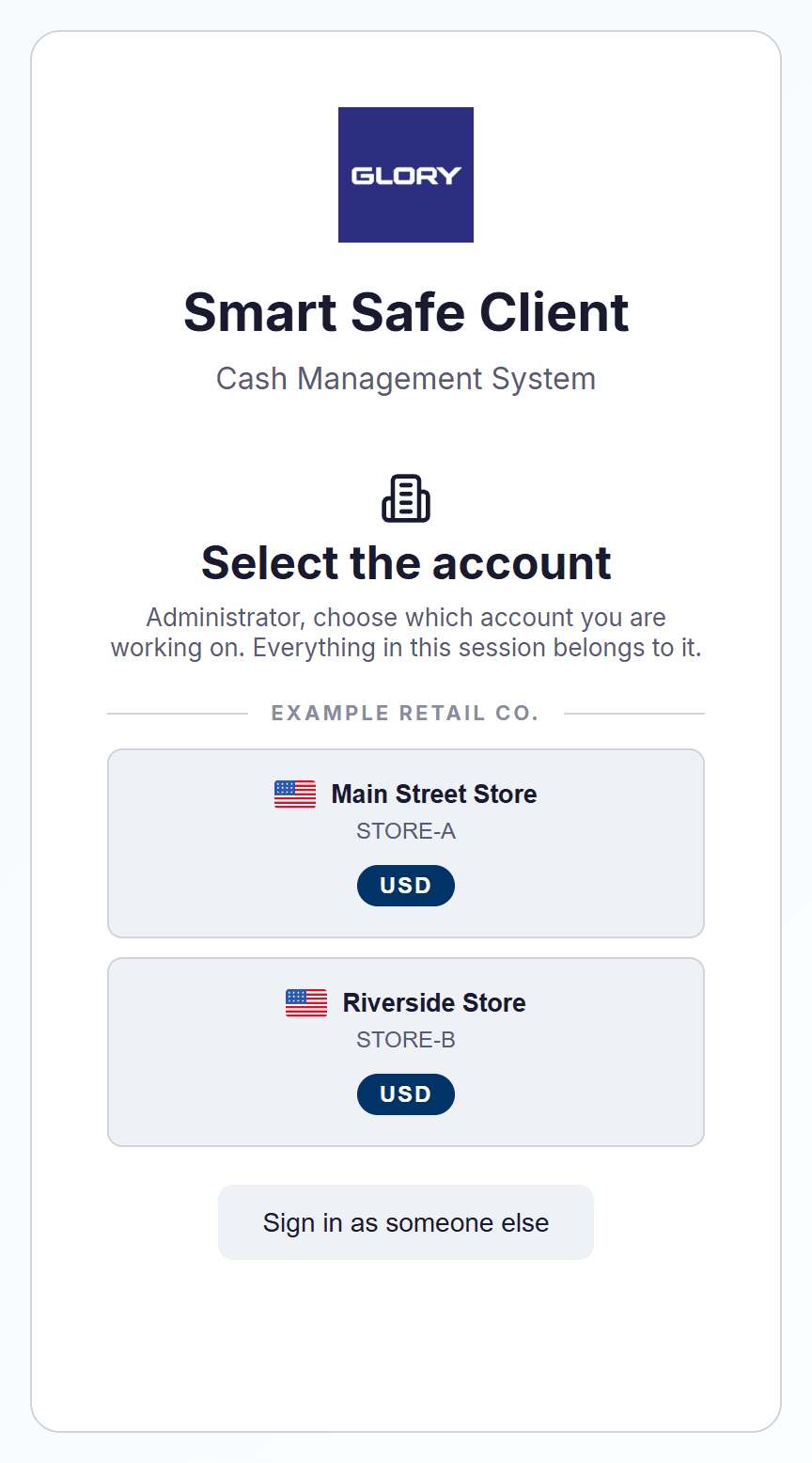
This user has no account assigned. Ask an administrator to assign one. means the safe uses accounts and this user is in none of the active ones. Add the user to an active account: someone with the Accounts permission does it in Settings › Accounts (the account's Users) or in Settings › Users (the user's Accounts). Then the person signs in again.
If nobody can sign in, sign in with the user glory and the Token Generator code: glory can always sign in, to fix this. See Accounts
| Problem | What to do |
|---|---|
| Select the account does not show an account | It shows only the active accounts that have this user in Users. Open the account in Settings › Accounts, check Active and add the user in Users. The change counts from the next sign-in. |
| Select the account appeared, but the wrong person signed in | Tap Sign in as someone else. |
| A user is missing from the account's Users list | That list shows only active users. Activate the user first in Settings › Users. |
glory signs in, but sees no device | With accounts, glory signs in without an account only to configure. To operate with it, add it to an account. |
| No device for this account | See A user does not see a device, a screen or a button |
| This is the first active account, and you are not in it. … | Add yourself in the account's Users and save again. |
| Another account already uses this code. or Another account already uses this name. | Choose another Code or Name. |
| Select the account's country. | Choose the account's Country: it is required. |
| No country — edit the account (in the list of accounts) | Open the account and choose its Country. |
| Currency not available for this account | The device does not have the account's currency. Enable it on the device in Settings › Devices, or use another device. |
| Some accounts will not reach the right contract | Two accounts have the same Code in the external system, or an account's code is not the contract of any integration. Fix the code: see The account and the integrations |
The time next to the account shows in amber
At the top of the screen, next to the account, the time zone of its country appears, for example UTC-05:00. In amber it means: This computer's clock is not in the time zone of the account's country. Adjust the operating system's time zone. The computer's time zone does not match the account's country. The operations are recorded with the computer's time, so correct the computer's time zone:
Open a terminal and run this command, with the time zone of the account's country in place of America/Panama (see timedatectl)
sudo timedatectl set-timezone America/PanamaWhen you save an account, the same check asks Different time zone before saving: the account's transactions would be recorded with the computer's time. Cancel, correct the computer's time zone and save again, unless the account's Country is the one that is wrong. See Country and time
Change an account's currency
Changing a currency the account already has needs a code from the Token Generator. The steps are in Change an account's currency
| The screen says | What to do |
|---|---|
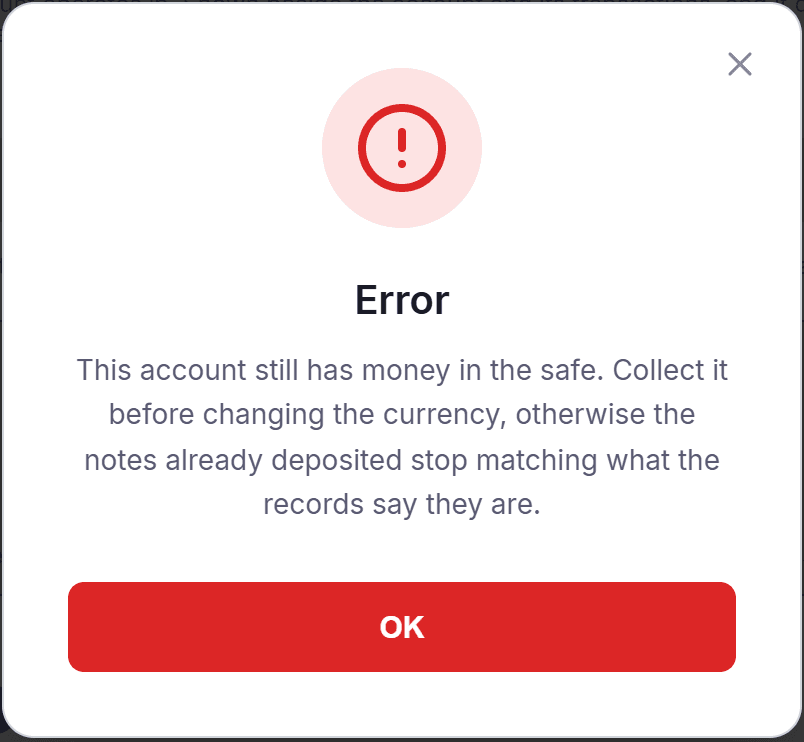
| This account still has money in the safe. Collect it before changing the currency… | Do the Collection first. The change is allowed once a collection was done after the account's last deposit. |
| Save stays gray, and Enter the 8 digits of the code to enable Save. The code is only checked when you save. appears | Type all 8 digits of the code in Authorisation code. |
| Invalid authorisation code. | In the Token Generator, choose Account currency change and, in Country of the account, the country the account has now: the line under Authorisation code names it. Type the code shown now, and check the date and time of both devices. If you are also changing the Country in the same save, the code is the one for the country the account had before. |
| Authorisation code expired. Generate a new one in the Smart Safe Token Generator. | The code is more than 2 hours old. Type the one the Token Generator shows now. |
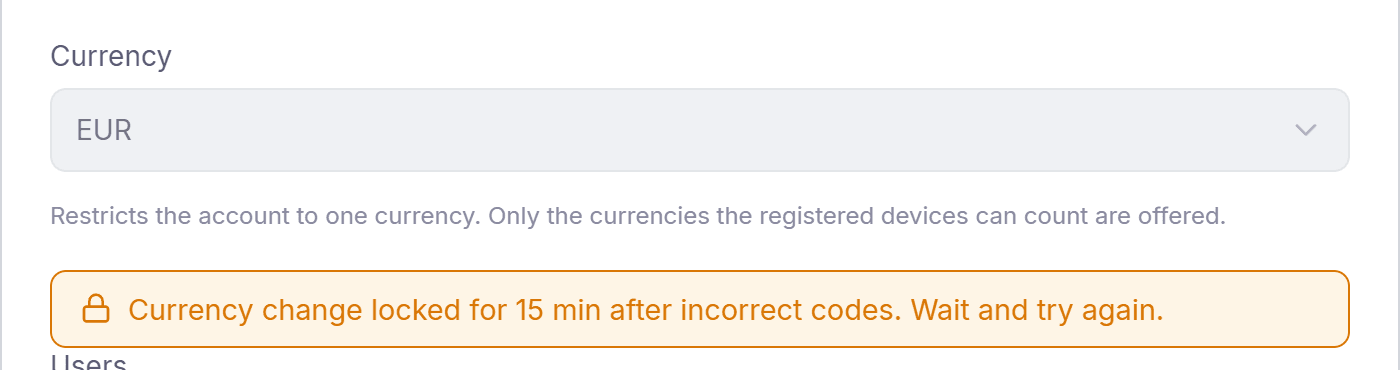
| Currency change locked for … min after incorrect codes. Wait and try again. | Three wrong codes in a row lock the currency change of that account for 15 minutes. Closing the Smart Safe Client does not lift it. Wait, and check the purpose and the country in the Token Generator before you try again. |
| Enter the authorisation code to change the currency. | Type the code from the Token Generator in Authorisation code. |
Deactivate or delete an account
| Problem | What to do |
|---|---|
| This account still has money in the safe. Collect it before deactivating the account — once deactivated, nobody can collect for it. | Do the Collection first, then uncheck Active and save. |
| This account has recorded transactions and cannot be deleted. Deactivate it instead. | Open the account, uncheck Active and save. |
| After an account was deactivated, some users cannot sign in | They were only in that account. Add them to another active account. If every account is deactivated, the Smart Safe Client works without accounts again. |
A user does not see a device, a screen or a button
What a profile does not allow does not appear on the screen. Profiles are changed in Settings › Profiles by someone with the Profiles permission (in a new installation, only the Administrator). A change counts from the person's next sign-in. See Profiles and permissions
| Problem | What to do |
|---|---|
| An operation button is missing on the home screen (for example, Collection) | Give the profile that operation's permission, in Operation Pages: for example, the Collection permission. |
| A tab of the Settings screen is missing | Give the profile the tab's permission, in Settings Tabs: for example, the Users permission for Settings › Users. |
| A report is missing | Give the profile the report's permission, in Report Types: for example, the Transactions permission. |
| The reports show only the person's own operations | Give the profile the See every user's transactions permission, in Report Scope. |
| There is no way to print a receipt again | Give the profile the Reprint receipt permission, in Report Scope. |
| The Occupancy bars do not appear on the home screen | Only profiles with the Transactions permission, in Settings Tabs, see them. |
| Only the account of the session appears in the settings and the reports | The See and administer every account permission, in Account Scope, shows every account. The Accounts permission shows Settings › Accounts. |
| No device for this account (“This safe has devices registered, but none of them belongs to the account you are working in…”) | It has two causes, and the message is the same for both, even in a safe without accounts. Check both: the device is ticked in the profile's Device Access, and, with accounts, the device is in the Devices of the account you signed in to. |
| No Devices Registered | No device was added yet. Someone with the Devices permission adds it in Settings › Devices (see Devices) |
| A user does not appear in Settings › Users | With accounts, the list shows only the users of the account you signed in to, unless your profile has the See and administer every account permission. glory appears only to itself. Also clear the filter box at the top of the list. |
| On the Cash Infinity, a way to withdraw, replenish or collect is missing | The profile's Withdraw, Replenishment and Collection groups decide which ways appear: for example, the Withdraw by denomination permission. |
Messages on the Users, Profiles and Password policies screens
| The screen says | What to do |
|---|---|
| Username '…' already exists | Another user already has that username. Here uppercase and lowercase count as the same: choose another. |
| With a Cash Infinity registered, the username must be letters without accents, digits and _, up to 10 characters. | Change the Username (login): up to 10 characters, letters without accents, digits and _. |
| A rule in the list under Password is not ticked | The password must follow every rule of the profile's policy. Change it until every rule is ticked. See Password policies |
| Save stays gray in the user window | Fill in Display Name, Username (login) and, for a new user, Password. With accounts, choose at least one in Accounts. |
| Only administrator users can assign the Admin profile to other users. | Only an administrator gives the Administrator profile. Sign in with an administrator or with glory. |
| This safe uses accounts, and your profile cannot assign them. … | Ask someone with the Accounts permission to add the new user to an account before the user's first shift: without an account, the user cannot sign in. |
| Cannot delete the last administrator | Create or activate another user with the Administrator profile first. |
| This user can't be deleted because they have transactions in the history. Their operation records must be preserved. | Tap Deactivate instead: the user can no longer sign in, and their operations stay in the reports. |
| The Deactivate and trash buttons do not appear for a user | Nobody can deactivate or delete their own user, and only an administrator can change a user with the Administrator profile. Ask another administrator. |
| This profile has users assigned and cannot be deleted | Move its users to another profile first. |
| System profiles cannot be deleted | The five built-in profiles always stay. Change their permissions instead (all of them except the Administrator's). |
| This profile is locked and cannot be edited | The Administrator profile cannot be changed. Create another profile if you need different permissions. |
| Profile '…' already exists | Choose another name. |
| The Cash Infinity password policy cannot be changed | It comes from the Cash Infinity and applies to every profile while one is added. To require more, change the profile's own policy: both apply together. |
| Give the policy a name. | Type a Name for the policy. |
Not solved?
Open a ticket with a photo of the screen and, if there was an operation, its reference. Attach the logs that come checked in Settings › Support, plus the Database Logs when a user, a profile or an account does not save, from the day before the problem until today. More about the logs: Which logs to send, and which days
License and activation
The activation screen, a license request that does not move, a license that stops being valid, the renewal and every other license message.
Network and internet
What Settings › Network shows, no internet, GLORY's server not answering, Wi-Fi, a network that blocks the way out, DNS, a fixed address, and what works without internet.