
Updates
An update that does not appear, does not download or does not install, and what to do if the Smart Safe Client does not open after one.
The Smart Safe Client looks for new versions by itself, downloads them in the background and installs them at the login screen, as Updates explains. For that it needs internet and GLORY's server. First check that Settings › Network says Healthy next to API Server (see Network and internet)
The update does not appear
The Smart Safe Client looks for a new version when it opens, and then every 3 hours. To look right now, open Settings › Version and tap Check for Updates.
| What you see | What to do |
|---|---|
| Settings › Version says You are up to date | There is no newer version. Nothing to do. |
| It says Update available: v… | The download starts by itself. To start it right away, tap Update Now. |
| The login screen says Could not check for updates: update server not configured. | GLORY's server address is missing. Configure it in Settings › Network: see API Server |
| Settings › Version says Update server not configured. Set the API URL in the Network tab to enable update checks. | The same: configure the address in Settings › Network. |
| Could not connect to the update server. Check your network connection or verify the API URL in the Network tab. | Look at the status in Settings › Network: it must say Healthy. If it does not, see Network and internet |
| The update server must use a secure connection (https). The configured API URL uses http. Correct the URL on the Network tab. | In Settings › Network, tap Configure API and type the address with https://: https://api.smartsafe2.com |
| Update failed with Could not check for updates, after Check for Updates | The Smart Safe Client did not reach GLORY's server. Check the internet in Settings › Network and tap Check for Updates again. |
| The update sign says Could not check for updates; it will be tried again, or a window says Update failed and Could not check for updates. The application will try again automatically. | It tries again by itself. Check the internet in Settings › Network. |
| The release notes could not be loaded. The update check itself worked — only the notes are missing. | Nothing is wrong with the update: only the text about what changed did not arrive. You can read it in the release notes |
The download does not finish
While a version downloads, a ring that fills up appears: at the bottom left of the login screen, and at the top once someone signs in. Tap it to see the percentage and the megabytes. Keep working: the download does not stop any operation.
| What you see | What to do |
|---|---|
| The ring fills slowly | On a slow connection the download can take a long time. Keep working: the update installs later, at the login screen. |
| Tapping the ring during an operation shows An update is being downloaded in the background. It will not interrupt this operation. | That is normal. Finish the operation, then tap the ring to see the details. |
| Version …: the download was interrupted and will be retried | The connection dropped. It tries again by itself: after 30 seconds, then waiting longer each time, up to every 30 minutes. An interrupted download starts again from the beginning. Check the internet. If it keeps happening, open a ticket with the English text that appears after the dash: Support |
| The computer was turned off during the download | A finished download stays saved and installs later. A download that did not finish starts again when the Smart Safe Client opens. |
| You want to stop the download | In Settings › Version, tap Cancel while it downloads. Nothing changes on the computer. The Smart Safe Client looks again at the next check, about 3 hours later, or when you tap Update Now. |
The update does not install
| What you see | What to do |
|---|---|
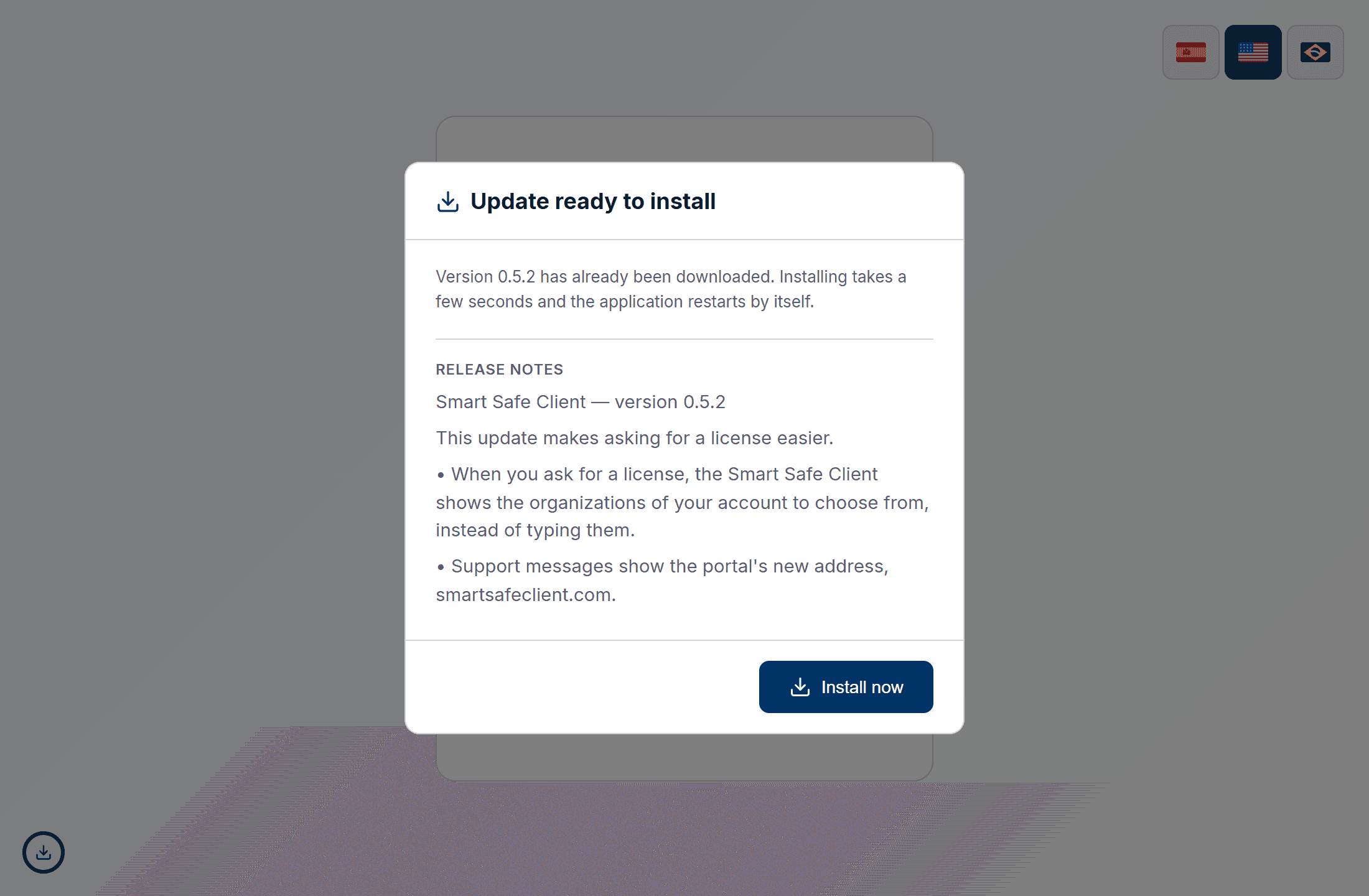
| Update ready to install on the login screen | Tap Install now. While GLORY's server answers, it cannot be postponed. The Smart Safe Client saves a copy of its data, installs the new version, and closes and opens again by itself in a few seconds. |
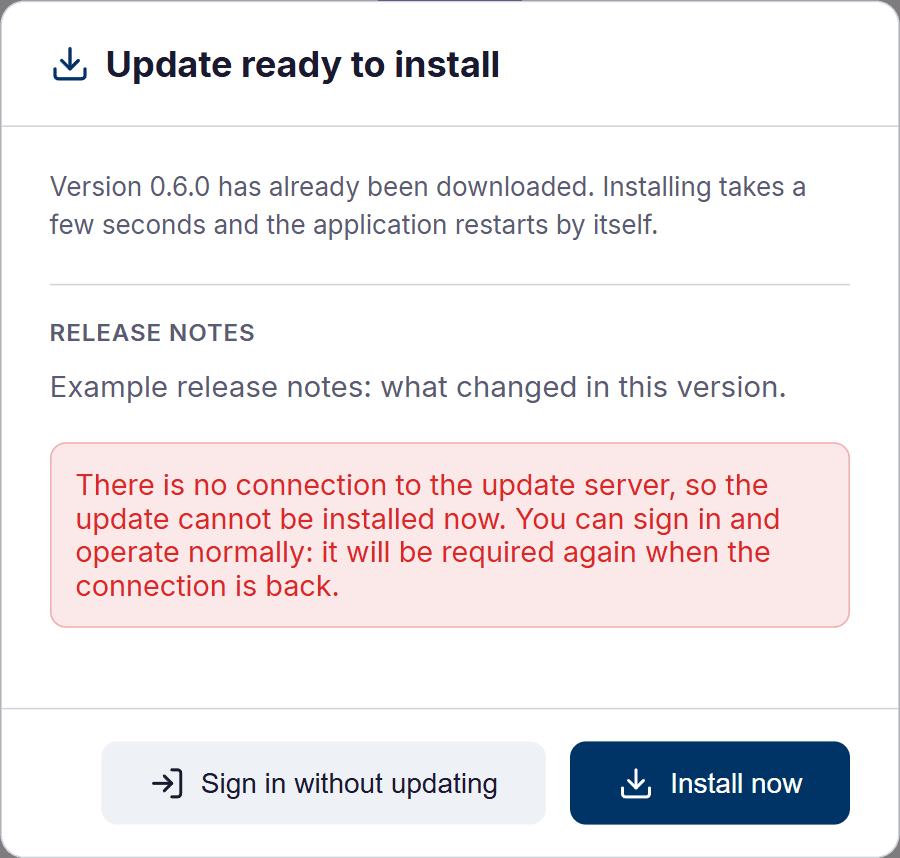
| There is no connection to the update server, so the update cannot be installed now…, with Sign in without updating | The computer lost its connection after the download. Tap Sign in without updating and operate normally: the downloaded update stays on the computer, and the window comes back at the login screen when the connection returns. Check the internet in Settings › Network (see Network and internet) |
| The ring says Version … is downloaded and ready to install while someone is signed in | It installs at the login screen after that person logs out. To install it now, open Settings › Version, tap Install now and confirm Update the application?. Do it when nobody needs the safe. |
| Cannot install the update: the folder … is not writable by … (on Linux) | The Smart Safe Client cannot replace its own file. Run the install command again, signed in as the user that runs the Smart Safe Client, as Install on Linux explains. The first thing it does is repair that folder: the line Install directory handed to '…' so in-app updates can replace the app. appears. Then go back to the Smart Safe Client and tap Install now again. If the command goes on to say Error: GLORY Smart Safe Client is currently running., that is expected. |
| Database backup failed, so the update was not installed: … | Nothing was changed: the Smart Safe Client keeps working with the current version. Open a ticket with a photo of the whole message: Support |
| Another message in English after Install now | Nothing was replaced: the current version keeps working, and the Install now button comes back. Try once more. If it fails again, open a ticket with a photo of the message and the time: Support |
| The Update ready to install window closed by itself after a failure | The downloaded update was gone: it downloads again by itself, and the window comes back when it is ready. Or GLORY's server no longer offers that version: nothing to do. |
Without a connection to the update server, the window looks like this:
The Smart Safe Client does not open after an update
Wait a minute. After installing, the Smart Safe Client closes and opens again by itself.
Restart the computer. With kiosk mode, the Smart Safe Client opens by itself when the computer starts.
On Linux, run the install command again, as Install on Linux explains. It checks what the Smart Safe Client needs on the computer and repairs its folder. If it says GLORY Smart Safe Client vX is already installed. Nothing to do., the new version is in place. Then restart the computer again.
If it still does not open, open a ticket with a photo of the screen, the time of the update and which computer it is: Support
Do not delete or reinstall anything by hand. Before each update, the Smart Safe Client keeps a copy of its data on the computer, and support may need it.
If the Smart Safe Client did not open even before the update, see Installation and the computer
Not solved?
Open a ticket with a photo of the screen and, if there was an operation, its reference. Attach the logs that come checked in Settings › Support, from the day before the problem until today. More about the logs: Which logs to send, and which days
Reports
An operation that does not show in the list, totals or currencies that look wrong, exporting and printing, the details window and reprints, and the statistics tabs.
Token Generator
Activating and renewing the Token Generator, the codes the Smart Safe Client refuses, and the app on a phone or a Mac.