
License and activation
The activation screen, a license request that does not move, a license that stops being valid, the renewal and every other license message.
Each computer has its own license, tied to its parts. When the license is missing or no longer valid, the Smart Safe Client opens on the Activate your Smart Safe screen instead of the login screen. Before anything else, check two things: that the computer has internet (most ways to activate need it) and that its date, time and time zone are right. How to ask for a license and activate it, step by step, is in 4. License
The activation screen
A red line at the top of the screen says why it opened.
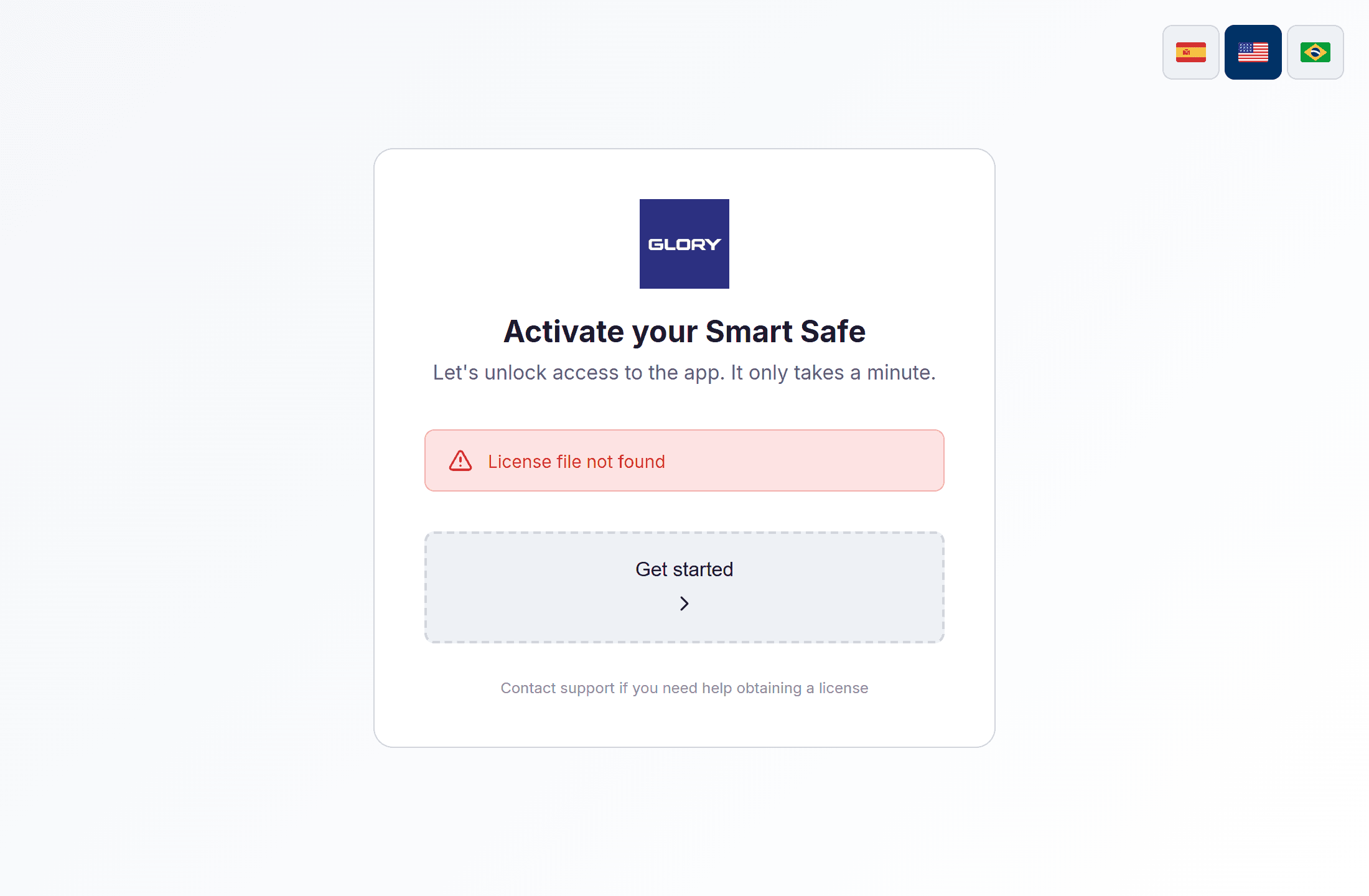
| The screen says | What to do |
|---|---|
| License file not found | This computer has no license. On a new installation this is normal: tap Get started and activate. If the computer already had a license (for example, the operating system was installed again), ask for a new one with Request a license. |
| License has expired | The license reached its end date. Ask for a new one with Request a license (see Renew before it expires) |
| License not valid for this device | The license belongs to another computer, or a part of this one was replaced. See License not valid for this device |
| Invalid license, License verification failed or License state file not found or corrupted | The license saved on the computer could not be read. Restart the computer. If the message comes back, activate the same license again with its Activation ID, as An activation code explains. If it still comes back, open a ticket with a photo of the screen and the Device code: Support |
| License Revoked, with “Your license has been revoked via purchase order. Reason: …” | GLORY withdrew this computer's license. Open a ticket with a photo of the message before asking for a new one: Support |
| Get started shows Checking license... and cannot be tapped | The Smart Safe Client is checking the license with GLORY's server. Wait a few seconds. |
The Network button, at the top right, shows whether the computer reaches GLORY's server (a green or an orange icon) and opens the computer's Wi-Fi and network cable: see A new installation without internet
In How would you like to activate?, choose by what you have:
| You have | Tap |
|---|---|
| Nothing yet, and the computer has internet | Request a license. You need your Requester Key. |
An activation code (XXXX-XXXX), and the computer has internet | I have an activation code |
A license file from the portal (its name ends in .lic) | I have a license file or key, then Activate from File |
Request a license
Request a license needs internet and your Requester Key: the personal key of your portal account (see Your Requester Key)
| Problem | What to do |
|---|---|
| Request a license is grayed out | The computer cannot reach GLORY's server. Tap Network (top right) to check the network cable or join a Wi-Fi network, as A new installation without internet explains. Without internet, ask for the license on the portal: see No internet on the computer |
| Request a license is not on the screen | This computer already has a request: License request pending approval shows above the options. See A request is waiting, refused or approved |
| Invalid key format. Use the format XXXX-XXXX. | Type the 8 letters and numbers of your key. The hyphen appears by itself. |
| Key not found. Please check and try again. | Check the letters and numbers. If you gave your key a new code, the old one no longer works: copy the current key from Requester keys |
| This key has been revoked. Contact your administrator. | Open Requester keys on the portal, tap New code and use the new code. |
| Could not connect to the server. Check your internet connection. | Check the internet and tap Validate Key again. |
| Too many attempts. Please wait a moment and try again. | Wait a few minutes before you try again. |
| Authentication failed. Contact your administrator., Server error. Please try again later. or Key validation failed. Please try again. | Try again in a few minutes. If it continues, open a ticket with a photo of the message: Support |
| Name is required or Name must be at least 2 characters | Type your name in Your Name. |
| The customer's company is not in Client Company, or a message says it is not available | See The customer's company is not on the list |
| Failed to submit request | Check the internet and tap Submit Request again. If it continues, open a ticket with a photo of the message: Support |
The customer's company is not on the list
Client Company lists your user's organizations on the portal, with the exact names GLORY has on record. Your user can only ask for licenses for them.
| Problem | What to do |
|---|---|
| It is not possible to request a license for '…': this organization is not available to your user, Your user has no organizations on the portal yet or Your user can only request licenses for its organizations: choose one | Your user can only request licenses for its own organizations. Open a ticket asking for the customer's company to be added to your user: Open a ticket |
| A field to type the company in appears instead of the list | Your Requester Key has no portal account yet. Type the company name exactly as it is registered at GLORY: for example, “Company X” may be registered as “Company X S.A.” With a portal account, the list appears instead (see Your Requester Key) |
| Organization '…' not found. Please check the spelling and try again., Organization '…' not found. No organizations are registered yet. or Ambiguous organization '…'. Did you mean: …? | The typed name is not the one GLORY has on record. Do not guess: open a ticket and ask how the company is registered before you send the request: Support |
A request is waiting, refused or approved
| What you see | What to do |
|---|---|
| License request pending approval | GLORY reviews the request, usually in 1 or 2 business days. The Smart Safe Client does not check by itself: it checks when it opens, or when you tap the ↻ button on the notice. If the approval e-mail (subject Your Smart Safe Client license is ready) has already arrived, tap ↻. You can also see the request's status on the portal: License requests |
| You tap ↻ and nothing changes | The request is still waiting, or the computer lost the internet. Check the internet and tap ↻ again later. |
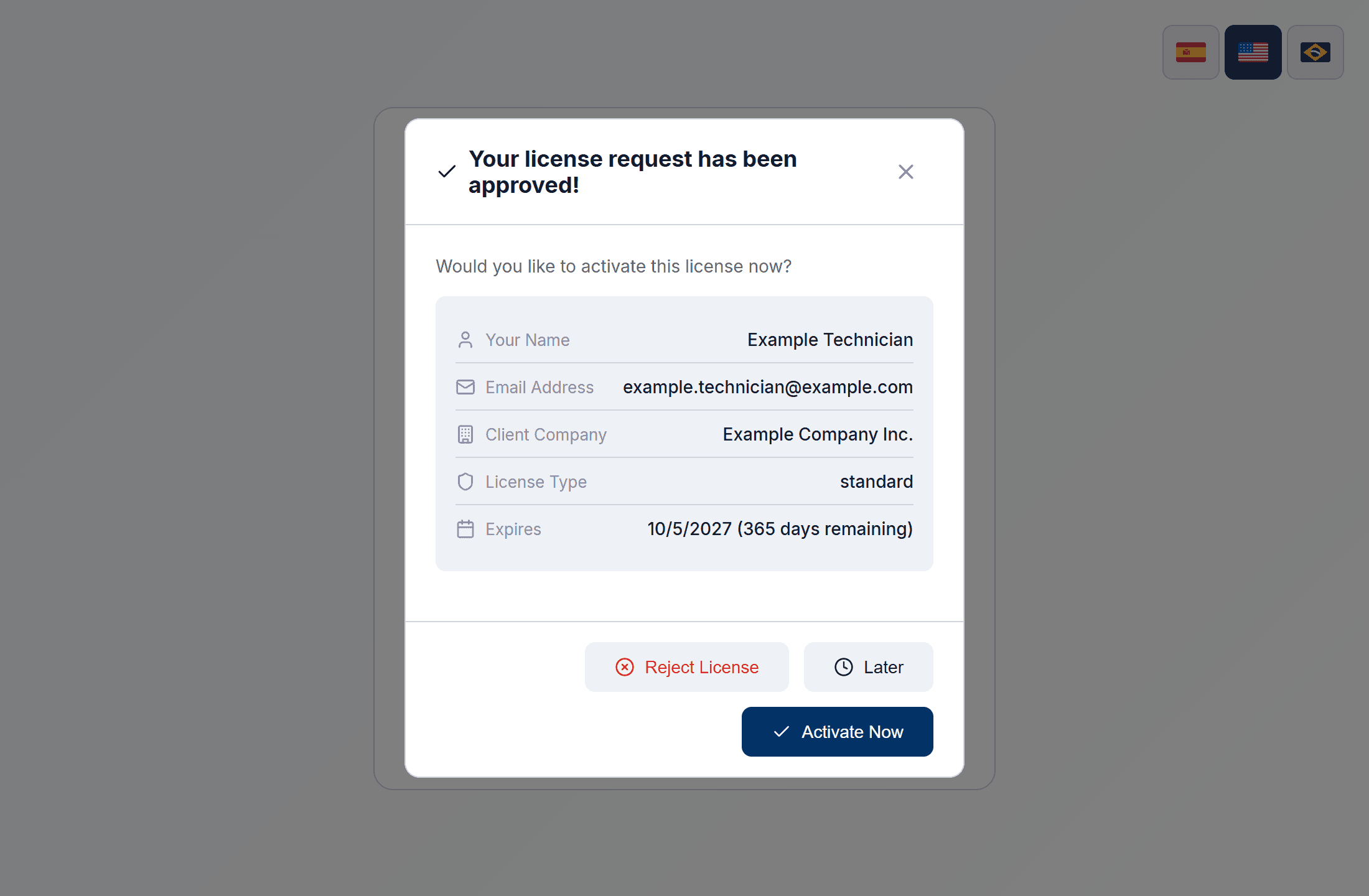
| License approved! Click to activate | Tap it, then Activate Now. Later closes the window and keeps the notice. |
| Your license request has been approved!, but the details are wrong (for example, another company) | Tap Reject License, write the reason and tap Confirm Rejection. Then ask again with the right details. On the portal, the request shows as Refused on the computer. |
| License Request Rejected, with Reason: … | GLORY refused the request, and the reason says why. Fix it and ask again: Request a license is back on the screen. If the reason is not clear, open a ticket |
| The request was sent with a mistake | Tap the notice, then Cancel Request. Write the reason, tap Confirm Cancellation and ask again. |
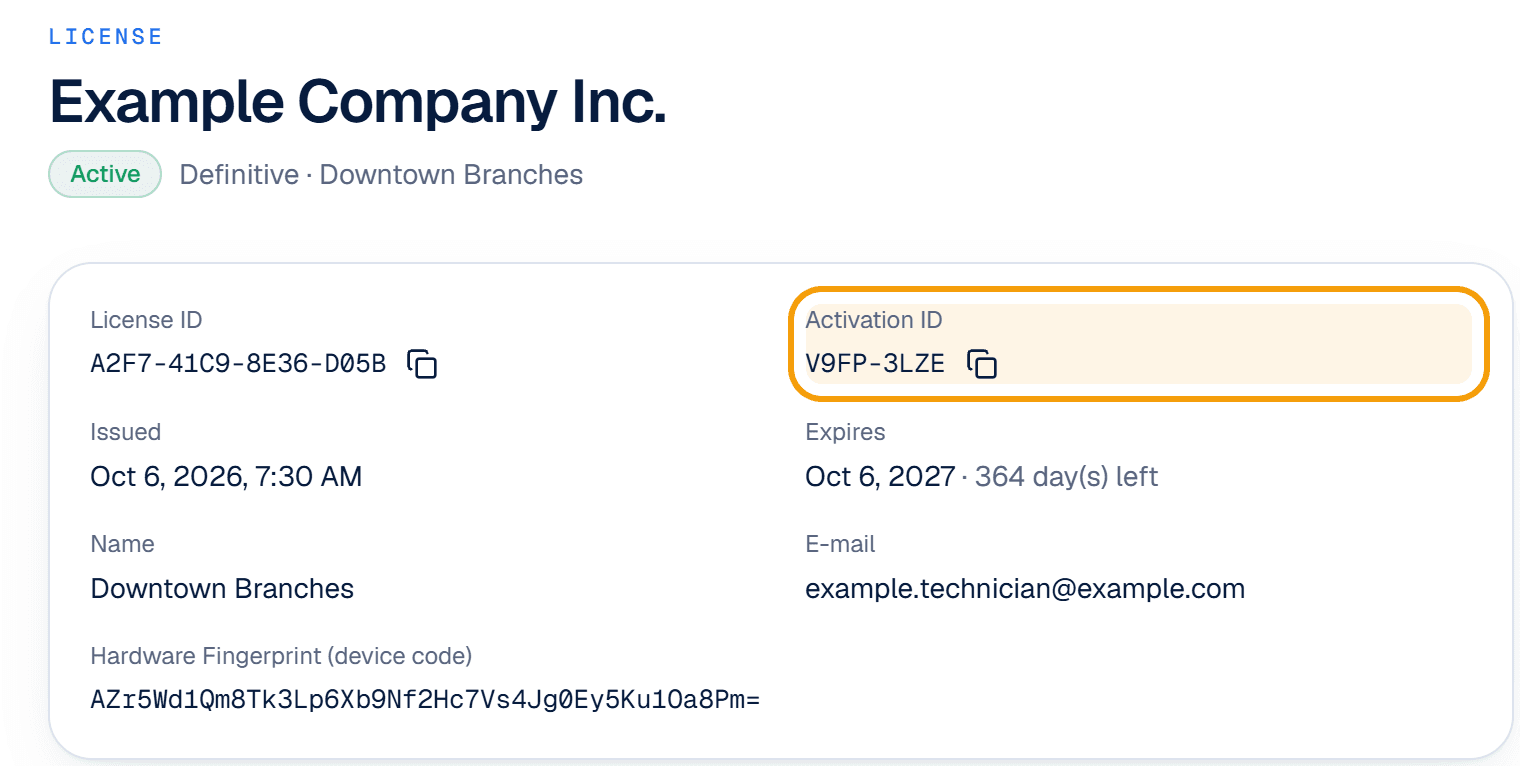
| The notice is gone, but the request was approved (on the portal or in the e-mail) | Activate with the license's Activation ID: it is in the approval e-mail and in Licenses on the portal. See An activation code |
An activation code
I have an activation code takes the license's Activation ID (format XXXX-XXXX). It is in the approval e-mail and on the portal, in Licenses
| Problem | What to do |
|---|---|
| The line under Activate via API says Disconnected | The computer has no internet. Check the cable or the Wi-Fi (see The status says Disconnected) |
| It says Unavailable | The computer has internet, but GLORY's server does not answer. Try again in a few minutes. If it continues, see The status says Unavailable |
| It says API not configured | Tap the gear next to Activate via API, type https://api.smartsafe2.com in API Server URL, tap Test Connection and save. |
| Activation ID not found. Please check and try again. | Check the 8 letters and numbers. Use the Activation ID: not the Full License ID shown in Settings › License, and not your Requester Key. |
| License not valid for this device, or This license has already been activated on another device | That license was made for another computer: each license works only on the computer whose Device code was used to ask for it. Use this computer's license, or ask for one with Request a license. |
| License has expired | That license already ended. Ask for a new one with Request a license. |
| This license has been revoked. Contact support. | That license was withdrawn. Open a ticket before you ask for a new one: Support |
| Could not connect to the license server. Check your internet connection. or Connection timed out. Please try again. | Check the internet and tap Activate License again. |
| License server error. Please try again later., License server is not ready. Please try again later. or Failed to activate license. Please try again. | Try again in a few minutes. If it continues, open a ticket with a photo of the message: Support |
No internet on the computer
Ask for the license on the portal, from another computer or a phone, and take it to the safe's computer in a file. The full steps are in Other ways to activate
On the activation screen, tap Copy next to the Device code and take it to a computer or phone with internet (for example, pasted into a text file on a USB drive). The whole code must get there: 44 letters, numbers and symbols.
On the portal, choose A computer without internet in Ask for a license
Fill in Name, choose the Client Company, paste the Device code and tap Send request.
When the request is approved, open it in License requests, tap Download license file and copy the file to a USB drive. Its name ends in .lic.
On the safe's computer, tap I have a license file or key, then Activate from File, and choose the file.
| Problem | What to do |
|---|---|
| This is not a device code: check that it was copied whole. (on the portal) | The code was cut, or something was added to it. Copy it again with Copy and paste it whole. |
| This computer already has a request waiting for approval. (on the portal) | A request for this computer is already waiting. Follow it in License requests |
| That organization is not available. (on the portal) | Choose the company from the list. If it is not there, see The customer's company is not on the list |
| License not valid for this device when you choose the file | The file is the license of another computer. Check that the request was made with this computer's Device code, and download the right file. |
| License has expired when you choose the file | That license already ended. Ask for a new one. |
| Invalid license file format, Invalid license signature or License activation failed | The file is not the license, or it was damaged on the way. Download it again with Download license file and copy it as it is, without opening it. |
| You cannot get into the portal | Licenses are requested only on the portal, never by e-mail. Without an account, ask for one as Your Requester Key explains; with an account that does not sign in, follow Signing in to the portal and, if it still does not work, send an e-mail with the e-mail address of your portal account to SouthAmericaPresalesSupport@br.glory-global.com |
Renew before it expires
The Settings › License screen shows when the license ends (Expires) and how many days are left. Only profiles with the License permission see this tab: in a new installation, only the Administrator. Sign in with the user glory.
| Problem | What to do |
|---|---|
| There is no Request License button | Under Request License Renewal, the button appears only when 30 days or fewer are left. Before that, the screen says Renewal requests are only available when less than 30 days remain (… days remaining). Come back when the button appears. |
| API server not configured or unavailable | The renewal request needs internet and GLORY's server. Check Settings › Network (see Network and internet) |
| You tapped Request License | It asks for the same things as the activation screen: your Requester Key, your name and the company. When the request is approved, License approved! Click to activate appears in the same place: tap it, then Activate Now. |
| The computer has no internet | Ask for the license on the portal, as No internet on the computer explains. Then, in Settings › License, tap Renew License and choose the .lic file. |
| An e-mail says the license expires in … days | It arrives 15 days before the end, and a reminder 7 days before, only while the license has not been renewed. Ask for the renewal on the Settings › License screen (Request License), or on the portal: open the license in Licenses and tap Ask for renewal |
| You asked on the portal (Ask for renewal) | When the request is approved, download the file on the page of the license (Download license file) and, on the Settings › License screen, tap Renew License and choose it. |
| The page of the license says It will be renewed automatically | The company has a purchase order that renews it. The Smart Safe Client gets the new license by itself when the computer has internet: when it opens and, in the last 30 days, every 12 hours. It installs it on the login screen, never with someone signed in. Nothing to do. |
| The page of the license says Renewal purchase order in progress | The purchase order that renews it is not active yet. To move it forward, open a ticket |
| The page of the license says Already renewed | The computer already has a newer license (See the new license). If the Smart Safe Client still shows the old date, download the file of the new license and activate it with Renew License. |
| You want to know which licenses are about to end | On the portal, open Licenses and tap the Expiring in 30 days tab. |
| The license expired | The next sign-in opens the activation screen with License has expired, and nobody can sign in until a new license is activated. Ask for it with Request a license, or with the file if the computer has no internet. |
License not valid for this device
The license is tied to the parts of the computer it was made for. License not valid for this device means that this computer no longer matches it:
- A part was replaced: the motherboard, the processor, the disk or a built-in network card. A new network card is enough to need a new license.
- The operating system was installed again.
- On a Raspberry Pi, it started from a different microSD card, even a copy of the same card.
- The license (its activation code or its file) belongs to another computer.
On Linux, plugging in or removing a USB network adapter does not change the license.
Ask for a new license for this computer with Request a license. If nothing was changed on the computer, open a ticket with the Device code and say what happened before the message appeared: Support
System time manipulation detected
System time manipulation detected. Please verify your system clock means that the computer's clock went back in time, more than 5 minutes behind the last time the Smart Safe Client saw it. For example, someone changed the date by hand, or the computer started with a wrong date. If it happens while you activate, the screen may say only License activation failed.
Correct the date, the time and the time zone, and turn on the automatic time.
Open a terminal and run date to see the date and time. Then run these two commands, which set the country's time zone and turn on the automatic time (see timedatectl)
sudo timedatectl set-timezone America/Panama
sudo timedatectl set-ntp true
Replace America/Panama with the time zone of the customer's country.
Restart the computer.
If the message comes back, do not change the date again. Open a ticket with a photo of the screen and the Device code: Support
Cloned image
Each copy of a cloned image asks for its own license as soon as it reaches GLORY's server: Processing license request file... appears, then License request pending approval. Without internet, the copy waits until it is connected with the Network button, as A new installation without internet explains.
If Auto License Request Failed appears instead, the reason is below it:
| The message says… | What to do |
|---|---|
| “Could not connect to the server…” | The request did not reach GLORY's server. The Smart Safe Client sends it again by itself as soon as the server answers, for about five minutes. If the message stays, tap Network, check the cable or the Wi-Fi and tap Check again: it tries again right away. |
| “Invalid license request file format…”, “Missing required field…” or “Invalid requester key format…” | The file in the image has an error. On this computer, ask for the license with Request a license. For the next copies, create the file again on the portal and prepare the image again. |
| “Organization … not found…” or “Ambiguous organization…” | The company name in the file is not the one GLORY has on record. On this computer, ask for the license with Request a license. For the next copies, create the file again on the portal, choosing the company from the list. |
| “Requester key in the file was not found…” or “…has been revoked…” | The key in the file was revoked or given a new code. On this computer, ask for the license with Request a license and your current key. For the next copies, create the file again on the portal. |
| “It is not possible to request a license for '…'…” | The company in the file is not available to the key's user. See The customer's company is not on the list |
More in If the request is not sent
Other screens that mention the license
| Message | What to do |
|---|---|
| Settings › License shows Status Expired, Invalid or No License | Restart the computer. If it stays, ask for a new license with Request License, or open a ticket with a photo of the tab: Support |
| There is no valid licence on this machine, so the integration service will not accept changes. (in Settings › Integrations) | Look at Status in Settings › License and follow the row above. |
| No active license found. Activate a license first. (in Import from API) | Look at Status in Settings › License and follow the row above. |
| The license does not have an associated organization. (in Import from API) | This computer's license was issued without the customer's company, so the server does not know which configuration to send. Use Import from File, or open a ticket |
Not solved?
Open a ticket with a photo of the activation screen or of Settings › License. If the Smart Safe Client opens, attach the logs that come checked in Settings › Support, from the day before the problem until today. More about the logs: Which logs to send, and which days
Installation and the computer
The install command that fails, the Smart Safe Client that does not open, kiosk mode, the screen, the keyboard, the date and time, the language, and how to ask for help.
Signing in, users and accounts
The glory user, a password that is refused, locked or expired, signing out by itself, the accounts and their currency, and what a profile does not show.