
Portal
Signing in to the portal, the invitation, the organizations, license requests, tickets and the Requester Key.
The portal is where you open tickets, ask for licenses and get your Requester Key: smartsafeclient.com/portal
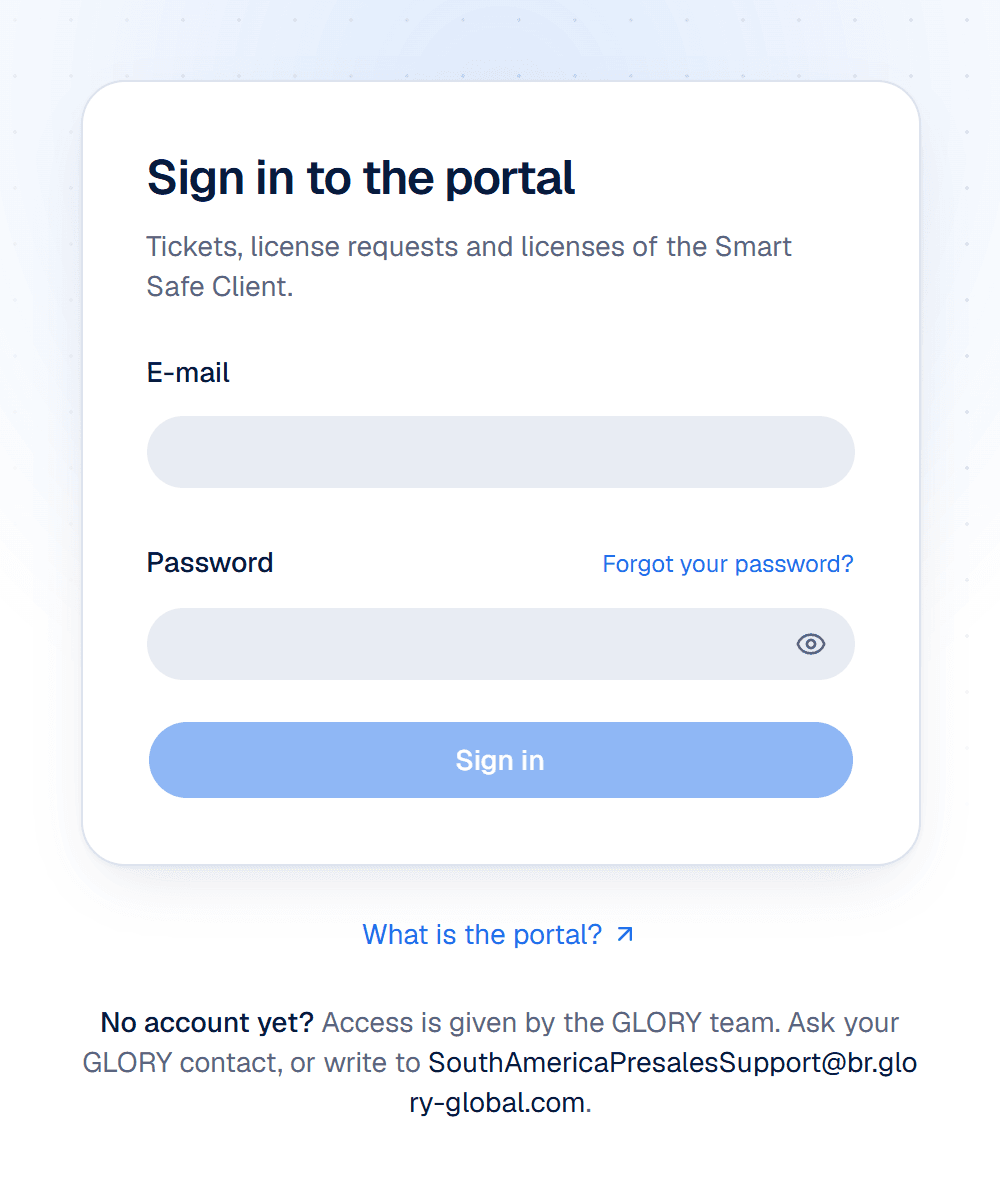
Signing in to the portal
| The portal says | What to do |
|---|---|
| Wrong e-mail or password. | Check the e-mail: it is the one the invitation arrived at. Type the password again: uppercase and lowercase letters are different. The same message appears while your password has not been created yet (the invitation was not used) and when the account was disabled. If you forgot the password, tap Forgot your password? |
| Too many attempts. Wait 15 minutes and try again. | Five wrong passwords in a row lock the account for 15 minutes. Wait, or set a new password with Forgot your password?: a new password unlocks the account. |
| Your session has ended. Sign in again. | Sign in again. |
| No connection to the portal. Check the internet and try again. | Check the internet of the computer or phone you are using. |
| The portal service is not answering. Try again in a few minutes. | Try again in a few minutes. |
| You have no account | Access is given by the GLORY team. Ask your GLORY contact, or write to SouthAmericaPresalesSupport@br.glory-global.com |
| None of the above works | Send an e-mail with the e-mail address of your portal account (the one the invitation arrived at) to SouthAmericaPresalesSupport@br.glory-global.com |
A forgotten password or a link that does not work
| Problem | What to do |
|---|---|
| You forgot your password | On the sign-in page, tap Forgot your password?, type your e-mail and tap Send link. Open the link in the e-mail (subject Password change — smartsafeclient.com portal): it is valid for 60 minutes. Type the new password twice and tap Save password. |
| The e-mail does not arrive | Look in the junk mail folder too. The page always says Check your e-mail, but the link goes only to an e-mail with an active account, and no more than 3 links an hour. If it never arrives, ask your GLORY contact to check your account. |
| This link is no longer valid | Each link works once and expires: invitations after 7 days, password changes after 60 minutes. Each new link also makes the previous one stop working, so use the most recent e-mail. Tap Ask for a new link, type your e-mail and use the link that arrives. |
| The password needs at least 10 characters., The password needs letters and numbers., The password cannot contain your e-mail name. or The password can have at most 128 characters. | Follow the rules shown under the field: at least 10 characters, with letters and numbers, and without your e-mail name (the part before the @). |
| The passwords are not the same. | Type the same password in New password and in Repeat the password. |
| You want to change your password while signed in | Open My account, type the current password and the new one twice, and tap Change password. If it says The current password is not correct., type the current one again. |
The invitation e-mail
The GLORY team creates your account, and the portal sends you an invitation e-mail (subject Your access to the smartsafeclient.com portal) with a link to create your password.
| Problem | What to do |
|---|---|
| The portal invitation e-mail did not arrive, or the link no longer works | Also check the junk mail folder. The link is valid for 7 days and can be used only once. If it did not arrive or has expired, ask your GLORY contact to resend the invitation: you get a new link (the previous one stops working), and the administrator can also copy it and send it to you another way. |
| The invitation expired and you cannot wait | On the sign-in page, tap Forgot your password? and type the e-mail the invitation was sent to. The link that arrives also creates your password, and it is valid for 60 minutes. |
| The invitation link opens This link is no longer valid | It was already used, it expired, or a newer link was sent after it. Use the most recent e-mail, or get a new link as in the row above. |
Your organizations
The portal shows the license requests, licenses and tickets of your user's organizations: the customers' companies you work for. Your user can only ask for licenses for them.
| Problem | What to do |
|---|---|
| The customer's company is missing: it is not in Client Company, or the Smart Safe Client says It is not possible to request a license for '…': this organization is not available to your user or Your user has no organizations on the portal yet | Open a ticket asking for the customer's company to be added to your user: Open a ticket |
| That organization is not available. | Choose the company from the list. If it is not there, ask for it to be added, as in the row above. |
| It does not exist, or it is not within your reach. | The page belongs to an organization that is not one of yours. If you should see it, ask in a ticket for that company to be added to your user. |
| You work for more than one company | Choose the Organization when you open a ticket |
Asking for a license on the portal
On the portal you ask for a license for A computer without internet, or make the file for Many computers (cloned image). The steps are in No internet on the computer and in Cloned image
| Problem | What to do |
|---|---|
| Send request stays gray | Fill in Name (2 characters or more), choose the Client Company and paste the whole Device code. |
| This is not a device code: check that it was copied whole. | The code was cut, or something was added to it. Copy it again with the Copy button on the activation screen, or in Settings › License (Hardware Fingerprint), and paste it whole: 44 letters, numbers and symbols. |
| This computer already has a request waiting for approval. | Do not ask again. Follow the request that is waiting in License requests |
| That organization is not available. | See Your organizations |
| Check the fields and try again. | Check each field and tap Send request again. |
| You need a Requester Key to make the file. (in Many computers (cloned image)) | Tap Create my key right there. |
| You want to know what happened to a request | Open it in License requests. Waiting: GLORY has not decided yet, usually 1 or 2 business days. Approved: tap Download license file. Rejected: the reason is shown; fix it and ask again. Refused on the computer or Cancelled: someone refused or cancelled it in the Smart Safe Client; ask again if you still need it. |
Opening a ticket
How to open a ticket follow it and send the logs is in Support
| Problem | What to do |
|---|---|
| Open ticket stays gray | Write a Title of at least 5 characters and a Description of at least 20. |
| This computer already has 3 open tickets. Resolve or close one first. | Each computer (its Hardware Fingerprint) can have up to 3 open tickets. Write in one of them, in Tickets instead of opening another, or ask support there to close the ones already solved. |
| The file is larger than 25 MB. | Send smaller files, for example fewer photos at a time. Send the logs from the Smart Safe Client itself, as Support explains. |
| Files of this type are not accepted. Send photos, PDF, text or ZIP. | Send the file as a photo, a PDF, a text file or a ZIP. |
| This ticket is closed. | A Closed or Rejected ticket accepts no more messages. If the problem continues, open a new ticket |
| You do not get the e-mails about the ticket | Look in the junk mail folder. The answers also appear on the portal and in Settings › Support of the Smart Safe Client. |
The Requester Key
The Requester Key (XXXX-XXXX) is personal: it asks for licenses in the Smart Safe Client and activates the Token Generator. It comes from your portal account, in Requester keys
| Problem | What to do |
|---|---|
| You have no Requester Key | Sign in to the portal and tap Create my key in Requester keys |
| You have no portal account | Ask for a portal account, not only for a key: the key is created from the account. How to ask: Your Requester Key |
| Your key is revoked (in Requester keys) | Tap New code and use the new code in the Smart Safe Client and in the Token Generator. |
| You gave your key a new code, or revoked it | The old code stops working at once. Type the new one wherever you use it. If you prepared a cloned image, its file carries the old key: make the file again on the portal, as Cloned image explains. |
Not solved?
Open a ticket with a photo of the portal's screen. If you cannot sign in to the portal, see Signing in to the portal